General
Home / Examples / Electromagnetic Analysis [Hertz] / Example 22: S-Parameter Analysis of Differential Lines
The characteristics of differential lines are analyzed.
S-parameters are solved for the differential mode or common mode.
Unless specified in the list below, the default conditions will be applied.
Results will vary depending on Femtet version and the PC environment.
Item |
Settings |
Analysis Space |
3D |
Model Unit |
mm |
Item |
Settings |
Solver |
Electromagnetic Analysis [Hertz] |
Analysis Type |
Harmonic Analysis |
Harmonic Analysis tab and Open Boundary tab are set as follows.
Tab |
Setting Item |
Settings |
Mesh Tab |
Frequency-Dependent Meshing |
Reference Frequency: 1x10⁹ [Hz] Select [The conductor bodies thicker than the skin depth constitute the boundary condition]. |
Harmonic Analysis |
Sweep Type |
Select [Linear Step by Division Number] |
Sweep Setting |
Minimum: 0.1×10⁹ [Hz] Maximum: 5x10⁹ [Hz] Division: 10 |
|
Sweep Setting |
Select Discrete Sweep |
|
Input |
1.0 [W] |
|
Open Boundary |
Type |
Absorbing Boundary |
Order of Absorbing Boundary |
1st-order |
* Fast sweep is avoided for higher accuracy. The number of frequencies is relatively low, so the calculation will not take long.
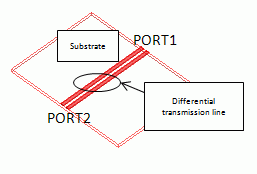
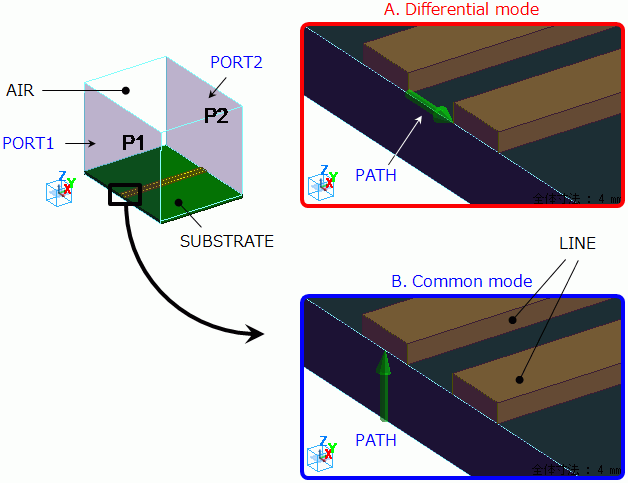
Two electrodes are created on a substrate. They function as differential lines.
They are surrounded by a rectangle air space.
Ports are set to both ends of air (AIR) and the substrate as shown below.
An integral path is set to a port.
The locations of the integral path are different between the differential mode analysis and the common mode analysis.
For the differential mode analysis, the integral path is set between two electrodes.
For the common mode analysis, it is set between one of the electrodes and the bottom of the substrate.
The bottom of the substrate contacts the electric wall outer boundary condition.
Body Number/Type |
Body Attribute Name |
Material Name |
0/Solid |
SUBSTRATE |
006_Glass_epoxy * |
1/Solid |
AIR |
000_Air(*) |
2/Solid |
LINE |
003_Ag * |
3/Solid |
LINE |
003_Ag * |
5/Sheet |
Imprinting body |
|
6/Sheet |
Imprinting body |
|
* Available from the material DB
Boundary condition settings are different between the differential mode analysis and the common mode analysis.
The different settings are shown in red as follows.
Boundary Condition Name/Topology |
Tab |
Boundary Condition Type |
Setting for Differential Mode Analysis |
Setting for Common Mode Analysis |
PORT1/Face |
Electric |
Port |
Integral Path: Set “PATH” as in the diagram A above Reference Impedance:
Number of Modes:
|
Integral Path: Set “PATH” as in the diagram B above Reference Impedance:
Number of Modes:
|
PORT2/Face |
Electric |
Port |
Same as Above. |
Same as Above. |
Outer Boundary Condition |
Electric |
Electric Wall |
|
|
Select Port for [Solver]. From [Mode], select 5 GHz which is the maximum analysis frequency.
As the number of modes to precalculate is set to 5,
five propagation modes are calculated for each frequency.
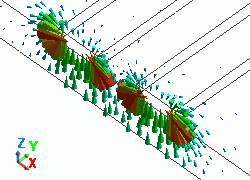
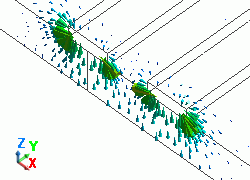
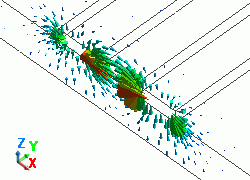
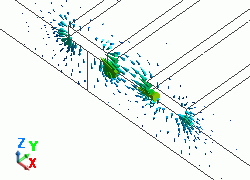
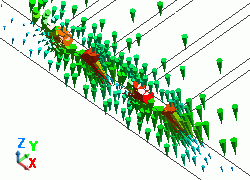
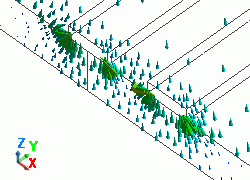
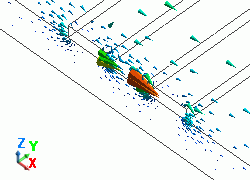
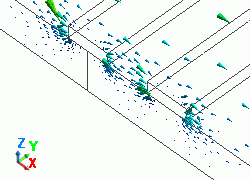
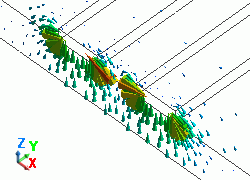
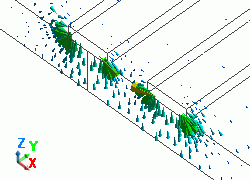
The diagram below shows the electric fields of five propagation modes calculated 1 at 5 GHz.for PORT.
A part of the Propagation constant dialog box is also shown at the bottom of each diagram below.
Propagation constant dialog box can be opened from Mode Information of the [Chart] button.
Mode |
Differential Mode Analysis |
Common Mode Analysis |
||||
50: 5.000000E+09 Hz: (0) |
|
|
||||
51: 5.000000e+09Hz: (1) |
|
|
||||
52: 5.000000e+09Hz: (2) |
|
|
||||
53: 5.000000e+09Hz: (3) |
|
|
||||
54: 5.000000e+09Hz: (4) |
|
|
In both differential mode and common mode analyses at PORT1,
the common mode is calculated first, and then the differential mode is calculated.
As only mode01 is selected for the port setting for the differential mode analysis,
only the second mode (differential mode) is applied in the 3D analysis.
In the common mode analysis, as mode is not selected,
the first mode (common mode) is applied in the 3D analysis.
Also at PORT2, please confirm that the differential mode is applied in the 3D analysis for the differential mode analysis
and the common mode is applied in the 3D analysis for the common mode analysis.
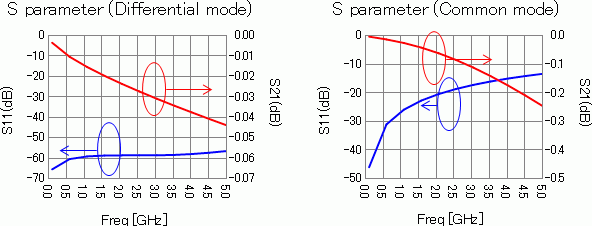
The diagrams below show the S-parameters of the differential mode and common mode analyses.
S-parameters of the differential mode analysis are shown in the left diagram and the common mode analysis in the right diagram.
Blue curves represent reflection characteristics S11 and red curves represent transmission characteristics S21.