


|
Home / User Interface / Coordinate Axis Operations
Coordinate Axis Operations
Coordinate axes show the viewpoint visually.
By clicking the axes, the viewpoint and the drawing plane can be changed.
-
Bring the mouse near the axes. Axes in the opposite directions will appear.
By clicking the opposite axes, the viewpoint and drawing plane can be changed as well.
Default setting of the coordinate axes on the modeling window.
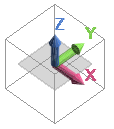
The axes with their opposite axes shown on the modeling window.
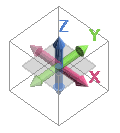
Default setting of the coordinate axes on the results window.

The axes with their opposite axes shown on the results window.
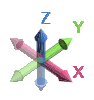
Change View: Click Axes
|
X Axis |
Changes to right view |
|
Y Axis |
Changes to back view |
|
Z Axis |
Changes to top view |
|
X Axis (Opposite Direction) |
Changes to left view |
|
Y Axis (Opposite Direction) |
Changes to front view |
|
Z Axis (Opposite Direction) |
Changes to bottom view |
Change Drawing Plane: Click Axes while Pressing Ctrl Key
-
On the results window, the drawing plane cannot be changed.
-
Unless Analysis space is 3D, the drawing plane cannot be changed.
|
X Axis, X Axis (Opposite Direction) |
Changes the drawing plane to YZ |
|
Y Axis, Y Axis (Opposite Direction) |
Changes the drawing plane to ZX |
|
Z Axis, Z Axis (Opposite Direction) |
Changes the drawing plane to XY |