Femtet Help/Manual
 

Home / User Interface / Mini Toolbar Operations

Mini Toolbar Operations

The mini toolbar will show up when bodies or topologies are selected.


If a mouse is brought to the mini toolbar, its functions become selectable.

The mini tool bar is closed by moving the mouse away from the mini toolbar or by pressing the alpha-numeric keys which are not accelerator keys.

Modeling Window


When solid bodies are selected
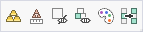

  1. Body attribute/material property setting

  2. Mesh size setting

  3. Hide selected bodies

  4. Hide all but selected bodies

  5. Body color setting

  6. Advanced Selection


When sheet/wire/vertex bodies are selected


  1. Body attribute/material property setting

  2. Boundary condition setting

  3. Mesh size setting

  4. Hide selected bodies

  5. Hide all but selected bodies

  6. Body color setting

  7. Advanced Selection


When topologies are selected


  1. Boundary condition setting

  2. Mesh size setting

  3. Advanced Selection


Results Window


When bodies are selected


  1. Hide selected bodies

  2. Hide all but selected bodies

  3. Body color setting


When edge topologies are selected


  1. Graph on edge

When vertex topologies are selected


  1. Graph with mode on the horizontal axis

  2. Graph with phase on the horizontal axis