Home / Modeling / Drawing Process / How to Modify Objects / Boolean / Subtract
Subtract
Removes some bodies from target bodies.
Procedure
-
On the [Model] tab, go to
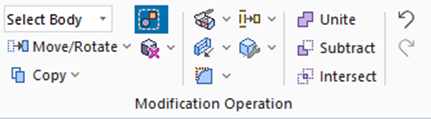
and click [Subtract]  . .
(Alternatively, right click the mouse. On the appearing menu, select [Boolean]-[Subtract])
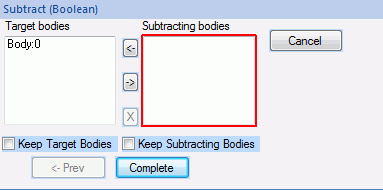
The [Subtract (Boolean)] dialog box will appear.
|
|
-
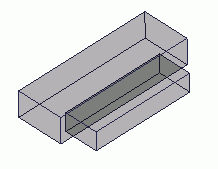
Select the target object to subtract from,
|
|
-
In the [Boolean Subtract] dialog box, click and activate the list box for [Subtracting Bodies] .
|
|
-
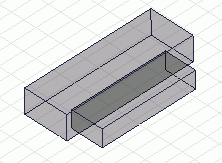
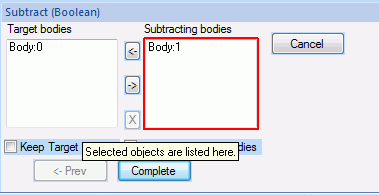
Select the tool bodies, while pressing the <Ctrl> key.
|
|
-
Click  on the [Boolean (Subtract)] dialog. on the [Boolean (Subtract)] dialog.
-
If [Keep Target Bodies] and/or [Keep Subtracting Bodies] are selected, the original bodies will remain.
|
|
-
To subtract multiple bodies from multiple bodies,
select all the objects and list the bodies to be subtracted on [Target Bodies] and the subtracting bodies on [Subtracting Bodies] in the dialog box.
After the Subtract operation, all the target bodies will be left without the portion of subtracting bodies.
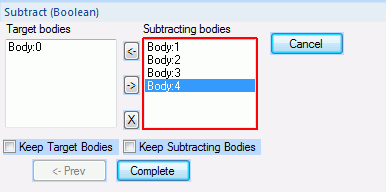
<How to List>
To move bodies across the lists of [Target Bodies] and [Subtracting Bodies], select them and click  or or  . .
Rest the mouse pointer on a body on the lists. It will be highlighted.
The 1st body selected will be listed on the [Target Body] by default.
By clicking  , the selected body will be removed from the selection list. , the selected body will be removed from the selection list.
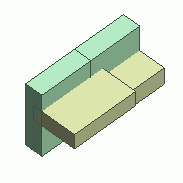  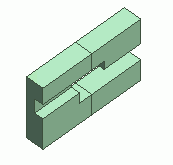
The green body is the target body and the yellow one is the subtracting body.
|
|