|
Home / Modeling / Drawing Process / Snap
Snap
The type of objects for snapping can be specified on the [Snap] tab.
Vertex |
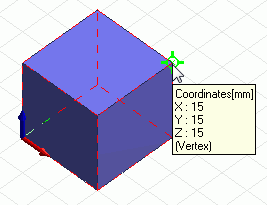
Highlights the vertex and the body it belongs to and indicates the coordinates when a mouse pointer comes close to the body. When highlighted, (Vertex) will be indicated on the tooltip.
|
|
Middle Point |
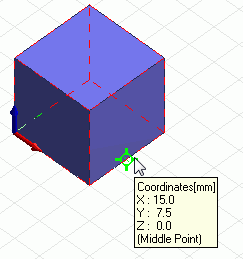
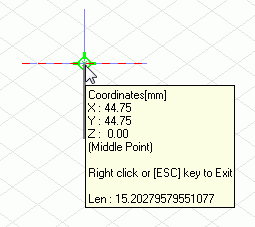
Highlights the middle point of the edge and the body it belongs to and indicates the coordinates when a mouse pointer comes to the edge. When highlighted, (Middle Point) will be indicated on the tooltip.
|
|
Intersection Point |
Highlights the intersection point and the body it belongs to and indicates the coordinates when a mouse pointer comes close to the area where the edges of two bodies intersect. When highlighted, (Intersection Point) will be indicated on the tooltip.
|
|
Center |
Highlights the center and the body iteff and indicates the coordinates when a mouse pointer comes close to a circle, arc or sphere. When highlighted, (Center) will be indicated on the tooltip.
|
|
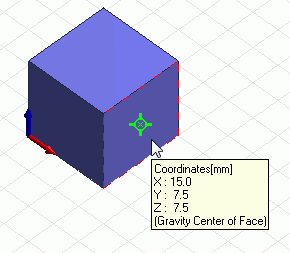
Gravity Center of Face |
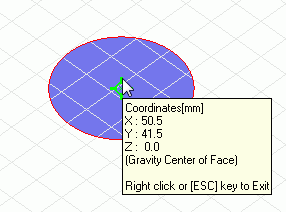
Highlights the gravity center of the face and the topology itself and indicates the coordinates a mouse pointer comes close to the face. When highlighted, (Gravity Center of Face) will be indicated on the tooltip.
|
|
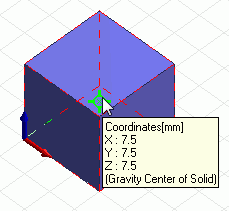
Gravity Center of Solid |
Highlights the gravity center of the body and the body itself and indicates the coordinates when a mouse pointer closes close to the body. When highlighted, (Gravity Center of Solid) will be indicated on the tooltip.
|
|
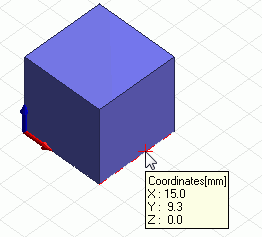
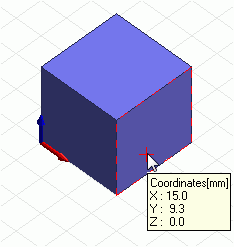
Point on Edge |
Highlights the point on the selected edge and the edge topology itself and indicates the coordinates when a mouse pointer comes close to the point. All bodies are subject to the snap if none is selected.
|
|
Point on Face |
Highlights the point on the face closest to the mouse pointer and the face topology itself and indicates the coordinates. All bodies are subject to the snap if none is selected.
|
|
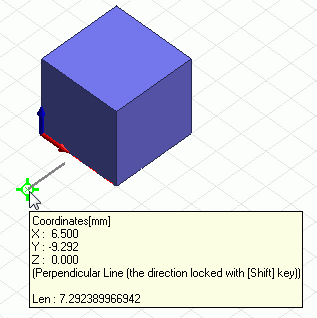
Perpendicular Line |
Creates a perpendicular line to an edge of the body. If the snap point is on the edge, [Perpendicular Line (on edge)] will be indicated on the tooltip.
|
|
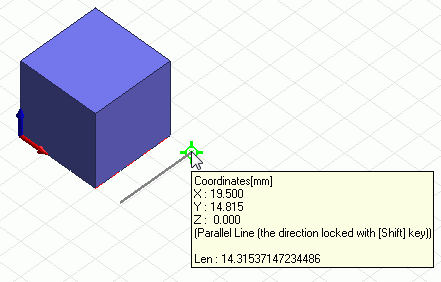
Parallel Line |
Creates a parallel line to an edge of the body.
At snap, [Parallel Line] is indicated on the tooltip.
|
|
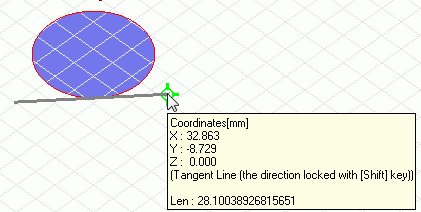
Tangent Line |
Creates a tangent line to an edge of the body.
At snap, [Tangent Line] is indicated on the tooltip.
|
|