


|
How to Create Animation
The animation can be created in some cases.
This command might not be available for some analysis types or conditions.
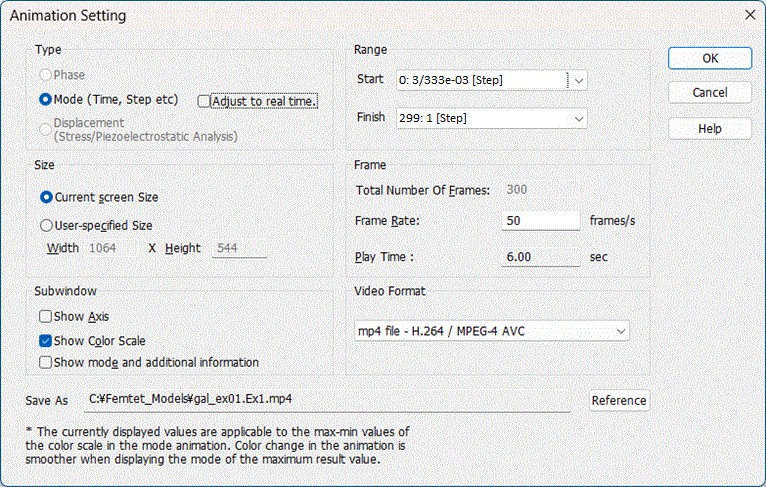
Click "Create Animation" button and assign the file name.
The [Animation Setting] dialog will show up.
|
Items |
Notes |
|
Type |
Specifies what kind of animation to make. Phase and mode may or may not be selectable depending on the conditions. If the mode is time, [Adjust to real time] is selectable. If [Adjust to real-time] is selected, the display time ratios between frames are adjusted to match the actual time ratios. |
|
Range |
Specifies the range of animation for phase and mode. |
|
Size |
With "Current screen size", the animation size will be the current screen size. With "User-specified size", the animation size can be specified. |
|
Total number of frames |
Specifies how many frames to be created for the animation. As you increase the number of frames, the animation moves more smoothly. Note that with a high number, the creation time will be longer, and the file size will be larger. If [Adjust to real time] is selected, the number of frames varies depending on play time, so can not be set here. |
|
Frame rate |
Specifies the number of frames per second. If [Adjust to real time] is selected, the frame rate is fixed, so can not be set here. |
|
Play time |
Displays the play time. The time is given by the total number of frames divided by the frame rate. If [Adjust to real time] is selected, the play time can be set. |
|
Compression Method |
With "No compression", the data will be saved in the AVI file without compression. With "Microsoft Video 1 format", the file size will be approximately 1/20 of the non-compressed file. |
|
Show axes |
Shows the coordinate axes in the animation. |
|
Show color scale |
Shows the color scale in the animation. |
|
Show mode and additional information |
Shows the mode and additional information in the animation. |
|
Video Format |
Four formats are supported. The default format is mp4. ・ mp4 file (H.264 / MPEG-4 AVC) ・ wmv file (WMV3) ・ avi file (Microsoft Video 1) ・ avi file (No compression 24bits RGB) |
|
Save As |
Output location for animation file. To change the output location, click the [Reference] button. |
-
Microsoft Video 1 format is recommended to save the file space.
If a no-compression AVI file is selected, the size of the video file will become very large.
For an appropriate file size, compression formats other than no-compression are recommended.
-
The currently displayed values are applicable to the max-min values of the color scale in the mode animation.
Color change will be smoother in the animation if the animation is saved when displaying the mode of the maximum result value.