


|
Home / How to Set Body Attribute, Material Property and Boundary Condition / Contact Pair
Contact Pair
In order to perform the contact analysis under the "contact surface" boundary condition,
the surfaces of the contactor and the contactee need to be paired.
Please take a look at the figure below.
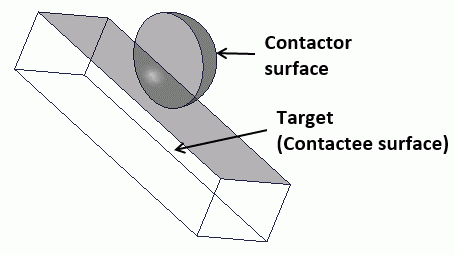
Automatic Pairing
If the contacting faces and conatctee faces are not paired manually in advance,
they will be paired automatically just before executing the analysis.
For automatic pairing, set only contacting faces and contactee surfaces.
If the contacting faces are not paired with any of contactee faces,
the contacting faces are paired with all contactee faces in the analysis model.
-
If friction is to be taken into account, manual pairing is required.
- If multiple contacting faces and contactee faces are paired unnecessarily, convergence of calculation might be deteriorated.
In such a case, pair only needed faces manually. - Manual pairing is not required if the number of contacting face and contactee face is one each and friction is not involved.
Manual Pairing
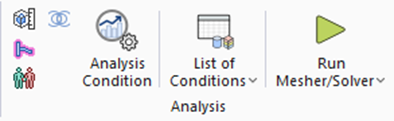
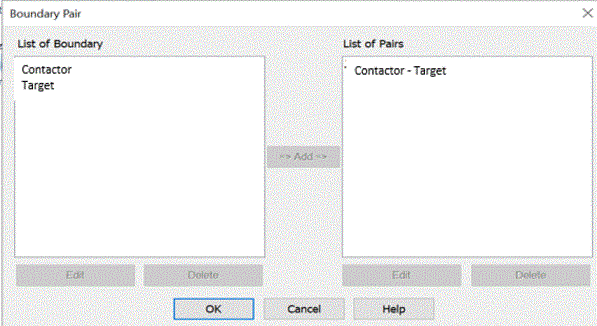
To pair these surfaces, proceed as follows.
Changing Contact Pair Setup (From Menu)
|
|
|
|
 .
.
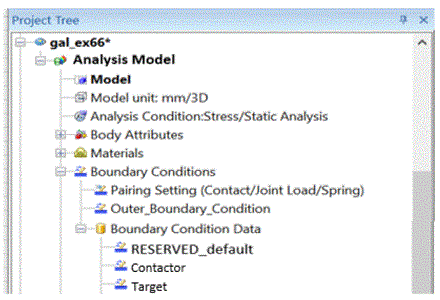
Changing Contact Pair Setup (From Project Tree)
|
|
|
|
The Boundary Pair Dialog Box Setup
|
Setting Item |
Notes |
||||
|
List of Boundary Conditions |
From the boundary conditions registered in the database, the list of those for the boundary pair will appear. Double click one. The [Edit Boundary Condition] dialog box will show up. To remove it from the list, press the [Delete] button. |
||||
|
List of Pairs |
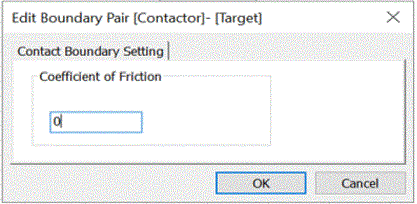
The registered pairs will be listed here. Double click one. The [Edit Boundary Pair] dialog box will show up and you can edit the data. (Coefficient of friction can be edited for the contact boundary) To remove it from the list, press the [Delete] button. |
||||
|
Add |
Selects the boundary conditions to pair up in the list. The [Edit Boundary Pair] dialog box will show up. Press the OK button to complete the pairing. |
||||
|
Delete |
Deletes the boundary conditions from each list. |
||||
|
Edit |
Set the coefficient of friction.
|
Caution:
Set one as "Contactor surface" and
the other as "Contactee surface".