Home / How to Set Body Attribute, Material Property and Boundary Condition / How to Create New Material Property
How to Create New Material Property
-
On the [Project] tree,
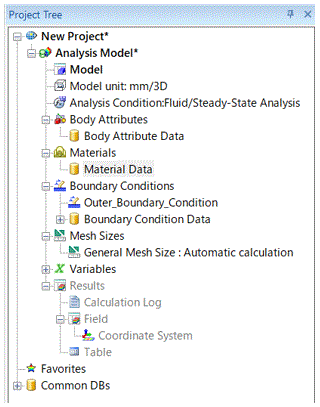
right click [Material Data] and click [New].
|
|
-
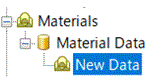
Type the name of the new material on the tree and press the [Enter] key or click somewhere on the window.
|
|
|
-
Set the details of material property
In 2 above, by pressing the [Enter] key or clicking, the [Edit Material Property] dialog box will show up.
Go through the tabs on the left side and set the required items.
The variables for analysis conditions/material properties/boundary conditions/body attributes can be entered on each tab.
The detail is explained on "Material Property Tabs"
|
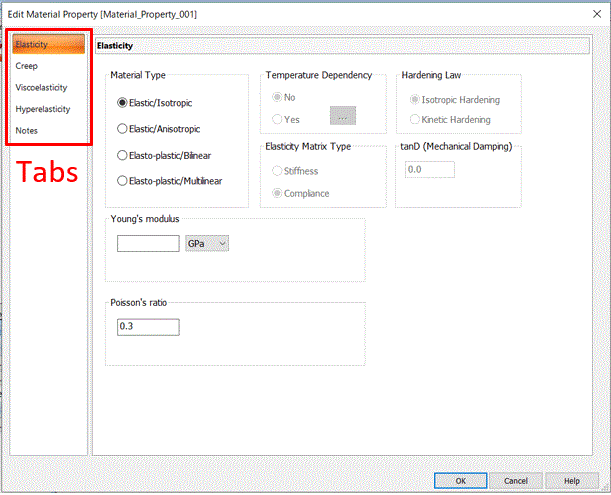
Example of Setting |
-
Click  . .
|
|
-
To confirm or modify the body attribute or material property,
double-click the attribute name on the body attribute or material in the Project Tree.
The edit dialog box will appear.
|
|


