


|
Home / User Interface / Keyboard Shortcut
Keyboard Shortcut
Keyboard shortcuts are listed below. See also [Mouse Operations].
Shortcut Keys
Press the <Alt> key. Alphanumeric characters will appear on some commands of the menu.
Press the indicated key to perform the command.
Shortcut keys are not prepared for all the commands on the menu.
Accelerator Keys
The commands on the ribbon menu can be executed directly by accelerator keys.
They are executable even if the commands are not shown at the moment.
How to Set Accelerator Keys
You can customize the accelerator keys.
1-A. Click the [File] tab and select [Shortcut Key Settings]. Go to 3
Alternatively,
1-B. Click [Customize Quick Access Toolbar] and select [More Commands...].
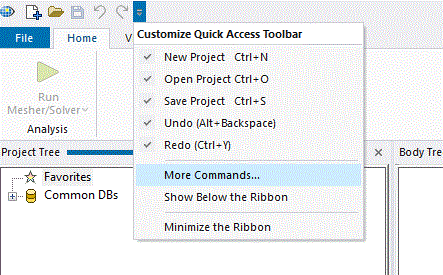
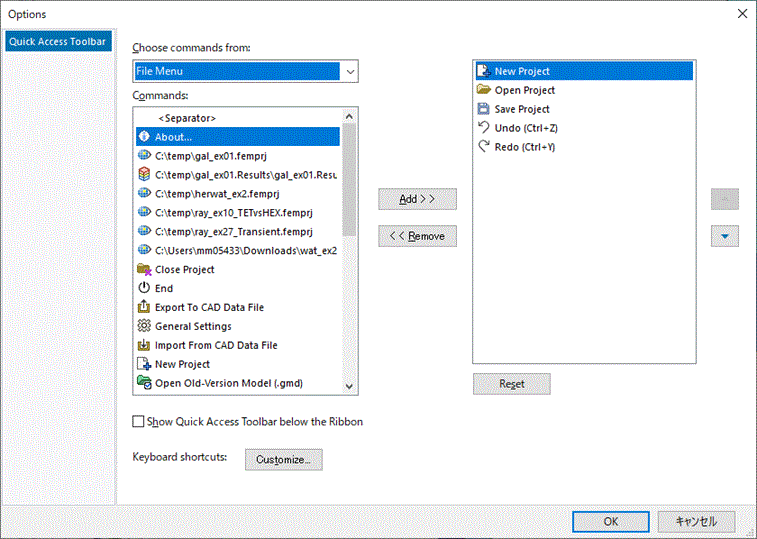
2. Click the [Customize...] button in the [Options] dialog box.
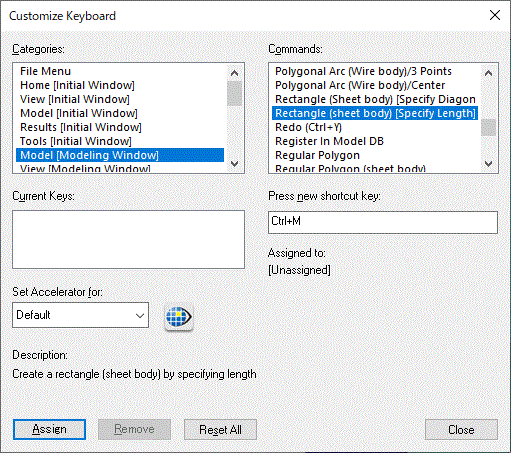
3. In the [Customize Keyboard] dialog box, select the category and the command. Press and enter the new key and click [Assign].
Initial Setting
The default setting is as follows.
Please note that some keys cannot be changed.
|
Menu |
Accelerator Key |
|
|
File |
New Project |
Ctrl+N |
|
Open Project |
Ctrl+O |
|
|
Save Project (The key unchangeable) |
Ctrl+S |
|
|
Open Results |
Ctrl+R |
|
|
Edit |
Undo |
Ctrl+Z Alt+BackSpace |
|
Redo |
Ctrl+Y |
|
|
Copy to Clipboard (The key unchangeable) |
Ctrl+C Ctrl+Insert |
|
|
Cut (The key unchangeable) |
Ctrl+X Shift+Delete |
|
|
Paste(The key unchangeable) |
Ctrl+V Shift+Insert |
|
|
Apply Edit(The key unchangeable) |
F5 |
|
|
Show |
Show All |
Ctrl+A |
|
Hide All |
Ctrl+H |
|
|
Show Body |
Ctrl+D |
|
|
Hide Body |
Ctrl+E |
|
|
Hide All but Selected Bodies |
Ctrl+K |
|
|
Viewpoint |
Fit All
|
F |
|
Zoom In (The key unchangeable) |
Z |
|
|
Zoom Out(The key unchangeable) |
Shift+Z |
|
|
Rotate 90 Degrees Upward around Horizontal Line of Window |
Shift+↑ |
|
|
Rotate 90 Degrees Downward around Horizontal Line of Window |
Shift+↓ |
|
|
Rotate 90 Degrees to Right around Vertical Line of Window |
Shift+→ |
|
|
Rotate 90 Degrees to Left around Vertical Line of Window |
Shift+← |
|
|
Shift Viewpoint |
Ctrl+Shift+Cursor |
|
|
Selecting an Item |
Select Body |
Shift+B |
|
Select Face |
Shift+F |
|
|
Select Edge |
Shift+E |
|
|
Select Vertex |
Shift+V |
|
|
Select Vertex/Edge/Face |
Shift+T |
|
|
Switch Object |
Shift+R |
|
|
Analysis |
Field |
Ctrl+Q |
|
Show Results |
Move Mode Backward |
Ctrl+left arrow |
|
Move Mode Forward |
Ctrl+right arrow |
|
|
Miscellaneous |
Delete tree items, bodies, tooltips etc(The key unchangeable)
|
Delete |
|
Help Mode |
Shift+F1 |
|
|
Show Femtet Help
|
F1 |
|
Miscellaneous
Space key
To select a particular body or topology in overlapping area, rest the mouse pointer there and press the <Space> key.
The body selection will change.
Ctrl key
Two or more bodies or topologies can be selected.
After selecting the first object, click on the other objects while pressing the <Ctrl> key.
Tab key
Press the <Tab> key to hop around the items in the parameter input dialog box.