


|
Home / Modeling / History / How to Edit History on Body Tree
How to Edit History on Body Tree
The history can be edited in the Body Tree on the right tree window.
The operation history for objects can be listed and edited.
Procedure
|
|
||||||||
|
|
|
||||||||
|
|
||||||||
|
|
||||||||
|
|
||||||||
|
|
||||||||
|
|
||||||||
|
|
||||||||
|
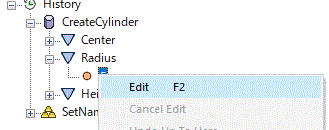
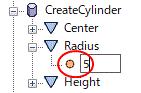
 of the body you want to edit.
 under it.
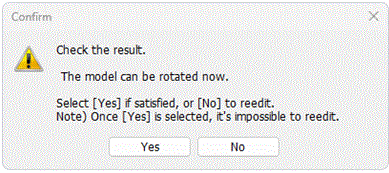
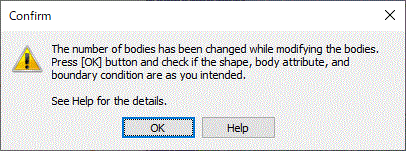
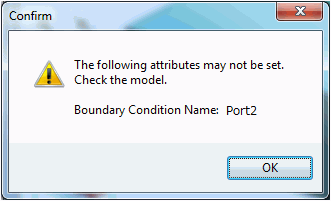
Note 1: Color of commands
The color of commands changes as follows.
|
|
Command as original |
|
|
Edited command |
|
|
Command affected by modified variable |
|
|
Command where error exists |


Note 2: Right-click menu
|
Menu |
Notes |
|
Edit |
Sets the selected item to the edit mode. |
|
Cancel Edit |
Cancels the edit by the selected command. * This command is not for the edit item but for the command. |
|
Cancel All Edits |
Cancels all the edits. |
|
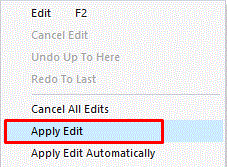
Apply Edit |
Modifies the model based on the applied edits. * Re-executed from the modified point. |
|
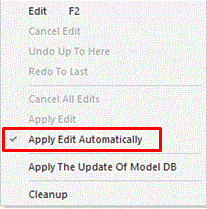
Apply Edit Automatically |
Applies the edit automatically. |
|
Cleanup |
Checks and deletes the history of settings of body attribute and material property, and the deleted bodies. |
Note 3: Inexecutable operations during edit
The following operations are not allowed to execute during the edit or if the variables are modified.
-
-
Saving the model
-
Exiting the modeling
-
Creating meshes
-
Saving the macros
-
For these operations, you will be asked to select either "Apply Edit" or "Cancel Edit". Select either one to continue.