Viewpoint Management
The viewpoints can be bookmarked.
This function is of use to switch the viewpoints quickly.
The registered viewpoints are exportable and importable, which makes it easy to share the viewpoints between PCs.
Up to 10 viewpoints can be registered.
How to Register the Viewpoints
How to Retrieve the Registered Viewpoints
-
Go to the Viewpoint Operation group on the [Model] tab or the [Results] tab

Click ▼ at the side of [Manage Favorite Viewpoints]  . .
Select the registered viewpoint listed on the submenu.
The viewpoint will switch to the selected one.
|
|
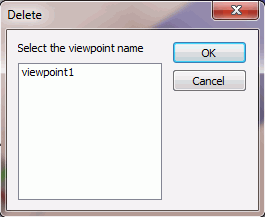
How to Unregister the Viewpoints
How to Export the Registered Viewpoints
-
Go to the Viewpoint Operation group on the [Model] tab or the [Results] tab
Click ▼ at the side of [Manage Favorite Viewpoints] .
Click [Export]  on the submenu. on the submenu.
-
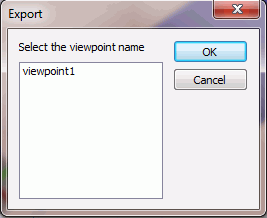
Select the viewpoint names and press 
in the [Export] dialog box.
|
|
-
The [Save As] dialog will show up. Enter the file name and press the [Save] button.
The viewpoint data file will be saved.
The file extension is ".viw".
|
|
How to Import the Registered Viewpoints
-
Go to the Viewpoint Operation group on the [Model] tab or the [Results] tab
Click ▼ at the side of [Manage Favorite Viewpoints] .
Click [Import]  on the submenu. on the submenu.
-
The [Open] dialog box will appear. Select the viewpoint data file and press the "Open" button.
|
|
-
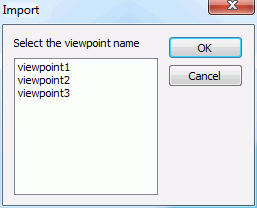
Select the viewpoint names and press in the [Import] dialog box.
The selected viewpoints will be bookmarked.
|
|


 on the submenu.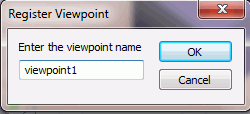
 on the submenu.