


|
Home / Modeling / Auxiliary Tools / Dimension Lines
Dimension Lines
Operations
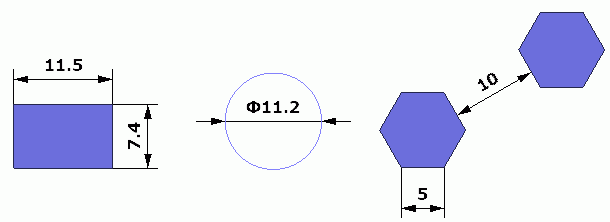
Right-click bodies or edges to show the dimension lines.
If nothing is selected, the dimension lines can be set for all bodies from the right-click menu.
If two bodies are selected, the dimension line indicating the distance between them is shown.
Move Dimension Lines
|
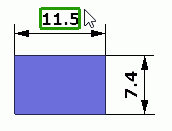
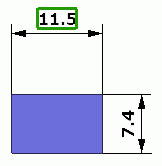
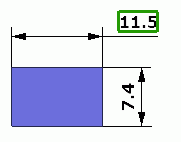
Select the dimension lines or dimension values and drag. |
|
|
|
|
|
|
Before |
|
After Move 1 |
After Move 2 |

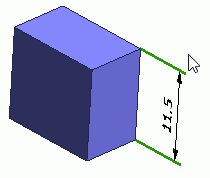
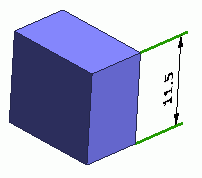
Modify Directions of Dimension lines
|
For the dimension lines that are shared by multiple faces such as box edges, their directions are changed by selecting the leader lines and dragging them. |
|
|
|
|
Before |
After |
Right-click Menu When Dimension Lines Are Selected
|
Menu |
Notes |
|
Font Setting |
Specifies the font for the dimension lines in the dialog box.
|
|
Reset Font Setting |
Resets the font setting to the default value.
|
|
Delete |
Removes the selected dimension lines. Alternatively you may press the Delete key. |
Supported Primitives for Dimension Lines of the Selected Bodies
Dimension lines are applicable to the unedited bodies created by [Primitives] command as follows.
-
Rectangle
-
Box
-
Circle
-
Arc
-
Cylinder
-
Cone
-
Prism
-
Polygonal pyramid
-
Sphere
-
Modification by changing dimension values is not supported