|
Home / Modeling / Drawing Process / Drawing Plane
Drawing Plane
About drawing plane
The drawing plane is the reference plane to create a model.
The 2D figures are created on the drawing plane. The 3D figures are created with reference to the drawing plane.
See the direction of the cone created on various drawing planes below. The pointed direction is the height direction.
|
|
|
|
|
|
XY Plane |
YZ Plane |
ZX Plane |
XZ plane (2D, axisymmetric analysis) |
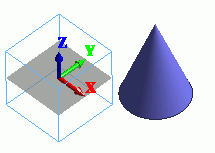
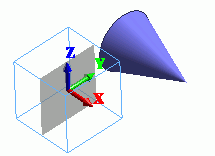
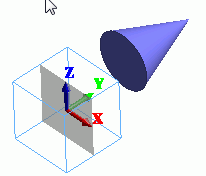
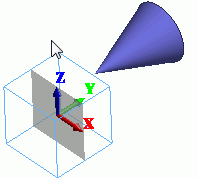
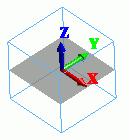
The current drawing plane is indicated on the bottom left corner of the modeling window and also indicated on the Drawing Plane group.
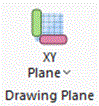
Drawing Plane Drawing Plane group
Any drawing plane is allowed such as XY, YZ, ZX, (XZ), and so on.
The default is the XY plane in 3D analysis.
The drawing plane for the 2D and axisymmetric analyses is the XZ plane. It is not allowed to change this setting. See [The Fundamental Rules for the 2D and Axisymmetric Analyses] for more details.
How to Change the Drawing Plane
-
Change to the XZ plane (2D and axisymmetric analyses only)
On the [Model] tab, go to  and click ▼ at the bottom of
  . Click [XZ Plane]
  on the submenu.
-
Change to the XY plane
On the [Model] tab, go to and click [XY Plane] .
-
Change to the YZ plane
On the [Model] tab, go to and click ▼ at the bottom of . Click [YZ Plane]  on the submenu.
-
Change to the ZX plane
On the [Model] tab, go to and click ▼ at the bottom of . Click [ZX Plane]  on the submenu.
-
Change to the model's specific face
-
-
By specifying a face
-
On the [Modeling] tab, go to
and click ▼ at the bottom of . Click [User-Specified Plane]  on the submenu.
-
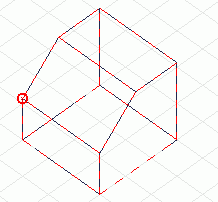
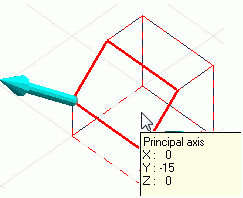
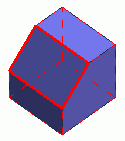
Select a face for the drawing plane.
-
The face needs to be flat.
The gravity center of the face is the coordinate origin and the norm is the principal axis.
-
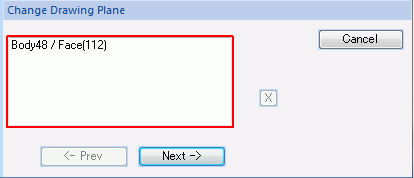
Click
 in the parameter input dialog box.
-
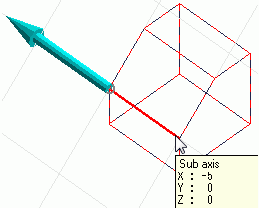
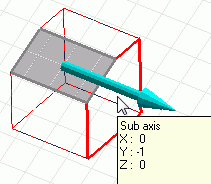
Specify the subaxis
An edge can be a subaxis.
The subaxis is required to be orthogonal to the principal axis.
Use the default subaxis
unless there is a specific requirement.
-
-
By specifying 2 straight edges
-
On the [Modeling] tab, go to
and click ▼ at the bottom of , and click [User-Specified Plane] on the submenu.
-
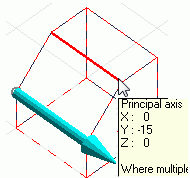
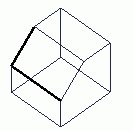
Select 2 edges to form the drawing plane.
-
The crossing point of 2 edges is the origin.
The outer product of 2 edge vectors is the principal axis.
The second edge is the subaxis.
-
-
-
Change to the specified plane
-
-
By specifying 3 points
-
On the [Modeling] tab, go to
and click ▼ at the bottom of . Click [User-Specified Plane] on the submenu.
-
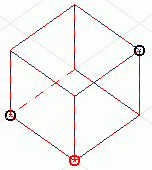
Select 3 points to form the drawing plane.
-
The 1st point is the coordinate origin, and the vector connecting the 1st and the 2nd points is the subaxis. The principal axis is the outer product of the subaxis and the vector connecting the 1st and the 3rd points.
-
-
By specifying the coordinate origin and the principal axis and subaxis
-
All the steps below will be omitted if 2 straight edges or 3 points are selected.
|
|
|
|
|
The principal axis set by selecting a face |
|
|
The principal axis set by specifying an edge |
|
|