Home / Modeling / The Basic of Modeling / How to Select Bodies and Topologies
How to Select Bodies and Topologies
There are 4 ways to select bodies and topologies.
Specify the object type to select, and try one of the following methods.
Clicking the Mouse
-
Rest the mouse pointer on the body or topology of your interest and get it highlighted.
-
Press the <Space> key
if bodies or topologies are overlapping. The highlighted object will change.
-
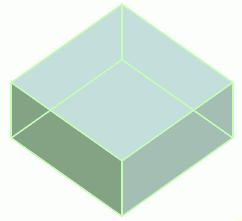
The information associated with the highlighted object will be indicated on the tooltip.
The selected objects will be marked with *.
|
|
-
Left click the mouse to confirm the selection.
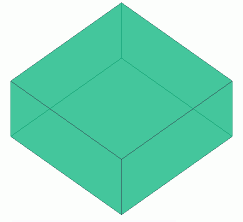
The confirmed objects will turn gray.
-
To select multiple objects, left click the mouse together with the <Ctrl> key from the second selection on.
If the modeling command is activated, however, the multiple selection is possible without the <Ctrl> key.
-
Vertices will be highlighted no matter what the selection is at "Switch Object".
Note that the highlighted vertices can be selected only when "Select Vertex" is chosen.
|
|
Area Selection
-
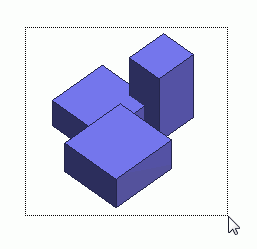
The area for the selection is specified by dragging the mouse pointer.
|
|
Body Tree
-
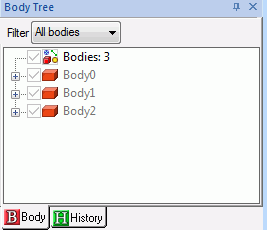
Select  on the body tree. on the body tree.
-
All the existing bodies are listed on the body tree.
Left click the mouse to select the bodies.
-
To select multiple objects, left click the mouse together with the <Ctrl> key from the second selection on.
If the modeling command is activated, however, the multiple selection is possible without the <Ctrl> key.
|
|
List Selection Method
-
Rest the mouse pointer on the overlapping area, and press the <Tab> key.
|
|
-
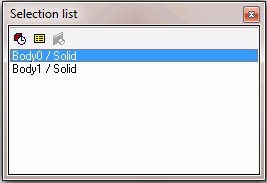
The selection list will show up.
-
Select the bodies or topologies of your interest on the list.
-
The objects listed there are the ones overlapping at the mouse pointer and also matching the selection at Switch Object.
Multiple objects can be selected by pressing the <Shift> or <Ctrl> key.
If the modeling command is activated, however, the multiple selection is possible without <Ctrl> key.
-
The objects nearer to the user's view point will be listed in upper rows.
 If this button is activated, the list will be sorted by the order of recent usage. If this button is activated, the list will be sorted by the order of recent usage.
If  button is activated, a tooltip associated with the selected object will appear. button is activated, a tooltip associated with the selected object will appear.
-
Right click the mouse or press  button to fix the selection. button to fix the selection.
|
|



 button switches on/off the way objects are selected in the specified area.