


|
Home / Show Results / Result Field / Displacement Diagram
Displacement Diagram
On the [Results] tab, go to

click [Displacement]  . The displacement diagram will appear for stress and piezoelectric analyses.
|
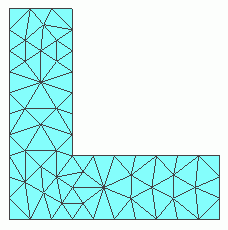
Mesh Diagram
|
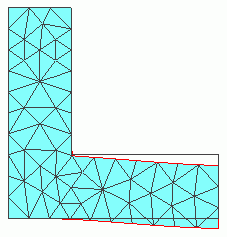
Displacement Diagram
|
Display Setting
|
|
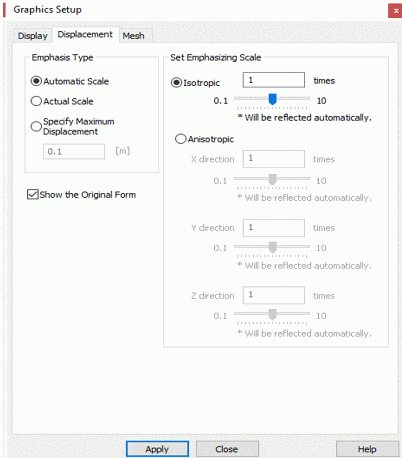
Click [Graphics Setup] will show up. [Displacement] tab is for the setting of displacement display. The Magnitude of DisplacementThe magnitude of displacement is quite small in most cases. The initial display on Femtet is, therefore, scaled up for easy understanding. Please note the actual displacement could be much smaller than the display.
If the options for large deformation, contact boundary, simple contact boundary, For other cases, Automatic Scale is a default setting.
Automatic Scale adjusts the maximum displacement automatically to a twentieth of the model’s maximum dimension. Actual Scale does not make any adjustment. The displacement will be shown as it is calculated. Specify Maximum Displacement is to specify the magnitude of maximum displacement by length.
Set Emphasizing Scale is to set the scale. If Isotropic is selected in Set Emphasizing Scale, If Anisotropic is selected in Set Emphasizing Scale,
The setting by the slider control is automatically reflected in the drawing. The scale can be set while checking the displacement on the drawing window.
Further details are explained at each dialog's Help.
|
 . The dialog to set up the graphics will show up.