|
Home / Show Results / Result Field / User-Defined Field / Edit user-defined field
Edit user-defined field
Allows you to create a new field by editing a field based on existing expressions.
Expressions can be constructed using existing fields, four arithmetic operators, and functions.
1. How to create a field
1) Construct an expression as shown below.
・Select a field and insert it into an expression.
・Select a function and insert it into the expression.
・Edit the expression directly in the expression input box.
2) Click the [Check expression] button.
Clicking the button checks the expression.
If the expression is not correct, an error will occur. Correct the expression according to the error.
If the expression is correct, output parameters will be automatically filled in.
3) Change the output parameters
Change the result name as needed for easier understanding.
If the settings-such as the unit, the use of prefixes, or the tensor display type-differ from the intended ones, you should correct them.
4) Click the [OK] button.
The dialog box will close.
If the button is disabled, click [Check expression], then you will be able to click [OK].
2. [Edit user-defined field] dialog
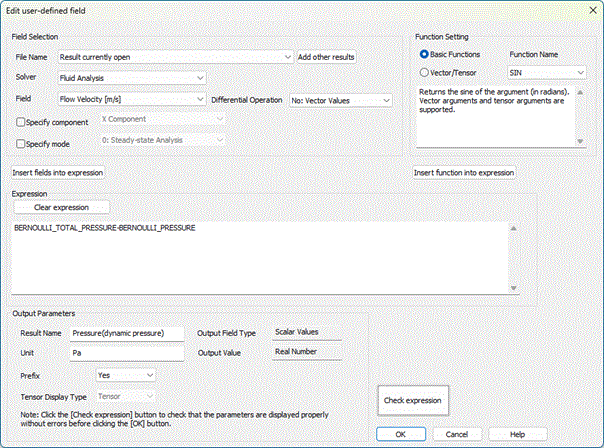
Field Setting
|
Setting Item |
Note |
|
File Name
|
[Currently active result file] is displayed by default. Normally, this option is not used.
It is used when you need to construct an expression by combining fields from another result file.
Press the [Add other results] button to open and select the calculation result file (PDT file) to be added. This will let you select it for the file name.
When other results are used, the file path of the added result file is displayed in the expression input box.
|
|
Solver |
Specifies the solver. |
|
Field Differential Operation |
Specifies the field.
Differential operations are applicable to fields.
For scalar quantities, the gradient (vector) can be specified. For vector quantities, the gradient (tensor), divergence (scalar), and rotation (vector) can be specified. For tensor quantities, the divergence (vector) can be specified
|
|
Specify component |
It can be specified when the field is a vector or tensor quantity and the differential operation is not applied.
If [Specify the component] is not selected, calculates using the vector or tensor quantity as is. If [Specify the component] is selected, selects the vector or tensor components for calculation. |
|
Specify Mode |
It is used to calculate in the specified mode. If [Specify the mode] is not selected, calculates using the values of the currently displayed mode. If [Specify the mode] is selected, calculates using the values of the specified mode. |
|
[Insert field into expression] button |
Inserts the specified fields into the expression. The expression representing the field, mode, or component is entered automatically. The expressions for fields are described in [Expression List for Fields].
|
Function Setting
|
Setting Item |
Note |
|
Basic Functions
|
If selected, a list of basic functions such as SIN, SQR, and LOG is displayed in the function name combo box. |
|
Vector/Tensor |
If selected, a list of basic functions such as VEC_X and INNER_PRODUCT related to vector or tensor is displayed in the function name combo box. |
|
Function Name |
A function can be selected in the combo box. |
|
About Function |
A brief explanation of the displayed function is given. |
|
[Insert function into expression] button |
Inserts the specified function into the expression.
To facilitate easy insertion of parameters such as fields, the function is inserted with an opening bracket (e.g., 'VEC_X(') left unclosed. After editing inside the bracket, enter ')' at the end of the expression.
Functions are described in [Operator and Function List for Fields]. |
Expression
|
Setting Item |
Note |
|
Clear expression |
Clears the expression |
|
Expression Input Box |
The expression is displayed. |
Output Parameters
|
Setting Item |
Notes |
||||||
|
Result Name |
Specifies the name of the field defined in the expression. If no name is specified, a default name is automatically entered when the [Check expression] button is clicked. The field name is a mandatory.
|
||||||
|
Unit |
Specifies the unit of the field defined in the expression.
A default unit is automatically entered when the [Check expression] button is clicked. If the default unit differs from the intended one, you should correct it.
|
||||||
|
Prefix |
With prefix: The numerical value is displayed with a prefix such as G, M, k, m, or µ added, according to its magnitude. Without prefix: The numerical value is displayed as is.
Whether to use a prefix is automatically determined when the [Check expression] button is clicked. If the default setting differs from the intended one, you should correct it
|
||||||
|
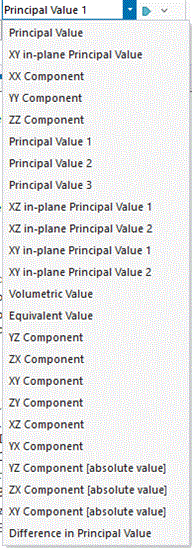
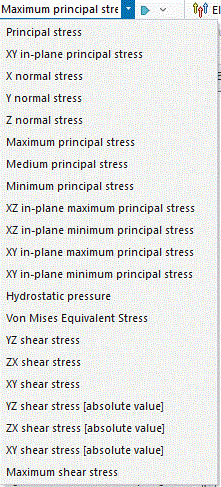
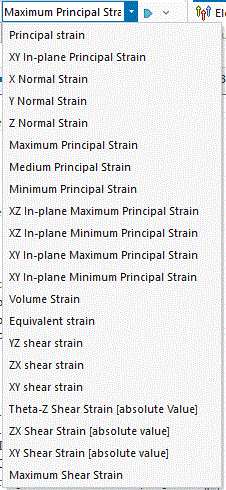
Tensor Display Type |
A default tensor display type is automatically entered when the [Check expression] button is clicked. If the default setting differs from the intended one, you should correct it
The components below are shown individually for each setting.
|
||||||
|
Output Field Type |
Displays whether the result calculated from the expression corresponds to a scalar, vector, or tensor quantity. |
||||||
|
Output Value |
Displays whether the result calculated from the expression corresponds to complex or real number. If the default number differs from the intended one, you should correct the expression. |
3. Display Example
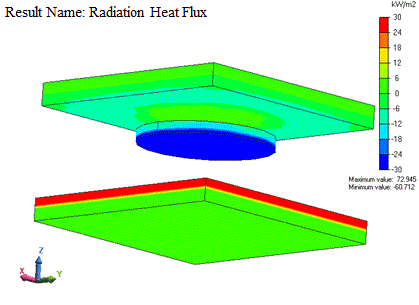
Radiation heat flux is displayed in Example 16: Radiation Blocked by a Disc (Steady-state Analysis).
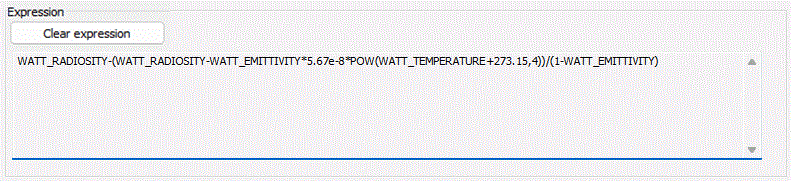
Radiation heat flux is represented as follow.
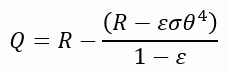
R: Radiosity [W/m2], ε: Emissivity, θ: Absolute temperature (Temperature + 273.15) [K]
σ[W/m2/K4]: Stefan-Boltzmann constant (5.67 x 10^-8)
The expression is formulated as shown below.
The expression is registered in the sample list. Refer to [User-defined Field Sample].
Heat dissipation is indicated with + (red) and heat absorption is indicated with - (blue).
It is observed that the heat dissipated from the top surface of the bottom plate is absorbed by both the disc and the portion of the upper plate not overlapped by the disc.