

Downloads
Installers and related documents are available for download.


Femtet
Versions of the Femtet Main Package and CAD Translator are provided below.
Please apply via "Apply for Download."

Femtet Main Package
| Release Ver. | Updated |
|---|---|
| 2025.0.2 | 2025/10/14 |
| 2024.0.2 | 2024/11/25 |
CAD Translation (Optional)
| Release Ver. | Updated |
|---|---|
|
For Femtet2025 (Compatible Format) |
2025/06/13 |
|
For Femtet2024 (Compatible Format) |
2024/06/18 |

License Management Tool (Installer and Documents)
License Management Tool
This section provides the installer and manual for the License Management Tool.
| Title | Type | Download Link |
|---|---|---|
| License Management Tool (Rustool) | ZIP |
Download(51MB)

|
| How to Use the License Management Tool (Rustool) |
Download(904KB)
|
Software License Operation Manual
| Title | Type | Download Link |
|---|---|---|
| Software License Operation Manual |
Download(1.6MB)
|
License Management Tool Supported OS Information
| Title | Type | Download Link |
|---|---|---|
| Supported OS for the License Management Tool |
Download(282KB)
|

CAD Add-in Tool Installers
SolidWorks Add-in
| Release Ver. | Updated | Remarks | Download Link |
|---|---|---|---|
|
For Femtet2025.0 (64bit) |
2025/10/14 | Applicable versions: SolidWorksR 2021 or later Requires .NET Framework 4.8 or later installation. |
Download(364KB)
|
|
For Femtet2024.0 (64bit) |
2024/11/25 | Applicable versions: SolidWorksR 2017 or later Requires .NET Framework 4.8 or later installation. |
Download(364KB)
|
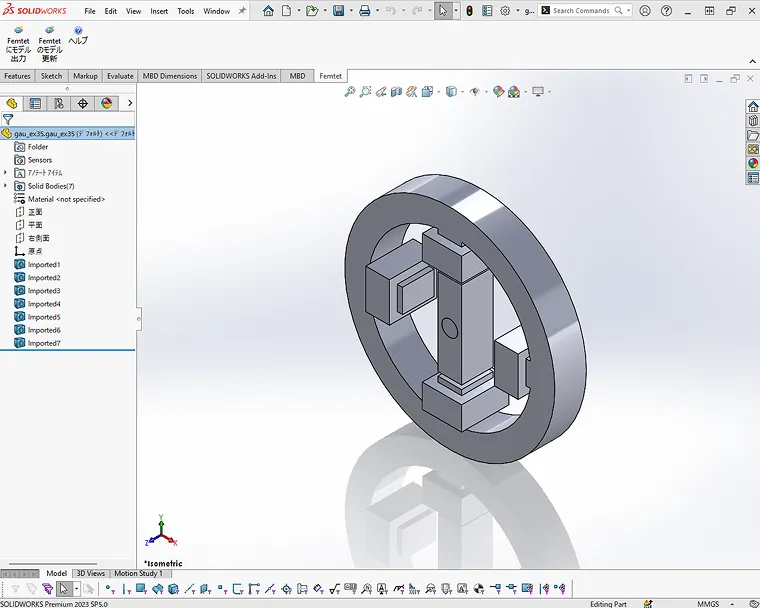
Example of Operation in SolidWorks
This is an add-in tool for SolidWorks. CAD geometry can be passed from SolidWorks to Femtet.
It can be used on a PC where both SolidWorks and Femtet are installed.
*SolidWorks is a trademark of Dassault Systèmes SE.
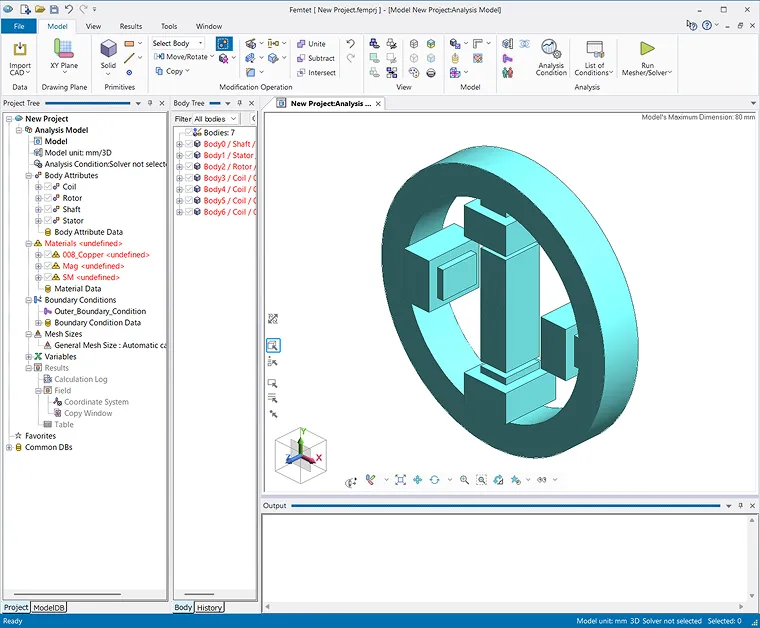
Automatically Import Model Geometry Data into Femtet
SolidWorks

Femtet
Procedure
- Start SolidWorks and open a part or assembly file.
- On the Femtet tab, click the Femtet button.
- Specify the Femtet project in the dialog box.
- Femtet starts and the model is exported.
-
Femtet cannot import material properties, boundary conditions, etc. assigned to model geometry (bodies).
After importing the model data, manually set the materials and boundary conditions in Femtet.
SpaceClaim Add-in
| Release Ver. | Updated | Remarks | Download Link |
|---|---|---|---|
|
For Femtet2025.0 (64bit) |
2025/10/14 | SpaceClaim2023R1 or later Option is required to save CAD data on ParsolidR format for SpaceClaimR. Requires .NET Framework 4.8 or later installation |
Download(1,016KB)
|
|
For Femtet2024.0 (64bit) |
2024/11/25 | SpaceClaim2023R1 or later Option is required to save CAD data on ParsolidR format for SpaceClaimR. Requires .NET Framework 4.8 or later installation |
Download(1,017KB)
|
SpaceClaim
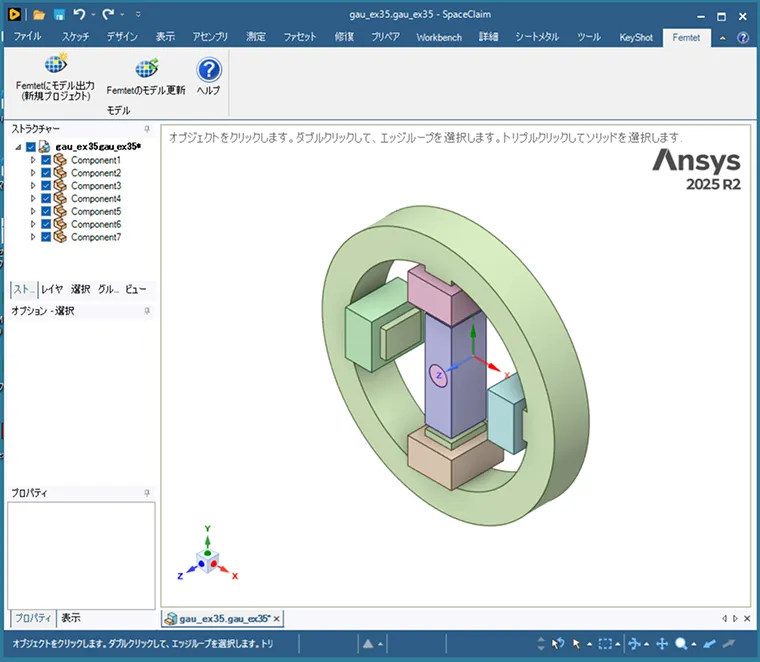
This is an add-in tool for SpaceClaim. CAD geometry can be passed from SpaceClaim to Femtet.
It can be used on a PC where both SpaceClaim and Femtet are installed.
*SpaceClaim is a registered trademark of SpaceClaim Corporation.
Automatically Import Model Geometry Data into Femtet
SpaceClaim
Femtet
Procedure
- Start SpaceClaim and open an object.
- On the Femtet tab, click the Femtet button.
- Specify the Femtet project in the dialog box.
- Femtet starts and the model is exported.
-
Femtet cannot import material properties, boundary conditions, etc. assigned to model geometry (bodies).
After importing the model data, manually set the materials and boundary conditions in Femtet.
Ansys Discovery Add-in
| Release Ver. | Updated | Remarks | Download Link |
|---|---|---|---|
|
For Femtet2025.0 (64bit) |
2025/10/14 | Ansys Discovery 2023R1 or later Requires .NET Framework 4.8 or later installation |
Download(1,016KB)
|
|
For Femtet2024.0 (64bit) |
2024/11/25 | Ansys Discovery 2023R1 or later Requires .NET Framework 4.8 or later installation |
Download(1,017KB)
|