Home / How to Set Body Attribute, Material Property and Boundary Condition / Body Attribute Tabs / Material Change Tab
Material Change Tab
The material change for the body is set on this tab.
It is shown in the [Edit Body Attribute] dialog box. See [How to Set Body Attribute/Material Property].
|
Setting Items |
Notes |
|
Setting |
Available for the multi-step analysis/multi-step thermal load analysis of the mechanical stress static analysis.
The material can be changed over the steps.
Refer to [Stress-Static Analysis] of the Technical Notes for detailed material change setting.
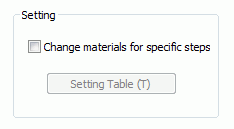
Select [Change materials for specific steps].
The Time/Step Table button will be activated.
The setting here overrules the original material setting on the bodies.
Click the [Setting in Time Table] button. The Time/Step Table window will appear. Go to the Material Change tab.
Enter Step, Time, Initial temperature and Reached temperature, and set the material for each.
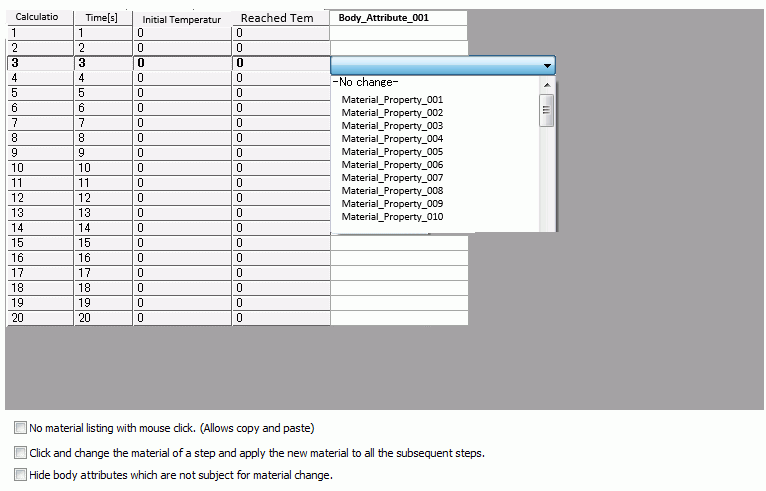
There are 3 setting modes as listed below.
|
Setting modes |
Notes |
|
Individual setting
(default) |
Click the material cell of a step and select a material from the pull-down material list.
This is the default mode. |
|
Lump setting
|
Click the material cell of a step and select a material from the pull-down material list.
The selected material will be applied to the subsequent steps as well.
To activate this mode, select "Click and change the material of a step and apply the new material to all the subsequent steps." in the dialog box.
|
|
No material listing
|
The material listing function is off.
That will allow you to copy and paste the materials.
To activate this mode, select "No material listing with mouse click. (Allows copy and paste)" in the dialog box.
|
-
If opened from the Step/Thermal Load tab, "-No Change-" will be indicated on the entry cell if "Change materials for specific steps." is deselected.
Select "Hide body attributes which are not subject for material change." to hide the irrelevant body attributes.
Click "- No change -" on the entry cell and select a material to switch on the material change function.
Click on the entry cell and select "- No change -" to switch off the material change function.
|


