|
Home / How to Set Analysis Condition / List of Analysis Condition Tabs / Results Import Tab
Results Import Tab
The results file to import is specified on this tab.
It is in the [Analysis Condition Setting] dialog box. See also [How to Set Analysis Condition].
The details are explained at [Multiphysics Analysis by Femtet].
|
Setting Item |
Notes |
|
Import Type |
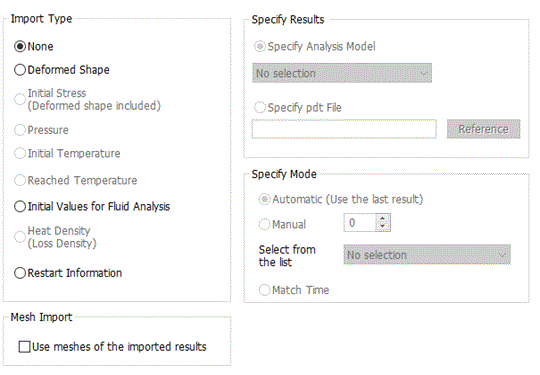
Specifies the import type.
If Deformed Shape is selected, [analysis with deformed shape taken into account] can be performed.
If Initial Stress (Deformed shape included) is selected, [analysis with initial stress taken into account] can be performed.
If Initial Temperature is selected, thermal transient analysis can be performed with the imported temperature as an initial temperature. An example is in Example: 20 Further Analysis with Saved Temperature Data (Transient Analysis).
If Initial Values for Fluid Analysis or Initial Values for Fluid-Thermal Analysis is selected, flow velocity, pressure, turbulent flow rate, and temperature can be used as the initial values for the fluid analysis and the fluid-thermal analysis.
If Heat Density (Loss Density) is selected, the thermal analysis can be performed with the imported heat density.
If Reached Temperature is selected, the stress analysis is executed with the imported temperature as a reached temperature. An example is in [Stress Analysis Example 71].
If Pressure is selected, the stress analysis can be performed with the imported pressure as a boundary condition An example is in [Stress Analysis Example 70].
If Restart Information is selected, the analysis can be continued following the imported results. By selecting a mode, you can start over the analysis from the middle of the completed analysis with modified conditions.
The details are explained at [Multiphysics Analysis by Femtet].
|
|
Specify Result |
Specify Analysis Model
Uses the result of the analysis model in the same project. The analysis model is selected from the same project.
Specify pdt File
Specifies the results file directly. Press Browse button to specify the pdt file.
|
|
Specify Mode |
Specifies the result from the multiple results in the file.
Automatic (Use the last result)
Uses the last result.
Manual
Specifies the mode. Input the mode number. If the result exists, the mode number is automatically input by selecting the result from the list.
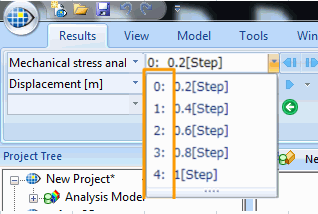
Mode number is shown at the left side of the result display.
Adjust Time
When importing the results of an transient analysis to the other transient analysis, the import mode (time) is automatically selected corresponding to the analysis time.
|
|
Mesh Import |
By selecting Use meshes of the imported results, meshes of the imported results are allowed for analysis.
|