


|
Home / Executing Simulation / How to Use the Batch Execution Tool
How to Use the Batch Execution Tool
Multiple analysis models can be analyzed through the batch simulation.
Prepare some projects (.femprj) and solve them as a series of jobs.
Parametric analysis can be processed as a batch.
-
Authorization of Power Users is needed for the batch execution.
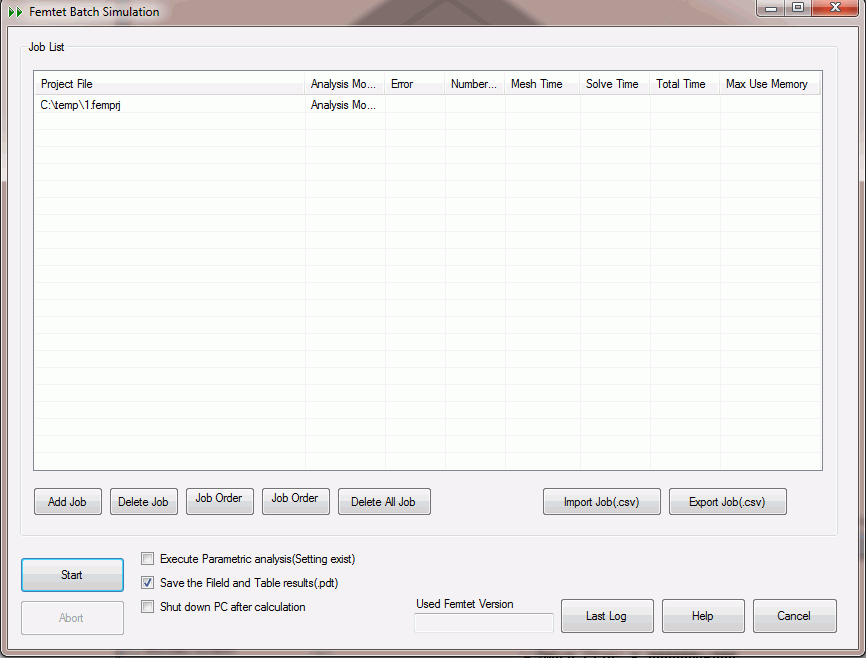
How to Proceed
-
 will specify the file.
Repeat specifying until all the required files are included.
-
 will start the calculation.
-
Click
 to hold the calculation temporarily.
 will resume the calculation.
Please note these are applicable to all the running Femtet at the time.
-
If an error occurred at a job, the simulation would proceed to the next job.
Other items are explained below.
|
Items |
Notes |
|
Delete Job |
The jobs selected on the list will be deleted. |
|
Job Order Up |
The job order of the one selected on the list moves up by 1. It is possible to move up the job order of yet-to-calculate jobs during the calculation. |
|
Job Order Down |
The job order of the one selected on the list moves down by 1. It is possible to move up/down the job order of yet-to-calculate jobs during the calculation. |
|
Delete All Jobs |
All the jobs on the list are deleted. |
|
Import Job (.csv) |
The job in csv format is imported in the list. |
|
Export Job (.csv) |
The job in the list is exported in csv format. |
|
Abort Calculation |
The calculation can be aborted in the middle of calculation.
|
|
Execute the parametric analysis (if the setting for it exists) |
If selected, the parametric analysis will be executed for the jobs.
If selected without the setting, which means there is no entries in the sweep table, the ordinary calculation will be performed. How to save the results (pdt files) depends on the output setting of the parametric analysis. |
|
Save the results (.pdt) |
If selected, the results are saved after the calculation. Keep it on all the time. Switch it off when S-parameters are the only required results in Hertz. |
|
Shut down the PC after the simulation |
PC will be shut down after all the jobs are completed. |
|
The Femtet version used |
The Femtet version used is displayed. |
|
Last log |
The log of the last calculation is displayed. This is useful to check the log after the shutdown. |