


|
Home / Modeling / Auxiliary Tools / Healing (Restoring Bodies)
Healing (Restoring Bodies)
Femtet can import CAD data.
CAD data often contain invalid topologies and errors or redundant data.
Mesh error could happen due to such data.
By applying healing after the import, the likelihood of mesh error can be reduced.
-
Bodies that can be healed are sheet body and solid body.
-
Bodies imported from Black Box DB are not subject to healing.
There are two ways to apply healing.
1. Healing at CAD Import
If [Healing] is selected in the Setting Items for Import dialog box,
you can continue to perform healing right after the CAD data import.
A dialog box for setting healing will show up when the import begins.
-
As healing is applied to all bodies that can be healed on the modeling window, it may take time depending on the shape and the number of bodies.
-
Healing can be canceled by pressing [ESC] during the healing process.
-
If a shape of body is complicated, it will take time for a cancel dialog box to show up.
-
Healing can be undone and redone.
2. Healing on the Modeling Window
On the [Model] tab, go to  and click [Restore Body]
  .
.
The dialog box to set up the healing will show up.
-
Body to heal can be specified if it is selected before clicking
.
-
It may take time depending on the shape and the number of bodies.
-
Healing can be canceled by pressing [ESC] during the healing process.
-
If a shape of body is complicated, it will take time for a cancel dialog box to show up.
-
Healing can be undone and redone.
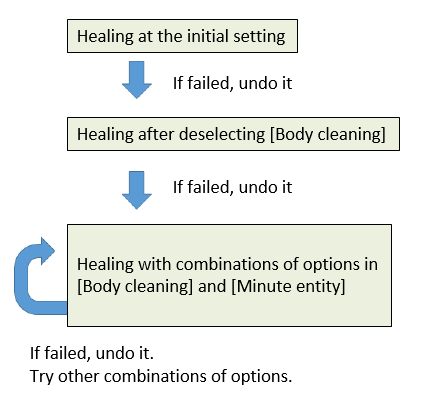
3. Operation Flows of Healing
4. Setting Items for Healing
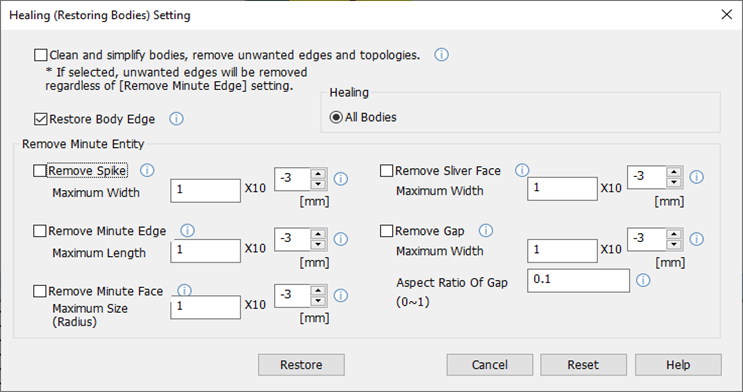
Options can be set in the dialog box of healing setting.
|
Setting Item |
Notes |
|
Body cleaning and simplification, removal of redundant edges and topologies |
Cleans the invalid data of bodies, simplifies the body form, and removes the redundant edges and topologies. It is recommended to select this option for the following cases.
・To simplify the body form after removing minute entity. ・To correct the invalid form which is found at Check Bodies.
|
|
Restore Body Edge |
Corrects the inaccurate edge and replaces the free curve by straight line or arc.
|
|
Healing |
[All Bodies] ・All sheet/solid bodies that exist on the modeling window are subject to healing.
[Selected Bodies] ・The bodies that are selected before displaying the dialog box for setting are subject to healing. ・The numbers shown are those of [selected bodies / all bodies].
|
Remove Minute Entity |
|
|
Remove Spike |
Removes a spike which is smaller than the specified width in the body.
|
|
Maximum Width |
Specifies the value larger than the maximum width of spike.
It is recommended to set the value slightly larger than the target to remove it successfully.
|
|
Remove Minute Edge |
Removes the edge which is smaller than the maximum length specified in the body.
the redundant edges and topologies are removed ignoring the maximum length set in this setting item.
|
|
Maximum Length |
Specifies the value larger than the maximum length of minute edge.
It is recommended to set the value slightly larger than the target to remove it successfully.
|
|
Remove Minute Face |
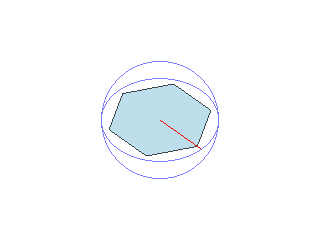
Removes the face smaller than the sphere with minimum radius specified in the body.
|
|
Maximum Size (Radius) |
Specifies the value larger than the maximum size (radius) of minute face.
By setting the value slightly larger than the target to allow it fit in the sphere, the likelihood of removing it successfully will increase. (Too large value will not remove the sphere either.)
・For instance, specify the radius (length represented by red line) to allow the minute face of hexagon.
|
|
Remove Sliver Face |
Removes the sliver face smaller than the specified width in the body.
|
|
Maximum Width |
Specifies the value larger than the maximum width of sliver face.
It is recommended to set the value slightly larger than the target to remove it successfully.
|
|
Remove Gap |
Removes a gap which is smaller than the specified width and the upper limit of the aspect ratio in the body.
・Closed gap
・Open gap
|
|
Maximum Width |
Specifies the value larger than the maximum width of gap. (w in the diagram below)
It is recommended to set the value slightly larger than the target to remove it successfully.
|
|
Aspect Ratio of Gap |
Specifies the upper limit of the ratio of the gap's width and length (Given by dividing w by h in the diagram above). The specifying range is between 0 and 1.
|
|
Restore |
Executes the healing.
|
|
OK |
Saves the healing setting.
|
|
Cancel |
Cancels the healing setting. |
|
Reset |
Resets all of the setting items of the healing to the default values. |
|
Help |
The help page you are seeing now will show up. |




5. Example
5-1. Remove Spike
・A sheet body of 1mmx1mm has a gap of 0.05mm in width and 0.5mm in length.

|
Setting Item |
Notes |
|
・[Body cleaning and simplification, removal of redundant edges and topologies.removal of redundant edges and topologies] On
・[Remove Spike] On
・Other settings are default values. |
・Set [Maximum Width of Spike] to 6×10⁻²(0.06) mm -> The spike is removed, and the body is simplified.  |
|
[Body cleaning and simplification, removal of redundant edges and topologies.removal of redundant edges and topologies] Off
・[Remove Spike] On
・Other settings are default values.
|
・Set [Maximum Width of Spike] to 6×10⁻²(0.06)mm -> The spike is removed while the edge topology remains. 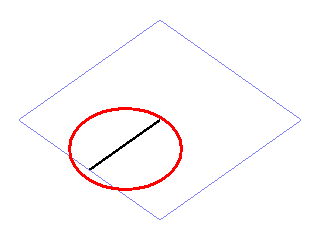 |
5-2. Remove Minute Face
・ There are cylindrical holes and cylindrical protrusions of 0.1 mm (radius) on the top of a solid body with dimensions of 5 mm × 5 mm ×1 mm

|
Setting Item |
Notes |
|
・[Body cleaning and simplification, removal of redundant edges and topologies.removal of redundant edges and topologies] either On or Off
[Remove Minute Face] On
・Other settings are default values.
|
・Set [Maximum Size of Minute Face] to 1.2×10⁻¹(0.12) mm. -> The minute face is removed.  |
|
・Set [Maximum Size of Minute Face] to 1.1×10⁻¹(0.11) mm. -> The cylinders are removed leaving the holes.  |