Home / Modeling / Black Box DB
Black Box DB
The black box DB can be used when there are analysis models you want to share with other users without disclosing the detailed information associated with it.
Procedure for each operation is explained below.
Cautions
Please pay attention to the following.
-
Murata Software does not make any warranties with respect to the ability of black boxes for secrecy.
In no event Murata Software shall be liable for any leakage of secret information.
-
Project files (.femprj) and result files (.pdt) containing models imported from black box DB
cannot be opened by Femtet 2014.0 or earlier versions.
-
It is restricted to use two-byte characters for the names of black box DBs and model data. (See [How to Create Black Box DB] below)
-
For the names of body attributes, material properties and boundary conditions, only one-byte characters are allowed.
-
You may use Femtet macros to create projects which use black box DB and perform simulations. However, the analysis results cannot be extracted.
To examine the results, save them in a file and open it with Femtet.
Black Box DB Menus
The possible operations are listed below.
See [How to Create and Release Black Box DB] for additional information.
Also, see [How to Edit Black Box DB].
Also, see [How to Utilize Black Box DB].
|
Category |
Operations |
|
Operations on black box DB |
-
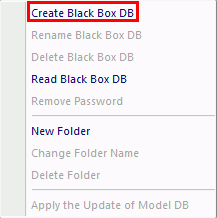
Create Black Box DB: Right click on the Model DB tree and click [Create Black Box DB] on the menu.
New black box DB is created.
-
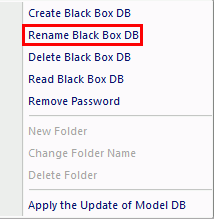
Rename Black Box DB: Select the black box DB you want to rename, and click [Rename Black Box DB].
The selected DB is renamed. The password is required to be removed prior to the operation.
-
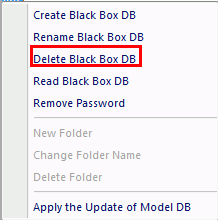
Delete Black Box DB: Select the black box DB you want to delete, and click [Delete Black Box DB].
The selected DB is deleted.
-
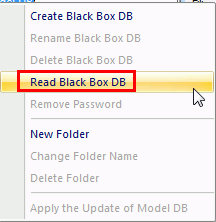
Read Black Box DB: Right click on the Model DB tree and click [Read Black Box DB] on the menu.
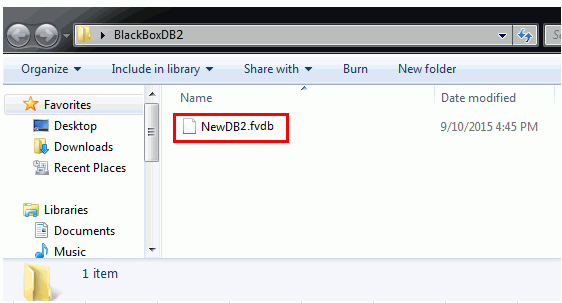
Select a black box data file (.fvdb) and press the Open button.
-
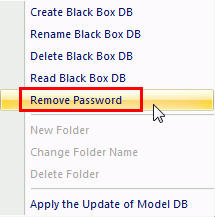
Remove Password: Right click on the black box DB you want to remove password from, and click [Remove Password].
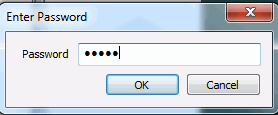
Enter the password to complete the removal.
|
|
Operations on model data in black box DB |
-
Import model data Drag and drop the thumbnail of the model data on to the modeling window.
If you drag and drop while pressing the Shift key,
the Cruise command will be executed automatically after import.
See [Cruise] for more details.
-
Register in Black Box DB: Select a destination black box DB
and select the bodies on the modeling window.
Then click [Register in Model DB]  on the [Model] tab on the [Model] tab  . The thumbnail of the model will appear on the Model DB tree. . The thumbnail of the model will appear on the Model DB tree.
The thumbnail of the registered model data will appear on the Model DB tree. Set the name for it.
The password must be removed prior to the operation.
-
Delete model data: Right click on the thumbnail of the model data you want to delete
and click [Delete Data],or press the Delete key.
The password must be removed prior to the operation.
-
Change Data Name: Right click on the thumbnail of the model data, and click [Change Data Name] on the menu or click the thumbnail's label.
You will get into the edit mode.
The password must be removed prior to the operation.
|
- How to Create Black box DB
-
Go and click the [File] tab  and select [General Settings] and select [General Settings]  . .
|
|
-
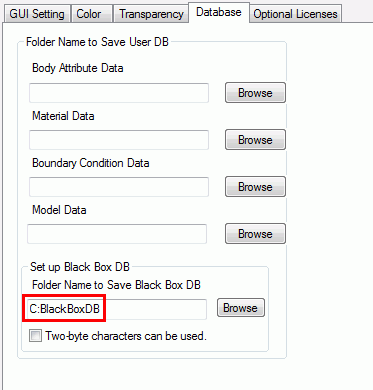
In the [General Settings] dialog box, click the [Database] tab and specify the destination folder
-
The black box DB file (.fvdb) will be saved there.
The read black box DB file will be copied there, too.
-
Select "Two-byte characters can be used." to allow the use of two-byte characters for the names of black box DBs and model data.
Note that those characters might not be recognized by non-Japanese OS, and might cause the malfunction.
|
|
-
Right click on the Model DB tree and click [Create Black Box DB] .
|
|
-
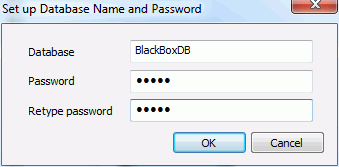
Enter the database name and password and click OK.
|
|
- How to Rename Black Box DB
-
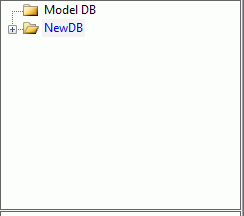
Select the black box DB you want to rename.
|
|
-
Remove password as explained below.
|
|
-
Right click on it and click [Rename Black Box DB] .
|
|
-
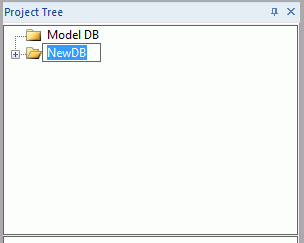
The name field will become editable.
|
|
- How to Delete Black Box DB
-
Select the black box DB you want to delete.
|
|
-
Right click on it and click [Delete Black Box DB] .
|
|
- How to Read Black Box DB
-
Right click on the Model DB tree and click [Read Black Box DB] .
|
|
-
Select the black box DB file (.fvdb) you want to read.
|
|
- How to Remove Password
-
Select the black box DB you want to remove the password from.
|
|
-
Right click on it and click [Remove Password].
|
|
-
Enter the current password.
|
|


