Home / Modeling / Black Box DB / How to Create and Release Black Box DB
How to Create and Release Black Box DB
Follow the procedure below.
Also see [How to Utilize Black Box DB].
- Creating a black box DB
-
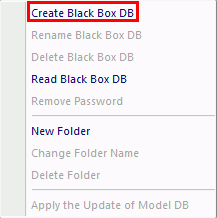
Create a black box DB as explained in [Black Box DB] > Create Black Box DB.
|
|
- Registering model data in black box DB
-
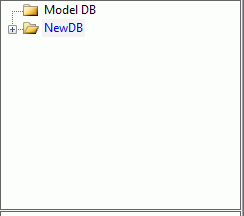
Select a destination black box DB.
|
|
-
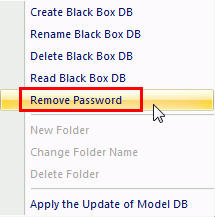
Remove the password as explained in [Black Box DB] > Remove Password.
|
|
-
Create the analysis model. It will be invisible to the users who use the black box DB.
-
The model's information such as body attributes, material properties and boundary conditions is invisible to them.
-
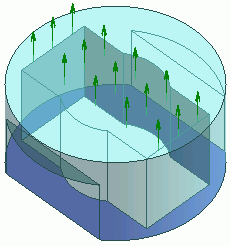
Set the mesh sizes on all the bodies of the analysis model.
That stabilizes the meshing during the simulation.
|
|
-
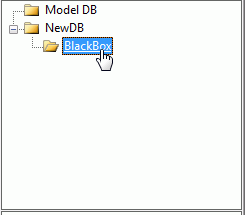
Select the sub folder BlackBox within the created black box DB folder.
|
|
-
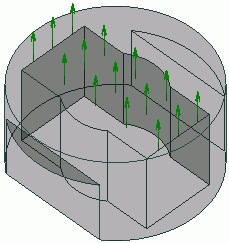
Select the analysis model. Go to  on the [Model] tab. Click [Register in Model DB] on the [Model] tab. Click [Register in Model DB]  . .
|
|
-
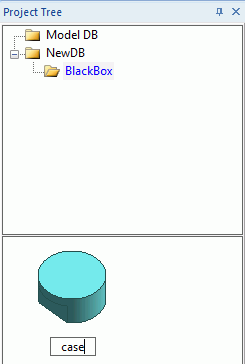
Enter the model data name.
|
|
-
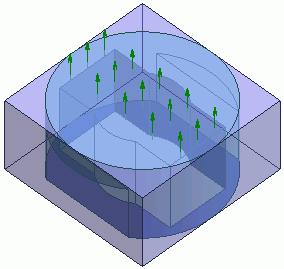
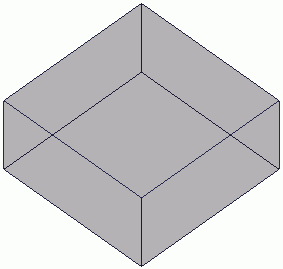
Create the substitute model. It will be visible to users while the actual analysis model is invisible to them.
-
The substitute model has to be a single-body model.
-
It can be a simple model covering the actual model as shown.
-
If it is too simple, users might have a difficulty to identify it.
It is recommended to add a recognizable marking such as an imprint on the top face or a protrusion .
-
The substitute model doesn't need to have the related information such as body attributes, material properties or body attributes.
If such information is made available, however, users will be able to identify the model easily.
|
|
-
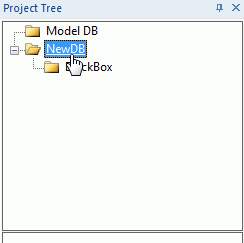
Select the black box DB folder to save it.
|
|
-
Select the substitute model > [Model] tab > Click [Register in Model DB] .
|
|
-
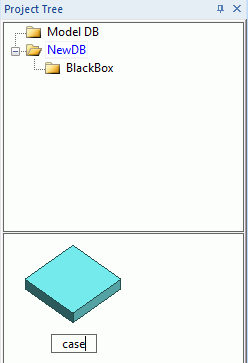
Enter the same name as the actual analysis model .
|
|
- Releasing the black box DB
-
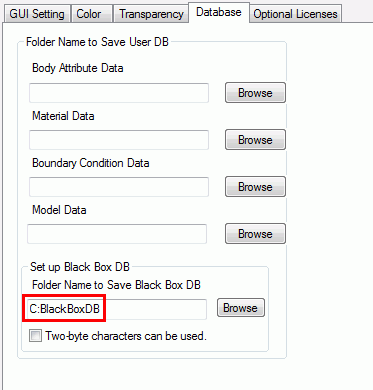
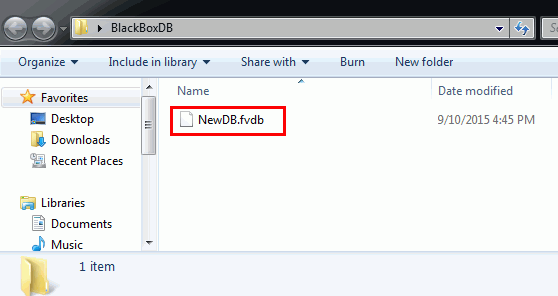
Find the black box DB file (.fvdb) saved on the folder designated earlier in the General Settings dialog box.
|
|
-
Give that file to the user.
|
|


