


|
Home / Examples / Electromagnetic Analysis [Hertz] / Example 7: Dipole Antenna
Example 7: Dipole Antenna
General
-
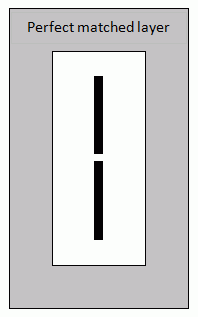
The perfectly matched layer (PML) is used to analyze a dipole antenna.
-
Unless specified in the list below, the default conditions will be applied.
-
Obtain this session's project file. (Right-click and choose 'Save link as')
-
Results will vary depending on Femtet version and the PC environment.
-
The animation for the radiation characteristics is created at the end of this session.
Analysis Space
|
Item |
Settings |
|
Analysis Space |
3D |
|
Model Unit |
mm |
Analysis Conditions
|
Item |
Settings |
|
Solver |
Electromagnetic Analysis [Hertz] |
|
Analysis Type |
Harmonic Analysis |
Harmonic Analysis tab and Open Boundary tab are set as follows.
|
Tab |
Setting Item |
Settings |
|
Mesh Tab |
Element Type |
1st-order Element |
|
Adaptive Meshing |
Select [Apply adaptive meshing]. |
|
|
Frequency-Dependent Meshing |
Reference Frequency: 5x10⁹ [Hz] Select [The conductor bodies thicker than the skin depth constitute the boundary condition].
ANTENNA is thicker than the skin depth. Its surface will be set with the proper boundary condition based on the material automatically. |
|
|
Harmonic analysis |
Sweep Type |
Select [Linear Step by Number of Divisions] |
|
Sweep Setting |
Minimum: 3×10⁹ [Hz] Maximum: 6x10⁹ [Hz] Number of Divisions: 100 |
|
|
Sweep Setting |
Select Fast Sweep S-parameter tolerance: 1x10⁻³ |
|
|
Input |
1.0 [W] |
|
|
Open boundary |
Type |
PML (Perfectly Matched Layers) |
|
Thickness of PML Layer |
0.2 Wavelength * |
* It is 0.3 by default. To shorten the calculation time, it is changed to 0.2.
Model
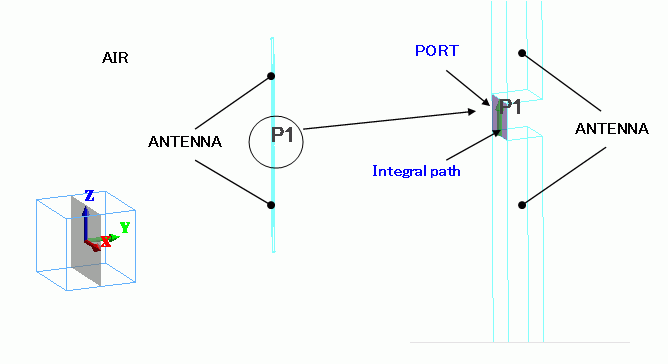
Two conductor rods are placed in the air box. The rods are rectangular solid bodies.
Set the port boundary condition on a sheet body connecting the conductor rods.
Body Attributes and Materials
|
Body Number/Type |
Body Attribute Name |
Material Name |
|
3/Solid |
ANTENNA |
104_Stainless_steel * |
|
4/Solid |
ANTENNA |
104_Stainless_steel * |
|
5/Sheet |
Imprinting body |
|
|
6/Solid |
AIR |
000_Air(*) |
* Available from the material DB
Boundary Conditions
|
Boundary Condition Name/Topology |
Tab |
Boundary Condition Type |
Settings |
|
PORT/Face |
Electric |
Port |
Reference Impedance: Select [Specify] and enter 50 [Ohm]. Number of Modes Number of Precalculated Modes: 5 Number of Modes Used in the Actual 3D Analysis: 1 Select modes: None |
|
OPEN/Face |
Electric |
Open Boundary |
Select PML on the open boundary tab of the analysis condition setting. |
|
Outer Boundary Condition |
Electric |
Electric Wall |
|
Results
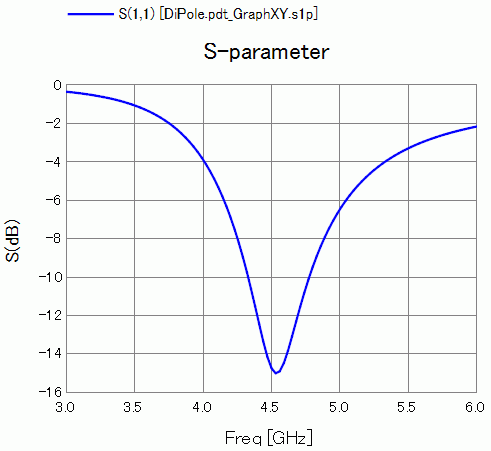
S-parameter S11 at the feeding point is shown below.
It is matched at about 4.5 GHz.
-
How to Display Graph
On the [Results] tab, go to
  and click ▼ at the right side of [Show Characteristics Chart]. Click [S/Y Parameters] on the submenu.
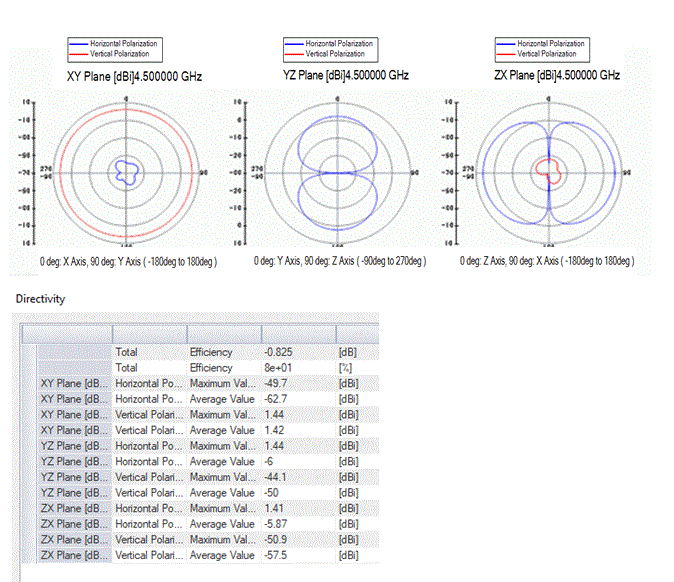
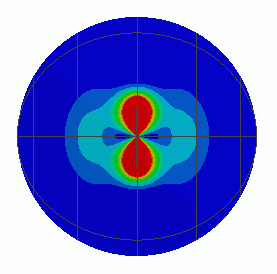
The radiation patterns and efficiency of the antenna at 4.5 GHz are shown below.
-
How to Display
On the [Results] tab, go to and click ▼ at the side of [Show Characteristics Chart]. Click [Directivity Graph] on the submenu. -
See [[Simple Mode] Electromagnetic Waves Directivity] for more information.
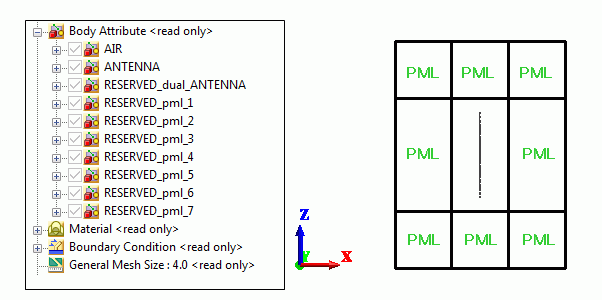
The perfectly matched layers with body attributes of RESERVED_PML_xx are generated automatically.
The green characters of "PML" below will not be displayed on the results window. They are just for helping your understanding.
Comparison with the Theoretical Results
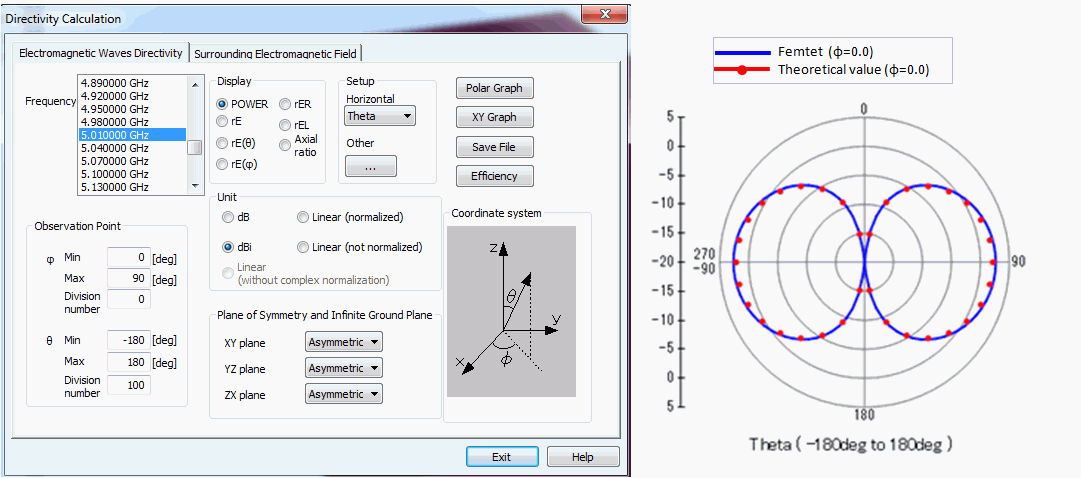
The theoretical results and radiation pattern of the half wavelength dipole antenna are compared. The calculation condition is as follows.
- Frequency 5.01 GHz (Select the frequency so as to make the length of antenna 1/2 wavelength)
- Radiation pattern measured on the XZ plane. Settings of the observation point are; φ(minimum value: 0 [deg], maximum value: 90 [deg], number of divisions: 0), θ(minimum value: -180 [deg], maximum value: 180 [deg], number of divisions: 100).
- Display: POWER, unit: dBi
- [Received power referenced] for the [Gain Type] is selected on the [[Detailed Mode] Electromagnetic Waves Directivity] tab. Operation is as follows. If you press the [Other] of the Directivity dialog box, [Directivity Setting] dialog box will appear. Then, [received power referenced] is selected for the gain type.
How to Create the Animation
Animations tend to look better when the larger ambient zone is set, e.g..more than one wavelength.
However, that might increase the number of meshes.
To suppress the number of meshes, try the absorbing boundary instead of PML.
The animation will look better with smaller meshes.
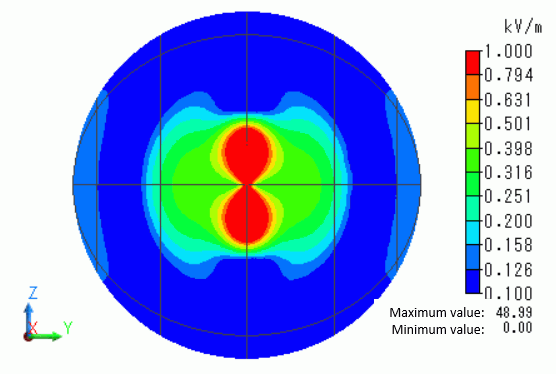
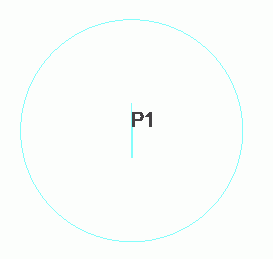
The left figure is the model. The right figure is the contour of the electric field sectioned by the plane encompassing the antenna.
# Setting Item
Analysis Condition Setting -> Open Boundary tab -> Absorbing Boundary
Modeling -> Air Sphere -> Radius: 60
Modeling -> Mesh Size: 4
Analysis Condition Setting -> Mesh tab -> Meshing Setup -> 2nd-order Element
# Results Window
-
[Solver]: Electromagnetic Analysis
-
[Mode]: 4.5 GHz
-
[Field Type]: Electric Field
-
[Component]: Magnitude
-
[Phase]: 90 deg *
-
[Scale]: Log
* This setting is for the better look of contour. It does not affect the animation.
# Contour tab in Graphics Setup
-
Deselect [Automatic]
-
Minimum value: 100
-
Maximum value: 1000
# Cross Section
The contour of cross section that is in the center of the ambient air and parallel to the YZ plane is shown in the right diagram above.
The animation displays the electromagnetic waves radiation.
-
See [How to Create Animation] for detail.
-
Obtain this file. (Right-click and choose 'Save link as')
-
Results will vary depending on Femtet version and the PC environment.
To perform this analysis, it is recommended to use a 64-bit PC with at least 50 GB memory.
If such PC is not available, try one or combination of the following methods to reduce calculation load.
-
Make the mesh size bigger: See [Mesh tab] for details.
-
Select 1st-order element: See [Mesh tab] for details.
-
Disable adaptive mesh: See [Mesh tab] for details.