


|
Home / User Interface / General settings / GUI Setting
GUI Setting
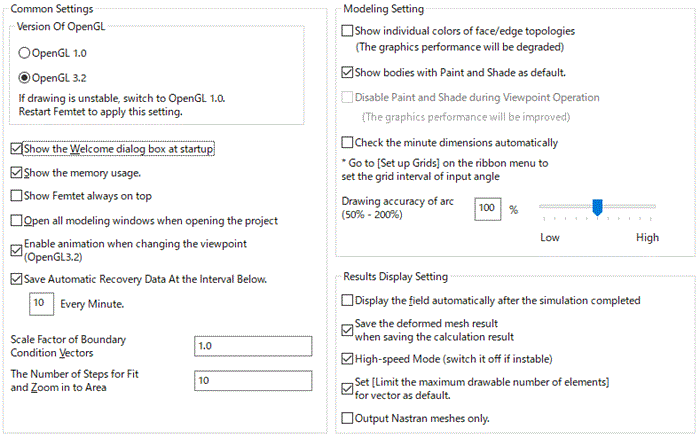
Common Settings
|
Items |
Notes |
|
Version of OpenGL |
Select OpenGL1.0 or OpenGL3.2. If OpenGL3.2 is selected, high-speed drawing with GPU is possible. If your PC supports OpenGL3.2, it is automatically selected at the initial start-up.
If your PC does not support OpenGL3.2, this item is grayed out. If this item is grayed out even though your PC supports OpenGL3.2, try updating the display driver.
If the graphics don't show up on screen properly, select OpenGL 1.0. The examples are listed below.
You might try OpenGL 1.0 even for the other graphics-related problem. Please note that you need to restart Femtet to apply this setting. |
|
Show the Welcome dialog box at startup. |
If selected, the Welcome dialog box shows up when Femtet starts up. |
|
Show the memory usage. |
If selected, the memory usage is listed on the output window when Femtet runs. |
|
Show Femtet always on top |
Keeps Femtet on top at all times. |
|
Open all modeling windows when opening the project |
This setting is for a project that has multiple analysis models. If selected, all modeling windows are opened when opening the project.
If deselected, analysis models, except for the one which was last active, will be opened when accessed from the project tree. If selected, it takes longer time to open a project.
|
|
Enable animation when changing the viewpoint |
Enables animation when changing the viewpoint
|
|
Save Automatic Recovery Data At the Interval Below. |
The recovery data will be automatically saved at specified time intervals. The saved recovery data is used to restore the project data on the restart after abnormal termination. |
|
Scale factor of boundary condition vectors |
Sets the scale factor of vectors at boundary conditions. |
|
Number of steps for Fit and Zoom in to Area |
Sets the number of steps for Fit and Zoom in to Area 1 gives the fastest transition. The higher, the slower and smoother. Default value is 10. The maximum value is 1000. |
|
Zoom direction by mouse wheel |
Sets the zoom in/out direction when scrolling the wheel |
|
Zoom speed |
Sets the zoom speed of the mouse operation. |
Modeling Setting
|
Items |
Notes |
|
Show individual colors of face/edge topologies |
Individual colors will be shown if they are set on faces/edges and this option is enabled. The color information will be indicated on the project tree as well.
|
|
Show bodies with Paint and Shade as default. |
If selected, all the bodies will be shown with Paint and Shade when the model is loaded. This setting will be applied next time when the model is loaded. |
|
Disable Paint and Shade during viewpoint operation |
If selected, all the bodies will be shown by wireframe and the graphics display will be faster during the viewpoint operation. |
|
Check the minute dimensions automatically |
If selected, the warning message will pop up when there is a danger of poor meshing due to improper dimensioning. If the warnings pop up too often to operate, deselect this option. The warning will, however, pop up with [Check Bodies] function even if this option is deselected. This setting will be saved in the registry, and continues to be effective for the next sessions on. It is selected by default. |
|
Grid interval of input angle (degree) |
Specifies the angle interval of Rotate/Revolve. For example, if 5 is entered, the angle for Rotate/Revolve can be entered with 5[deg] interval. |
|
Drawing accuracy of arc (50% - 200%) |
Adjusts the drawing accuracy of arc at shading. The arc and the shading will be aligned better with higher accuracy. |
Results Display Setting
|
Items |
Notes |
|
Display the field automatically after the simulation completed |
Launches the results window automatically after the simulation is completed. |
|
Save the deformed mesh result when saving the calculation result. |
Saves the deformed mesh result as well as the calculation result when the calculation is finished. See [Analysis with Deformed Meshes] for more information. |
|
High-speed mode |
Processes vector and contour drawing faster. The caching and the calculation are processed in parallel. Note that it consumes a lot of memory. Deselect it if instable. |
|
Sets the high-speed mode with the vector drawing elements limited to 100,000 as default. |
Sets [Limit the maximum drawable number to 100K elements for faster operation] as default on the vector tab. If deselcted, [All elements] return to the default setting. |