


|
Home / Examples / Analysis with Deformed Meshes
Analysis with Deformed Meshes
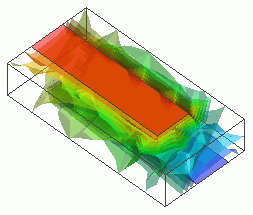
General
-
A capacitor is deformed due to thermal loading. The deformation causes the capacitance change.
First, the deformation due to thermal loading is calculated by the stress analysis (Galileo). Then, the capacitance is solved by the electric analysis (Coulomb) based on the deformed meshes.
The capacitances before and after the deformation are compared.
-
Unless specified in the list below, the default conditions will be applied.
-
Obtain this session's project file. (Right-click and choose 'Save link as')
-
Results will vary depending on Femtet version and the PC environment.
Procedure (overview)
-
Set not only the analysis conditions for stress analysis but also all the required analysis conditions.
Change the solver on the [Solver] tab and set the required analysis conditions.
See [Solver Tab] for the detail.
-
Change the solver to Galileo.
When the stress analysis is selected, [Create air domain automatically] is deselected. Select it on the [Mesh] tab.
Execute the stress analysis and save the results.
The deformed meshes are generated and saved.
The result file containing the deformed mesh information bears (Deformed mesh) on its name. -
Copy the analysis model.
-
Change the solver to Coulomb, which uses the deformed meshes.
-
On the [Model] tab
 , click ▼ at the bottom of [Run Mesher/Solver]
 .
.
Click [Run Solver with Existing Meshes] on the submenu. Select the deformed mesh file saved in Step 2.
See [Run Solver with Existing Meshes] for more details.
-
The analysis procedure is as described below.
-
If a result file of the deformed mesh is not output, select [Save the deformed mesh results when saving the calculation result] on the GUI Setting tab in the General Settings dialog box.
Analysis Space
|
Item |
Settings |
|
Analysis Space |
3D |
|
Model Unit |
mm |
Analysis Conditions
Galileo and Coulomb are used in this session.
The stress analysis is set up as follows.
|
Item |
Settings |
|
Solver |
Stress Analysis [Galileo] |
|
Analysis Type |
Steady-state Analysis |
The reference temperature is set on the Step/Thermal Load tab.
|
Tab |
Setting Item |
Settings |
|
Step/Thermal load |
Reached Temperature |
200 [deg] |
The electric analysis is set up as follows.
Select [Static analysis] as the electric potential is static.
|
Item |
Settings |
|
Solver |
Electric Analysis [Coulomb] |
|
Analysis Type |
Static Analysis (Capacitance) |
|
Options |
N/A |
Model
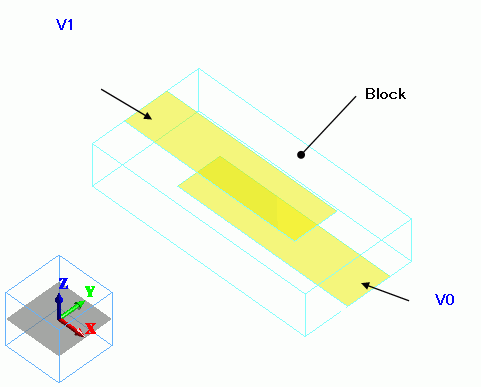
Create a cubic solid body for the dielectric body of the capacitor. The material is alumina.
Inside the air cube, create 2 sheet bodies for electrodes. Then, specify the electric potential on each as boundary condition.
Boundary conditions for the electric analysis must be set before calculating the deformed meshes in the stress analysis.
See [Modeling] for more details.
Body Attributes and Materials
Two sheet bodies are used to imprint the electric potential-specified boundary condition.
They are called "imprinting body".
You don't need to set the body attribute or the material property on them.
|
Body Number/Type |
Body Attribute Name |
Material Name |
|
0/Solid |
Block |
001_Alumina * |
|
1/Sheet |
Imprinting body |
|
|
2/Sheet |
Imprinting body |
|
* Available from the Material DB
Boundary Conditions
- Stress analysis
|
Boundary Condition Name/Topology |
Tab |
Boundary Condition Type |
|
V0/Face |
Mechanical |
Free * |
|
V1/Face |
Mechanical |
Free * |
* Free is the default setting in the stress analysis.
- Electric analysis
|
Boundary Condition Name/Topology |
Tab |
Boundary Condition Type |
Settings |
|
V0/Face |
Electric |
Electric Wall |
Electric Potential Specified 0 [V] |
|
V1/Face |
Electric |
Electric Wall |
Electric Potential Specified +1 [V] |
Procedure (Detailed)
-
Set up the analysis conditions for the stress analysis as follows.
On the [Model] tab,
Select [Analysis Condition] .
.
Select the [Stress Analysis "Galileo"] on the [Solver] tab.

-
Click the [Stress Analysis] tab.
Select [Thermal Load]. The [Step/Thermal Load] tab becomes available.

-
Click the [Step/Thermal Load] tab.
Set 0 and 200 °C as the reference temperature and the reached temperature, respectively and click [OK].

-
Set the body attribute and the material property of the body0 (solid body) as follows.
See [How to Set Body Attribute/Material Property] for detailed setup.

-
Set the boundary conditions on body1 and body2 (sheet bodies) as follows.
Boundary Condition Name : V0, V1 as shown in Model.
Boundary Condition : Free
See [How to Set the Boundary Condition] for the details.

-
Set up the analysis conditions for the electric analysis as follows.
On the [Model] tab,
Select [Analysis Condition] .
Select [Electric Analysis "Coulomb"] on the [Solver] tab.

[Create air domain automatically] is automatically selected. Deselect it on the [Mesh] tab.
-
Click [Electric Analysis] tab.
Set it up as follows and click [OK].

-
Set boundary conditions on body1 and body2 (sheet bodies) as follows.
Boundary Condition Name : V0, V1 as shown in Model.
Boundary Condition : Electric Wall (Electric Potential Specified), 0V(body1), 1V(body2)
See [How to Set the Boundary Condition] for the details.

-
Change the solver to Stress Analysis "Galileo" as follows.
On the [Model] tab,
Select [Analysis Condition] .
On the [Solver] tab, deselect Electric Analysis "Coulomb" and select Stress Analysis "Galileo".
Click [OK].
-
On the [Model] tab , go to
and click [Run Mesher/Solver] .
-
Go and click the [File] tab
 and select [Save Project]
  .
.
Two results files (.pdt), will be saved.
The file containing deformed mesh information bears the name of "Deformed mesh". -
Copy the analysis model.
Right click on "Analysis Model" on the Project tree, and click [Copy into Project].

Set name on the copy model and click [OK].
-
Change the solver from Stress analysis "Galileo" to Electric analysis "Coulomb" as follows.
On the [Model] tab,
Select [Analysis Condition] .
On the [Solver] tab, deselect Stress Analysis "Galileo" and select Electric Analysis "Coulomb".
Click [OK].
The outer boundary condition is automatically changed to magnetic wall.
Change it to the open boundary at step 8.
-
On the [Model] tab
, click ▼ at the bottom of [Run Mesher/Solver].
Select [Run Solver with Existing Meshes] on the submenu.
Select the deformed mesh file saved in Step 11 for the stress analysis.
See [Run Solver with Existing Meshes] for more details.
To calculate with no deformation, click [Run Mesher/Solver] .
Results
The capacitance and overall dimensions have changed before and after the deformation.
It indicates the calculation uses the deformed meshes.
To see the result of capacitance (before deformation), go to [Results] tab >

and click [Show Numerical Summary Table]  .
.


The results (after deformation) are as follows.

