Home / User Interface / Trees / Body Tree
Body Tree
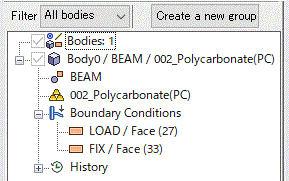
Various information for each body in the model is indicated on body tree.
The information includes body attribute, material property, boundary condition, mesh size and operational history.
|
|
-
[Create new group] button allows you to create a new group folder.
The grouping of the bodies can be done by putting them in the folder by drag and drop.
A sub group folder can be made in the group folder.
The grouping does not affect the results.
-
The type of bodies to show can be specified
at Filter of the tree.
Filtered items are listed at the top of the tree.
Filtering conditions are listed below.
-
All bodies
Shows all the bodies of the model.
-
Imprinting bodies
Shows the bodies set only with either the boundary condition or the mesh size.
-
Bodies of no attributes
Shows the bodies which have no attributes.
-
Undefined body attributes
Shows the bodies which have no body attributes defined.
-
Undefined materials
Shows the bodies which have no materials defined.
-
Vertex bodies
Shows just point/vertex bodies.
-
Wire bodies
Shows just wire bodies.
-
Sheet bodies
Shows just sheet bodies.
-
Solid bodies
Shows just solid bodies.
|
Possible Operations in Body Tree
|
Categories |
Possible operations |
|
Operations on bodies |
|
|
Operations on attributes |
-
Change the values of attributes Changes the values by double clicking or pressing the <Enter> key on the attribute label.
-
Change the name of attributes Changes the name by pressing the <F2> key or clicking the label.
In the case of mesh, the mesh size is changed as the body attribute name represents the size.
-
Remove attributes Removes the selected body attribute by pressing the <Delete> key.
|
|
Operations on history |
See [How to Edit History on Body Tree].
[Note] If there are too many operations applied on objects, it might take some time to expand them on the tree.
Press the <Esc> key to cancel the operation. |
Status of Bodies
The color of the characters displayed following a body icon changes according to the status of a body as below.
|

|
No attributes are set on the body. |
|

|
The body is set with either the boundary condition or the mesh size only. |
|

|
The body is set with body attribute name and material name, and subject to meshing. |
|

|
The body's attribute data is incomplete. |
|

|
The body's attribute data is undefined. |
|

|
The body's variables are modified. |
|

|
The body's modeling parameters are modified. |
|

|
The body's edited history is invalid. |
|

|
|
-
<undefined> indicates the attribute data doesn't exist..
To create it, double click the item, enter the attribute data in the launched dialog box, and click OK.
-
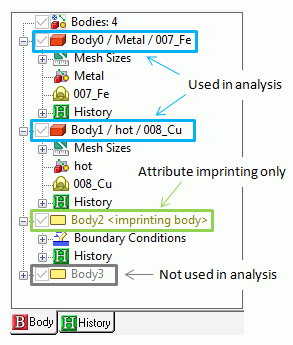
The coloring of tree
The bodies just with boundary conditions or mesh sizes are not subject to meshing.
Their color is orange.
The bodies with body attribute names are subject to meshing.
Their color is black.
The bodies are not subject to meshing if they don't have body attribute names. Their color is gray.
|
|


