


|
Home / User Interface / Trees
Trees
Various information on projects is listed on trees.
Models and various conditions can be modified by editing items on trees
|
|
Basic operationsSwitching treesClick a tab on to view the tree of your interest. Selecting an itemClick on the item of your interest. The selected item will change color. Selecting multiple itemsClick on the items while pressing the <Ctrl> key. To select consecutive items, click on the first and last items while pressing the <Shift> key.
|
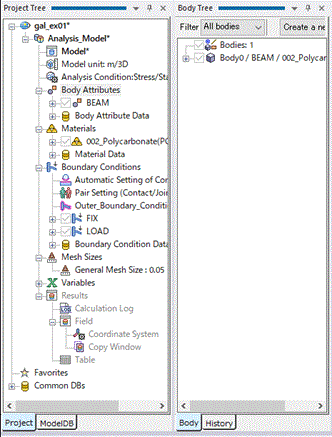

There are 4 types of trees as listed below.
|
Tab |
Overview |
Possible Operations |
|
|
Shows the various information for projects. See [Project Tree] for the detail. |
|
|
|
Shows the user's Model DB. See [Model DB Tree] for the detail. |
|
|
|
Shows the information of bodies in the current analysis model. |
|
|
|
Shows the operations history for the current analysis model. See [How to Edit History] for the detail. |
|


