Home / User Interface / Trees / Model DB Tree
Model DB Tree
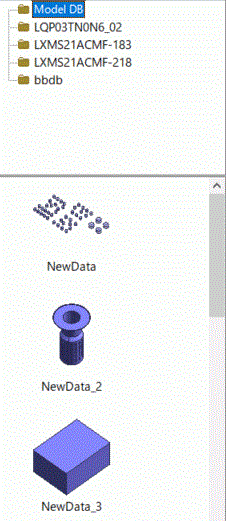
Folders and model data registered in Model DB and Black Box DB can be shown on the Model DB Tree.
The folders and the thumbnails of model data are shown in the upper and lower area of the tree pane respectively.
The folder named [Model DB] is for model DB. The folder appearing on the same level as [Model DB} is for the black box DB.
See [How to Use Model DB].
Also, see [Black Box DB].
|
|
Folder
The model data are kept in folders.
Folders can be added or deleted freely. Their names can be changed.
-
The top holder is named Model DB. It cannot be deleted and its name cannot be changed.
-
If a folder is deleted, all the sub folders and the model data under it will be deleted as well.
Folders are shown by a structured tree.
The folder selected on the tree is the active folder. It is shown in blue color.
The model data in the active folder is shown by thumbnail.
Model Data
The model data is the model information registered in the Model DB.
They can be added or deleted freely. Their names can be changed.
They are shown by thumbnails in the lower area of the tree pane.
Drag and drop the thumbnails to import them onto the modeling window or to move them to a different folder.
-
If you drag and drop while pressing the <Shift> key,
the Cruise command will be executed automatically after import.
See [Cruise] for more details.
-
If the model data has body attributes, material properties and boundary conditions,
they will be registered in each segment of the user DB automatically.
|
Possible Operations on Model DB Tree
The possible operations are listed below.
See [How to Use Model DB].
Also, see [Black Box DB].
|
Category |
Operations |
|
Operations on folders |
-
New Folder: Right click the folder you want to create a new folder into, and click [New Folder] on the menu.
A new folder will be created as a sub folder of the selected folder.
The new folder will be an active folder.
-
Delete Folder: Right click on the folder you want to delete and click [Delete Folder] on the menu.
The selected folder and its sub folders are deleted altogether.
The model data contained in them are deleted as well.
-
Change Folder Name: Right click on the folder and click [Change Folder Name] on the menu.
Alternatively click the label of the folder. It will become editable.
-
Apply the Update of Model DB: Right click on the Model DB tree
and click [Apply the Update of Model DB]on the menu. This function is used to apply the data change in the Model DB to the model originated from the Model DB .
This is applicable for the model whose data is imported from the model DB and the original model data is modified after import.
-
Create Black Box DB: See [Black Box DB].
-
Rename Black Box DB: See [Black Box DB].
-
Delete Black Box DB: See [Black Box DB].
-
Read Black Box DB: See [Black Box DB].
-
Remove Password: See [Black Box DB].
|
|
Operations on model data |
-
Import model data Drag and drop the thumbnail of the model data on to the modeling window.
If you drag and drop while pressing the Shift key,
the Cruise command will be executed automatically after import.
See [Cruise] for more details.
-
Register in Model DB: Select the bodies on the modeling window
and click [Register in Model DB]  on the [Model] tab on the [Model] tab  . The thumbnail of the registered model data will appear on the Model DB tree. Set the name for it. . The thumbnail of the registered model data will appear on the Model DB tree. Set the name for it.
The thumbnail of the registered model data will appear on the Model DB tree. Set the name for it.
-
Delete model data: Right click on the thumbnail of the model data you want to delete
and click [Delete Data],or press the Delete key.
-
Change Data Name: Right click on the thumbnail of the model data, and click [Change Data Name] on the menu or click the thumbnail's label.
You will get into the edit mode.
-
Move model data Drag and drop the model data onto the destination folder.
Once moved, the destination folder will become an active folder.
-
Apply the Update of Model DB: Right click on the Model DB tree
and click [Apply the Update of Model DB]on the menu. This function is used to apply the data change in the Model DB to the model originated from the Model DB .
This is applicable for the model whose data is imported from the model DB and the original model data is modified after import.
|


