


|
Home / Show Results / Registering Results Display Setting
Registering Results Display Setting
Results display setting can be registered onto Project Tree.
It is recommended to register frequently used settings.
On the [Results] tab, go to

press ▼ of [Graphics Setup] on the submenu, and click [Add to Favorites]
  to register the current setting on the project tree.
Double click on a specific item on the tree. The setting will be reflected on the current display.
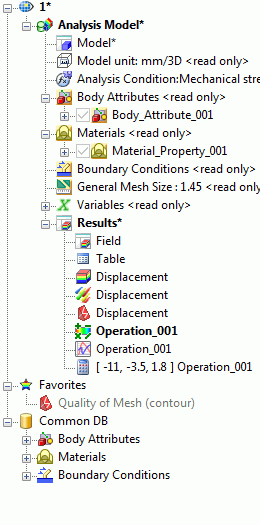 |
Results display settings on Project TreeThe left figure is an example of settings saved in both "Results" and "Favorites" of Project Tree.
The following can be registered.
- Field display Settings of [Result Field] and [Graphics Setup].
- User-defined field display Equations in [User-Defined Field] and settings in [Graphics Setup].
- Graph display Settings in [Field Graph].
- Display for results at specified coordinates Settings in Results at specified coordinates.
Settings can be registered at 2 places on Project Tree.
- Results
Applicable for the analysis model it belongs to only. Can be added to Favorites through right-click menu.
- Favorites
Applicable for any analysis results. Register through right-click menu at Results or through ribbon menu.
|
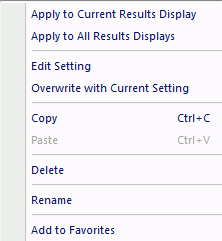 |
Right-Click Menu for Field Display- Apply to Current Results Display Applies the setting of selected results display to the current results display.
- Apply to All Results Displays Applies the setting of selected results display to all the current results displays.
- Edit Setting Edits the setting of selected results display.
- Overwrite with Current Setting Overwrites the setting with the one currently displayed.
- Copy Copies the selected setting.
- Paste Pastes the copied setting.
- Delete Removes the selected setting.
- Rename Renames the selected setting.
- Add to Favorites Adds the selected setting to Favorites.
|
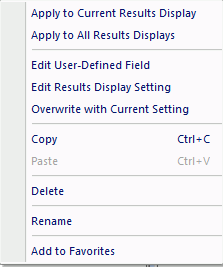 |
Right-Click Menu for User-Defined Field Display- Apply to Current Results Display Applies the setting of selected results display to the current results display.
- Apply to All Results Displays Applies the setting of selected results display to all the current results displays.
- Edit User-Defined Field Edits the equation of user-defined field
- Edit Results Display Setting Edits the results display setting.
- Overwrite with Current Setting Overwrites the setting with the one currently displayed.
- Copy Copies the selected setting.
- Paste Pastes the copied setting.
- Delete Removes the selected setting.
- Rename Renames the selected setting.
- Add to Favorites Adds the selected setting to Favorites.
|
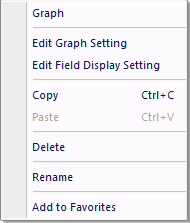 |
Right-Click Menus for Graph Display- Graph Applies the selected results display setting to the current display.
- Edit Graph Setting Edits the selected graph setting.
- Edit Field Display Setting Edits the setting of selected field display.
- Copy Copies the selected setting.
- Paste Pastes the copied setting.
- Delete Removes the selected setting.
- Rename Renames the selected setting.
- Add to Favorites Adds the selected setting to Favorites.
|
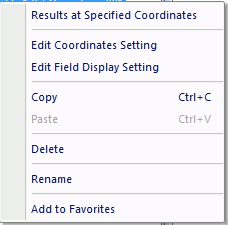 |
Right-Click Menus for Results Display at Specified Coordinates- Results at Specified Coordinates Displays the calculation results of selected location.
- Edit Coordinates Setting Edits the coordinates of selected setting.
- Edit Field Display Setting Edits the setting of selected field display.
- Copy Copies the selected setting.
- Paste Pastes the copied setting.
- Delete Removes the selected setting.
- Rename Renames the selected setting.
- Add to Favorites Adds the selected setting to Favorites. |