|
Home / Show Results / Result Field / Field Graph
Field Graph
On the [Results] tab, go to

click [Field Graph]  . The field displayed by contour can be graphed.
It is not available for vectors.
Horizontal axis needs to be distance or mode (frequency, time, step, etc).
-
If there are several materials existing between startpoint and endpoint, graphs will be output as many as the number of materials.
-
See also [Calculating Field Values].
Operations
|
|
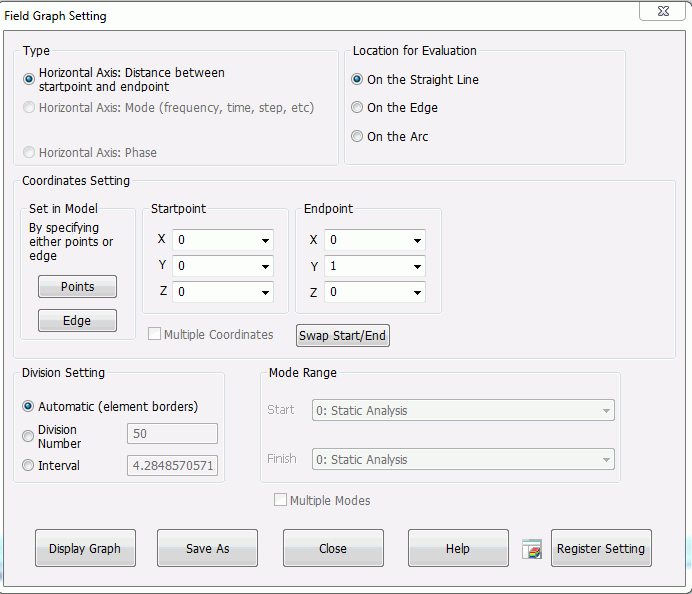
TypeFor the horizontal axis, select either Distance, Mode (frequency, time, step, etc), or Phase. Temperature can be the horizontal axis in case of thermal load analysis. To make it selectable, set thermal load (reached temperature). Location for EvaluationSelect from straight line, edge, or arc.
Coordinates SettingIf they are on the straight line, specify the startpoint and endpoint for graphing. If they are on the arc, enter the coordinates, vectors of center axis, and startpoint for graphing.
Instead of numerical entry, the points can be specified by mouse. Vertices, nodes or edge of the model can be the startpoint and endpoint. Select either [Points] or [Edge] by clicking each button.
The coordinates will be entered into the point indicated by active when clicking on a vertex or node of the model. To change the active point, click on any coordinate of the desired point. [Edge] will set the edge's end points to startpoint and endpoint. [Swap Start/End] will swap the startpoint and endpoint.
Division SettingIf [Automatic] is selected, the points bordering elements will be the plot points. "Averaging" can be switched on/off on [Contour tab]. Plot points can be specified by Number of Divisions or Interval as well. Mode RangeSets the modes for graphing.
Phase Range [deg]Active only when the results are complex numbers. Specifies Star and Finish phases. Sets the division by Number of Divisions or Interval.
How to output[Display Graph] will activate the graphing tool, Descartes.
[Save As] will output the csv file of the graph data.
Register SettingRegisters the setting on Project Tree. The graph setting and the calculated field values are registered. See also [Registering Results Display Setting]. |
Ex.1) Horizontal axis: Distance
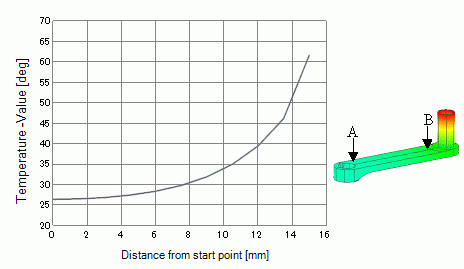
The field across the specified 2 points will be graphed.
The figure below shows the temperature distribution from Point A to Point B.
Ex.2) Horizontal axis: Mode
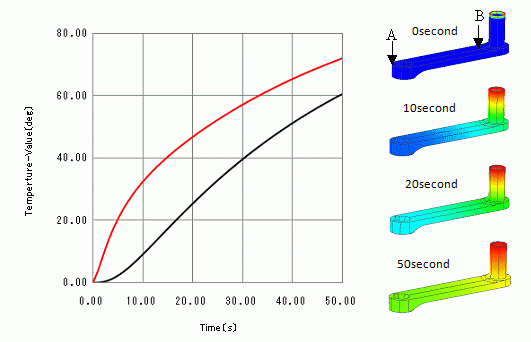
Multiple modes are calculated for thermal transient or harmonic analysis.
The field at a particular point can be graphed over the modes.
The figure below indicates the temperature change over the time: Black is for Point A and Red is for Point B.
Tooltips
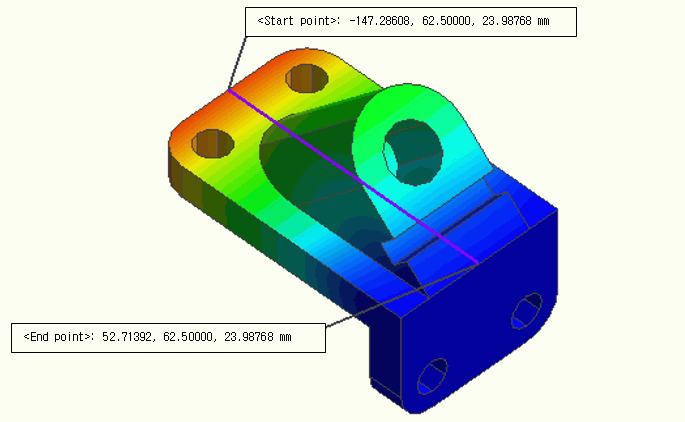
The tooltips can be shown for the startpoint and endpoint.
The path connecting them will be indicated by a line.
For the details, refer to "Tooltips".