Home / Tutorial / Simple Fluid-Thermal Coupled Analysis (Pascal/Watt) / 05.Set the Body Attributes and the Material Properties
05.Set the Body Attributes and the Material Properties
We assign names to the body attributes and the material properties. Various parameters associated with them will be set up here, too.
The body attribute is required to be set on each body. Various specific data, such as the thickness in the 2D analysis, the width of the wire element, the coordinates for anisotropic material, can be set on the body attribute.
Body attribute is distinguished by its name. Therefore it is not allowed to assign the same name to the different body attributes.
Material property constitutes the body. The material data might vary depending on the simulation you try.
Material property is distinguished by its name. Therefore it is not allowed to assign the same name to the different material data.
Procedure
-
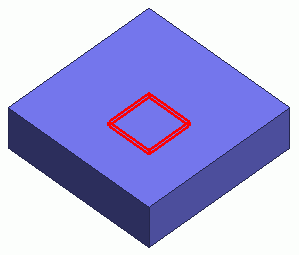
Assign a name to the substrate.Highlight the substrate on the and click to select.
-
To select a particular body out of several overlapping bodies, try the following methods:
-
Space Key Method
Rest the mouse pointer on the overlapping area, and press the <Space> key.
Body selection will change. The left-click will fix the selection.
-
List Selection Method
Rest the mouse pointer on the overlapping area, and press the <Tab> key.
The body selection list will appear. Select the body of your interest and left-click to fix the selection.
For more information, see How to Select Bodies and Topologies where you will find [Clicking the Mouse] and [List Selection Method].
|
|
-
On the [Attribute] context tab
 , ,
click [Body Attribute/Material Property]  . .
|
|
-
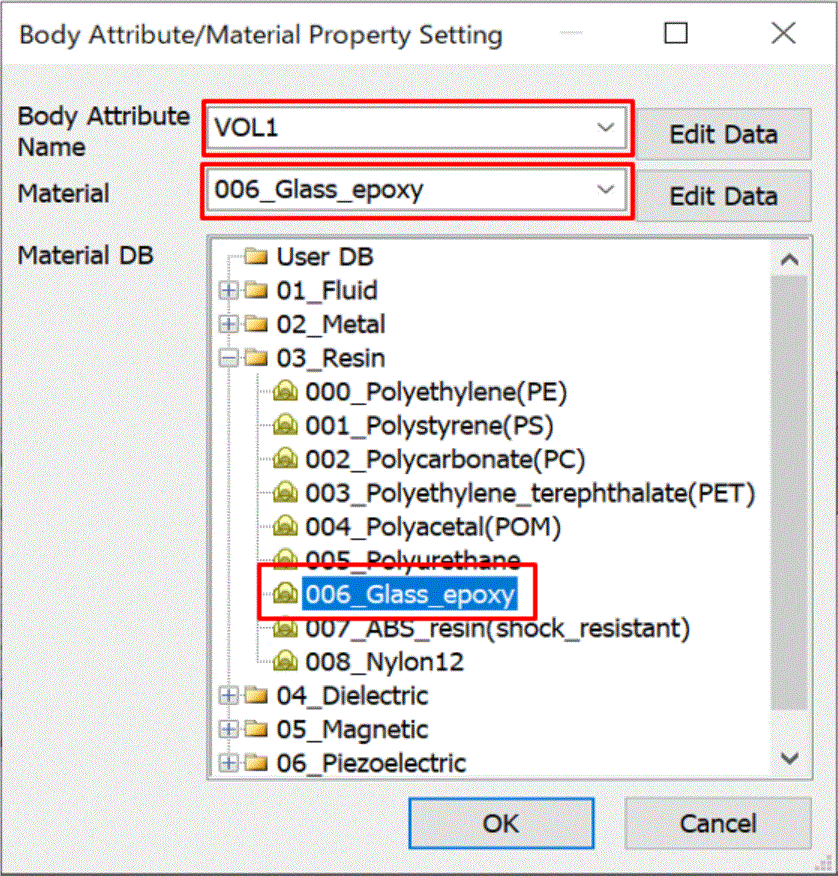
In the [Body Attribute/Material Property Setting] dialog box,
enter Body Attribute Name: VOL1
select [03_Resin] on Material DB and select [006_Glass Epoxy]
Then click 
-
Any name is acceptable.
|
|
-
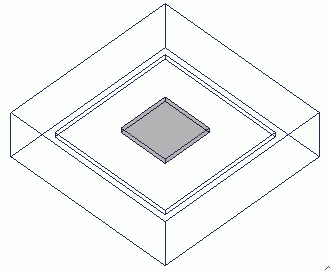
Assign a name to the heat source.
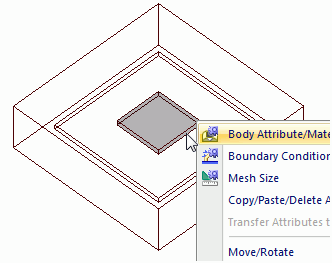
Highlight the heat source on the modeling window and click to select.
|
|
-
On the right-click menu, click [Body Attribute/Material Property].
|
|
-
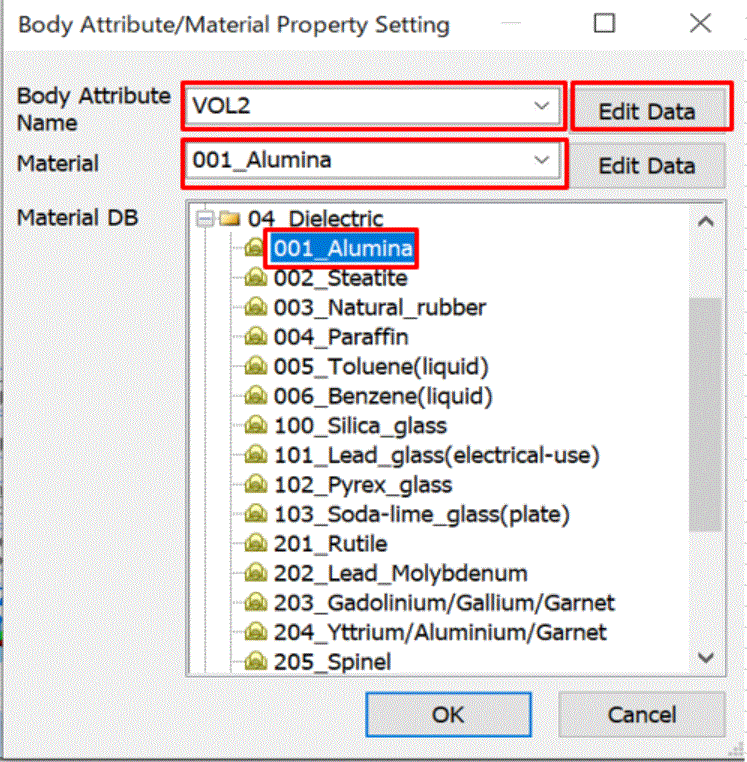
In the [Body Attribute/Material Property Setting] dialog box,
enter Body Attribute Name: VOL2,
select [04_Dielectric Material] on Material DB and select [001_Alumina].
Then click  at the side of Body Attribute Name. at the side of Body Attribute Name.
|
|
-
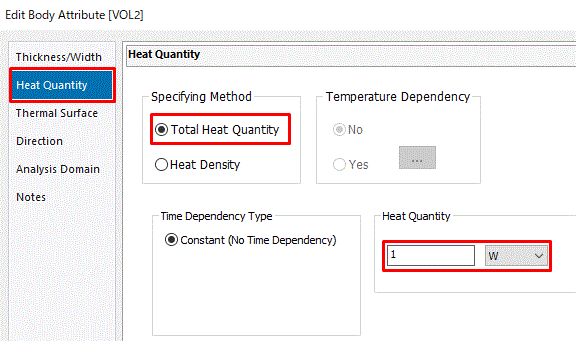
In the [Edit Body Attribute [VOL2]] dialog box,
go to the [Heat Quantity] tab,
enter Total Heat Quantity: 1[W]
and click .
Then click in the [Body Attribute/Material Property Setting] dialog box and exit.
|
|
-
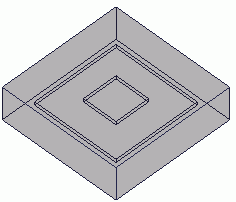
Assign a name to the air domain.
Highlight the air domain on the modeling window and click to select.
|
|
-
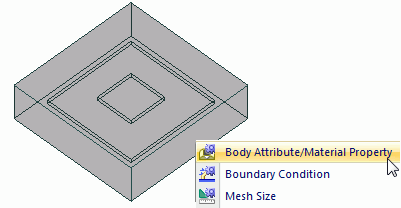
On the right-click menu, click [Body Attribute/Material Property].
|
|
-
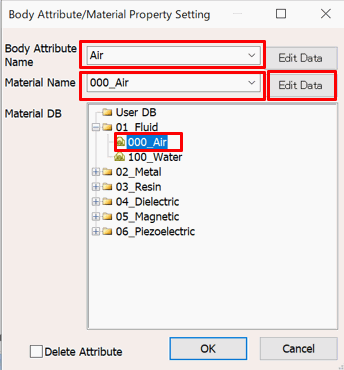
In the [Body Attribute/Material Property Setting] dialog box,
enter Body Attribute Name: Air,
select [01_Fluid] on Material DB and select [000_Air].
Then click  at the side of Material Name. at the side of Material Name.
|
|
-
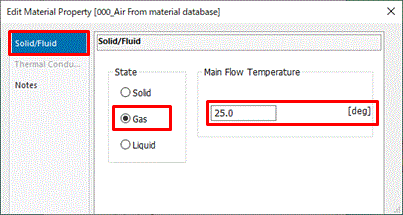
In the [Edit Body Attribute [Air]] dialog box,
go to the [Solid/Fluid] tab,
select Fluid as State,
enter Main Flow Temperature: 25 [deg],and click .
Then click in the [Body Attribute/Material Property Setting] dialog box and exit.
|
|
|
The body attributes and the material properties have been set.
|
|




 Prev Next