


|
Home / Technical Notes / Stress Analysis / Stress-Static Analysis
Stress-Static Analysis
Single-step analysis and multi-step analysis are available.
1. Single-Step Analysis
Linear analysis or Nonlinear analysis will be used depending on the analysis conditions.
In the nonlinear analysis, unloading analysis too will be available with unloading step added.
Thermal load analysis with these analyses will calculate the behavior when the temperature changes from the reference temperature to the reached temperature.
1.1 Nonlinear Analysis
The following are the nonlinear analyses.
1) Analysis of Large Deformation (Geometric Nonlinearity).
2) Analysis of Nonlinear Materials (Creep and viscoelastic materials cannot be analyzed with the single-step analysis)
You can check if the current setting is for nonlinear analysis in the "Nonlinear Setting Status" on the Step/Thermal Load Tab.

In the nonlinear analysis, one step is divided into substeps and calculation is done for each substep whereas the linear analysis gives solution in a single calculation.
Calculation accuracy and convergence will be improved by dividing one step into substeps.
In the case of the mechanical load and forced displacement, the load is gradually increased to the specified load (forced displacement) at the final substep.
With the thermal load, the temperature is gradually changed from the reference temperature to the reached temperature at the final substep.
The number of substeps is 20 by default. It can be adjusted on the Step/Thermal Load tab. See Substep setting dialog box.
It can be adjusted if the Nonlinear Setting Status is "With nonlinear setting" on the Step/Thermal load tab.
To change the number of substeps, set up the nonlinear analysis first.
1.2 Unloading Analysis (Add Unloading Step)
In the nonlinear analysis, unloading step added can be added.
In the step 2, mechanical load, forced displacement, and thermal load are set up automatically as follows.
In the case of the mechanical load, the load is gradually decreased from the reached load to zero at the final substep.
In the case of the forced displacement, the boundary condition is removed at the 1st unloading step so as to create no load.
In the case of the thermal load, the temperature is gradually changed from the reached temperature to the reference temperature at the final substep.
See the following examples for the details of the unloading analysis.
[Example 26: Deformation of Cantilevers made of Elasto-Plastic Bilinear Material and Elastic Material]
[Example 35: Elasto-Plastic Bilinear Material Subjected to Thermal Load]
1.3 Thermal Load Analysis
With the single-step analysis, thermal load analysis will calculate the behavior when the temperature changes from the reference temperature to the reached temperature.
Set the reference temperature (non-stress temperature) and reached temperature on the Step/Thermal Load tab. See Thermal load setting dialog box
In the case of the nonlinear analysis, the temperature is gradually changed from the reference temperature to the reached temperature at the final substep.
In the case of the unloading step of the unloading analysis, the temperature is gradually changed from the reached temperature to the reference temperature at the final substep.
1.4 Load Status in the Single Step
Load status in the linear analysis, nonlinear analysis, and unloading analysis as follows.
|
Type |
Single-Step Linear Analysis |
Single-Step Nonlinear Analysis Number of Substeps : 5 |
Single-Step + Unloading-Step Unloading Analysis Number of Substeps : 5 |
|
f: Mechanical Load |
|
|
|
|
u: Forced Displacement |
|
|
|
|
Thermal Load T0: Reference Temperature, T: Reached Temperature |
|
|
|


1.4 Creep and Viscoelastic Analyses with Time Setting
Time can be set to each step in the Time Setting on the Step/Thermal Load tab. See Time setting dialog box.
By setting time, creep materials, creep deformation of viscoelastic materials, and stress relaxation can be solved.
See [Analysis of Creep Materials] for more details.
See [Analysis of Hyperelastic Materials] for more details.
(Note) The creep analysis and viscoelastic analysis are available in an optional package.
If the creep materials or viscoelastic materials are not used, the analysis results will be the same as the analysis without setting time.
2. Multi-Step Analysis
2.1 What Multi-Step Analysis Can Solve
The multi-step analysis can solve the following cases where
- the boundary condition changes over the time in a complex way
- the reached temperature changes gradually in the multi-step thermal load analysis
- the state of creep or viscoelastic materials changes over the time
- birth and death of the bodies take place during the steps
- the material is changed during the steps
Multi-step analysis does not differentiate the linear and nonlinear analyses.
Nonlinear analysis also can be performed.
2.2 Change of Mechanical Load and Forced Displacement over the Time
The multi-step analysis can create, remove, or change the load at the specified timing.
2.2.1 Setting
Generally, if only value is set, the load will increase to the specified value in the 1st step. It will stay at the same value from the 2nd step on.
Various loads can be applied with the setups as below.
1) Set ON/OFF on the Mechanical tab. See ON/OFF setting dialog box.
The loads can be created or removed at the specified timing
Mechanical load and forced displacement will show different behavior when the loads are removed.
In the case of the mechanical load, the load at the step preceding the OFF step is gradually decreased to zero at the final substep.
In the case of the forced displacement, the boundary condition is removed at the 1st substep of the OFF step so as to create no load.
2) Select [Apply mechanical load and forced displacement at the final step] on the Step/Thermal Load tab. See the dialog box.
Set ON for all mechanical loads and forced displacements through the steps until before the final step. Set OFF at the final step.
This option allows the change of timing to apply loads other than the boundary condition. The applicable loads are electrostriction coupled with acceleration, angular velocity, and electric field, and electromagnetic force coupled with electrostatic force and magnetic field.
It is useful when applying the mechanical load following the multi-step thermal load analysis.
3) Set ON/OFF on the Mechanical tab. See the setting dialog box.
By setting the [Step-Weight] table (or [Time-Weight] table if Time is set for analysis), any time dependency can be given to the loads and forced displacements.
The value at each step (or time) is weighted.
For more details, see
[Example 37: Plastic Deformation due to Repetitive Displacement]
[Example 58: Spring Back Analysis with ON/OFF Setting]
2.2.2 Load State According to the Setup
The Mechanical load and forced displacement change according to the setup as shown below.
(Three substeps are set to the steps 1,2, and 3 in this example)
|
Setting |
f: Mechanical Load |
u: Forced Displacement |
|
Only Value |
|
|
|
Set ON/OFF Example: |
|
|
|
Final step: ON |
|
|
|
Weight Function |
|
|


2.2.3 Setting Confirmation
To check the setting status, go to Step/Thermal Load tab > [Table] > Time/Step window > Weight function.
The example below is the view with the settings as follows. Boundary condition [u]: Displacement of mechanical load is set only by value. Boundary condition [u_OnOff]: ON/OFF settings are ON for step1, ON for step 2, OFF for step 3. Boundary condition [u_Weight]: Weight function is applied to the displacement.

Also, you can view the graph from the Time/Step window.

2.3 Multi-Step Thermal Load Analysis
Multi-step thermal load analysis can solve the reached temperature which changes gradually.
Set the reference temperature and reached temperature for each step on the Step/Thermal Load tab. See Multi-step thermal load setting dialog box.
If the reached temperature changes from a step to another where more than one substeps are set, the temperature change will be linearly interpolated over the substeps.
The following diagram shows the temperature change with multiple reached temperatures.
|
Setting |
Temperature Change |
|
Thermal Load T0: Reference temperature T1: Reached temperature at step 1 T2: Reached temperature at step 2 T3: Reached temperature at step 3 T4: Reached temperature at step 4
|
|

To check the setting state, go to Step/Thermal Load tab > Time/Step window > Weight function.
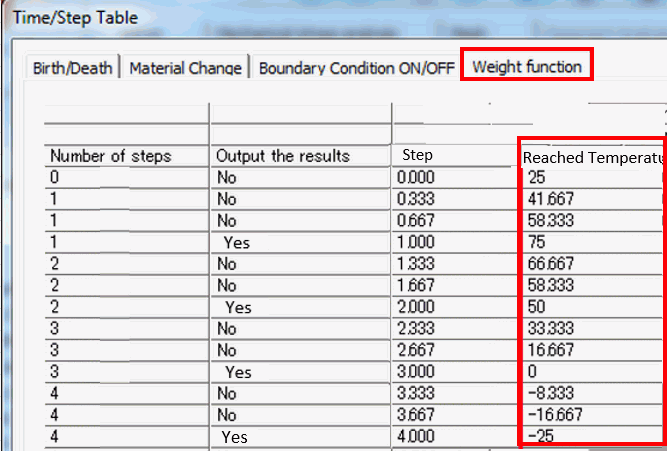
You can also check the setting state with graph by clicking Temperature Graph on the Step/Thermal Load tab.

See the following examples for the details.
[Example 9: Bimetal under Multi-Step Thermal Load]
[Example 10: Multi-Step Thermal Load Analysis for IC Soldering Process]
[Example 38: Elasto-Plastic Material Subjected to Repetitive Thermal Loading]
2. 4 Creep and Viscoelastic Analyses with Time Setting
Time can be set to each step in the Time Setting on the Step/Thermal Load tab. See Time setting dialog box.
By setting time, creep materials, creep deformation of viscoelastic materials, and stress relaxation can be solved.
See [Analysis of Creep Materials] for more details.
See [Analysis of Hyperelastic Materials] for more details.
(Note) The creep analysis and viscoelastic analysis are available in an optional package.
If the creep materials or viscoelastic materials are not used, the analysis results will be the same as the analysis without setting time.
See the following examples for the details.
[Example 39: Elasto-Plastic Creep Material Subjected to Repetitive Thermal Loading]
[Example 51: Deformation of Viscoelastic Bar]
2.5 Birth/Death of Bodies
Birth or death of the bodies during the steps can be set.
It can be set on the Analysis Domain tab of the body attribute.
You can also set all body attributes at a time. Go to Step/Thermal Load tab > Table > Birth/Death tab.
See the following examples for the details of the birth/death.
[Example 10: Multi-Step Thermal Load Analysis for IC Soldering Process]
[Example 37: Plastic Deformation due to Repetitive Displacement]
2.5.1 Birth/Death in the Multi-Step Thermal Load Analysis
Birth/death is used to simulate the change caused by the temperature change for the following two states.
1) [Fluid state where internal stress is not created] (not for analysis)
2) [Solid state where stress is created] (for analysis)
|
Birth/Death |
Example of Phenomenon |
Birth/Death Timing |
|
Birth |
Solidification of liquid Curing of resin |
When temperature goes below melting point. |
|
Death |
Melting of solid |
When temperature goes higher than melting point. |
The initial temperature of the latest birth step (the step where the state is changed from death to birth) is
treated as the reference temperature (non-stress temperature).
In the example below ([Example 10: Multi-Step Thermal Load Analysis for IC Soldering Process]), the reference temperature for [BGA], [PCB], and [SB] is 220[deg],
and 120[deg] for [UF] in the step 3 on.

2.5.2 Calculation of Birth Body
Displacement in the body is passed on for the birth body. Strain and stress are reset to zero.
This will put the birth body in the non-stress state.
Strains that are reset to zero include plastic strain, creep strain, accumulated equivalent plastic strain, creep strain and accumulated equivalent creep strain.
In the multi-step thermal load analysis, the temperature at the birth is set as reference temperature (non-stress temperature).
If the temperature changes from the reference temperature, thermal load will occur.
If the reference temperature is set in [Specify for each body attribute] on the Thermal Load tab, its value is used.
2.5.3 Calculation of Death Body
There are two methods to treat death body.
Dummy material is set by default.
The setup is done on the High-level setting tab.
|
|
Use Dummy Material |
Exclude from Analysis |
|
How to Treat Death Body |
Treat as soft material. |
Exclude from the analysis. |
|
Required Parameter |
Stiffness adjustment factor to determine the softness (Young's modulus = Young's modulus of the original material x stiffness adjustment factor) |
None |
|
Analysis Time |
Long |
Short |
|
Memory Usage |
Large |
Small |
|
Deformation (Displacement) |
Natural (Deformation will occur if the surrounding bodies are deformed) |
Unnatural (Deformation will not occur if the surrounding bodies are deformed) |
*) While deformation state largely differs between two methods, strain and stress will not be so different unless Large Deformation option is selected.
Either method can be used to calculate the strain and stress.
2.6 Material Change
Material can be changed during steps for analysis.
It can be set on the Material Change tab of the body attribute.
You can also set all body attributes at a time. Go to Step/Thermal Load tab > Table > Material Change tab.
2.6.1 Calculation after Material Change
Displacement, strain, and stress in the body are passed on for calculation after the material change.
In the multi-step thermal load analysis, thermal strain will be interpolated so that it will not change before and after the material change.