|
Home / How to Set Analysis Condition / List of Analysis Condition Tabs / Step/Thermal Load Tab
Step/Thermal Load Tab
Steps and thermal load for the stress analysis are set on this tab.
Thermal load for the piezoelectric analysis and substeps for the nonlinear analysis are set as well.
It is in the [Analysis Condition Setting] dialog box. See also [How to Set Analysis Condition].
See Stress-Static Analysis for the details.
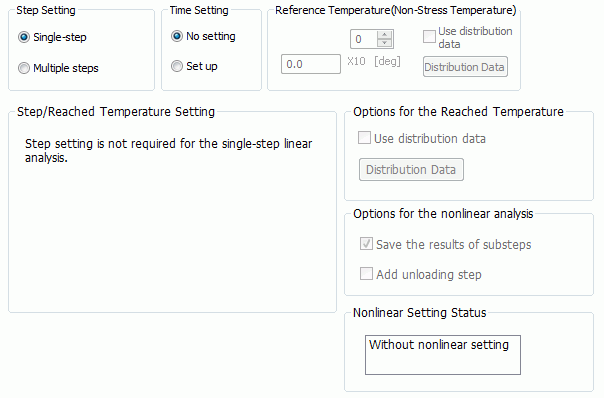
Set up as follows on the Step/Thermal Load tab.
|
Setting Item |
Notes |
|
|
Step Setting |
Stress Analysis Sets either single step or multiple steps.
For the analysis of the load or reached temperature over time, select multiple steps.
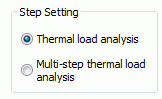
If [Thermal load] on the [Stress analysis tab] is selected, the following display will show up.
[Thermal load analysis] corresponds to the single step and [Multi-step thermal load analysis] to the multiple steps.
|
|
|
Piezoelectric Analysis If, on the [Piezoelectric analysis tab], [Thermal load] is deselected, [Single step] will be automatically selected. If, on the [Piezoelectric analysis tab], [Thermal load] is selected, [Thermal load analysis] will be automatically selected. |
||
|
Time Setting |
Stress Analysis Allows you to execute analysis with time setting or without time setting.
To perform creep analysis or viscoelastic analysis, select [Set up] for Time Setting.
* Creep analysis and viscoelastic analysis are available in an optional package.
|
|
|
Piezoelectric Analysis [No setting] is always selected. |
||
|
Reference temperature (non-stress temperature) |
Stress Analysis Sets the temperature of a model before the thermal deformation. It is assumed that the stress is not generated at this temperature. Allowed to enter if [Thermal load] is selected on the [Stress analysis tab].
If [Use distribution data] is selected,
Click the [Distribution Data] button to open the dialog box.
|
|
|
Piezoelectric Analysis Sets the temperature of a model before the thermal deformation. It is assumed that the stress is not generated at this temperature. Allowed to enter if [Thermal load] is selected on the [Piezoelectric analysis tab].
[Use distribution data] is not selectable as it i s not supported.
|
||
|
Step/Reached Temperature Setting |
Dialog Box |
Stress Analysis
*) If [Single step] is selected for the Step Setting and the linear analysis is set, the dialog box will not appear as the setting is not required. *) Items not required for the setting will not be shown. |
|
Piezoelectric Analysis *) in the linear analysis, if the thermal load is not selected on the [Piezoelectric analysis tab], the dialog box will not show up as the setting is not required. |
||
|
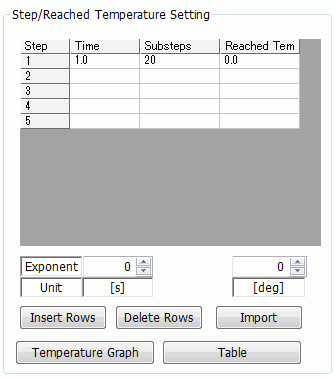
Step |
Stress Analysis If [Multiple steps]([Multi-step thermal load analysis]) is selected, desired number of steps can be set.
Step numbers in Birth/Death Setting on the Analysis Domain tab and [ON/OFF Setting] on the Mechanical tab correspond to the steps on this table.
If [Multiple steps](or [Multi-step thermal load analysis]) is selected for Step Setting, and [No setting] is selected for Time Setting,
|
|
|
Piezoelectric Analysis 1 is only allowed to enter. |
||
|
Time |
Stress Analysis Available if [Set up] is selected for Time Setting.
Enter the real number 0 or more. The start time of each step is the end time of the previous step. The start time of step 1 is zero. The end time must be a positive real number.
If [Multiple steps](or [Multi-step thermal load analysis]) is selected for Step Setting, and [Set up] is selected for Time Setting,
|
|
|
Piezoelectric Analysis Not allowed to enter. |
||
|
Substeps |
Stress Analysis Available if [Single step] (or [Thermal load analysis]) is selected for Step Setting and nonlinear analysis (large deformation, contact, nonlinear material such as elastic) is set.
Sets the number of substeps for each step. This will affect the accuracy and convergence of the nonlinear analysis.
If you want to output the results of substeps, select [Save the results of substeps].
|
|
|
Piezoelectric Analysis Allowed to set in the nonlinear analysis (large deformation and contact). |
||
|
Reached Temperature |
Stress Analysis Sets the temperature at the end time of each step. Allowed to enter if [Thermal load] is selected on the [Stress analysis tab].
Temperature changes linearly over the substeps within a step.
If [Thermal load analysis] is selected for Step Setting, and Use distribution data is selected in the Options for the Reached Temperature,
If [Multi-step thermal load analysis] is selected for the Step Setting, you can view the time-temperature graph by pressing [Temperature Graph] button.
|
|
|
Piezoelectric Analysis Allowed to enter if [Thermal load] is selected on the [Piezoelectric analysis tab]. |
||
|
Table |
Stress Analysis Opens Time/Step Table window. The following are displayed on the table.
[Single step] (or [Thermal load analysis]) You can compare the load set on the Mechanical tab and the actual load reflected in in each substep.
[Multiple steps] (or [Multi-step thermal load analysis]) 1) Birth/Death of each body attribute set on Analysis Domain tab. 2) Material Change of each body attribute set on Material Change tab. 3) ON/OFF of each boundary condition set on Mechanical tab. 4) Weight Function of each boundary condition set on Mechanical tab. See [Weight Function Setting].
1), 2), and 3) are editable on the table.
|
|
|
Piezoelectric Analysis Not available. |
||
|
Options for the Reached Temperature |
Use Distribution Data |
Stress Analysis Allowed to enter if [Thermal load] is selected on the [Stress analysis tab].
If Use distribution data is selected,
Click the Distribution Data button to open the dialog box.
|
|
Piezoelectric Analysis Not available. |
||
|
Options for the Nonlinear Analysis |
Save the Results of Substeps |
Outputs the results of substeps specified in the step/reached temperature setting.
|
|
Add Unloading Step |
For the second step, add a step to unload the load (including thermal load) which was applied in the first step.
|
|
|
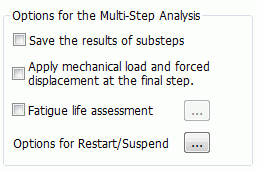
Options for the Multi-Step Analysis
|
Dialog Box |
|
|
Save the Results of Substeps |
If you want to output the results of substeps, |
|
|
Apply Mechanical Load and Forced Displacement |
Usually, mechanical load and forced displacement are applied from the first step.
|
|
|
Fatigue life assessment |
Sets the options for the fatigue life assessment. * Fatigue life assessment is available in an optional package.
If [Fatigue life assessment] is selected, the fatigue life of the model is predicted. This prediction is based on Manson-Coffin law.
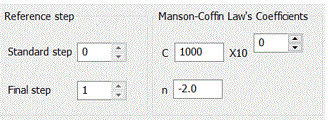
[Reference Step] sets the standard step and the final step to obtain the equivalent inelastic strain amplitude from the accumulated equivalent inelastic strain of the multi-step analysis. [Standard step] accepts an integer 0 or greater but smaller than the maximum step number. [Final step] accepts an integer greater than 0 up to the maximum step number.
[Output the results of standard and final steps only] reduces the size of the result file.
Coefficient of Manson-Coffin Law's sets the coefficient of Manson-Coffin law's to calculate the life from the equivalent inelastic strain amplitude.
Manson-Coffin law Nf = C Δεne^n where Nf is the fatigue life (unit: cycles). Δεne is the equivalent inelastic strain amplitude (unit: %)
C is the fatigue life when the equivalent inelastic strain amplitude (Δεne) is 1%. An integer greater than 0 is acceptable. n is the influence parameter of Δεne. A negative real number smaller than 0 is acceptable.
Refer to [Fatigue Life Assessment] of the Technical Notes for details. |
|
|
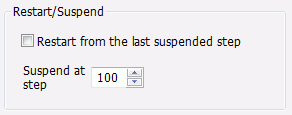
Options for Restart/Suspend |
Allows you to restart or suspend the analysis.
To restart the analysis, select Restart from the last suspended step. (Analysis must be suspended at least once.)
Analysis will be suspended at the step set in Suspend at Step
If the specified step number is greater than the analysis step number in the Step/Reached Temperature Setting, the analysis will not be suspended until the calculation reaches the final step.
Suspend and restart is of use for the cases below. - Adjust the analysis conditions after evaluating the results of previous steps. - Add new steps following the previous analysis. |
|
|
Nonlinear Setting Status |
Tells you if the analysis is nonlinear.
- If the analysis is not nonlinear Substep setting is not required.
- If the analysis nonlinear Substep setting is required. Substeps will affect the accuracy and convergence of the analysis.
|
|
 If [Buckling analysis] is selected in the stress analysis, single step is only selectable.