|
Home / How to Set Body Attribute, Material Property and Boundary Condition / How to Set Distributed Boundary Condition and Body Attribute
How to Set Distributed Boundary Condition and Body Attribute
Distribution can be defined for the load and the temperature on the Mechanical tab and the Thermal tab of the boundary condition, and on the Heat Quantity tab, the Initial Temperature tab, and the Thermal Load tab of the body attribute.
The initial temperature and the thermal load can be set on the Transient analysis tab and Step/Thermal load tab of the analysis condition as well.
See Example 53 of mechanical stress analysis.
Also see Example 20 of thermal analysis.
Distributable boundary conditions and body attributes
|
Setting Locations |
Boundary Condition Types |
Setting Items |
Applicable Analyses |
|
Boundary Condition > Thermal Tab |
Temperature |
Temperature |
Thermal Analysis, Thermal-Electric Coupled Analysis |
|
Boundary Condition > Thermal Tab |
Heat Flux |
Heat Flux |
Thermal Analysis, Thermal-Electric Coupled Analysis |
|
Boundary Condition > Thermal Tab |
Heat Transfer,Convection |
Ambient Temperature (Room Temperature) |
Thermal Analysis, Thermal-Electric Coupled Analysis |
|
Coefficient of Heat Transfer |
Thermal Analysis, Thermal-Electric Coupled Analysis |
||
|
Boundary Condition > Mechanical Tab |
Displacement |
Displacement Vector |
Stress Analysis, Piezoelectric Analysis |
|
Boundary Condition > Mechanical Tab |
Pressure |
Pressure |
Stress analysis, Piezoelectric analysis |
|
Boundary Condition > Mechanical Tab |
Distributed Load (Face) |
Distributed Load Vector |
Stress Analysis, Piezoelectric Analysis |
|
Boundary Condition > Fluid Tab (Fluid Thermal Tab) |
Specify inflow velocity |
Velocity Vector |
Fluid Analysis, Fluid-Thermal Analysis |
|
Body Attribute > Fluid Tab |
Specify flow, Specify flow velocity |
Velocity Vector |
Fluid Analysis, Fluid-Thermal Analysis |
|
Body Attribute > Heat Quantity Tab |
N/A |
Heat Density |
Thermal Analysis, Thermal-Electric Coupled Analysis |
|
Body Attribute > Initial Temperature Tab |
N/A |
Initial Temperature |
Thermal Analysis, Thermal-Electric Coupled Analysis |
|
Analysis Condition > Transient Analysis Tab |
N/A |
||
|
Body Attribute > Thermal Load Tab |
N/A |
Reference Temperature |
Stress Analysis |
|
Analysis Condition > Thermal Load Tab |
N/A |
||
|
Body Attribute > Direction Tab |
N/A |
Direction (Vector) |
Piezoelectric Analysis, Thermal Analysis |
|
Analysis Condition > Transient Analysis Tab, Body Attribute > Initial Velocity |
- |
Initial Velocity |
Stress Analysis (Transient Analysis) |
|
Body Attribute > Initial Strain |
- |
Initial Strain |
Stress Analysis, Piezoelectric Analysis |
The settings in the dialog box
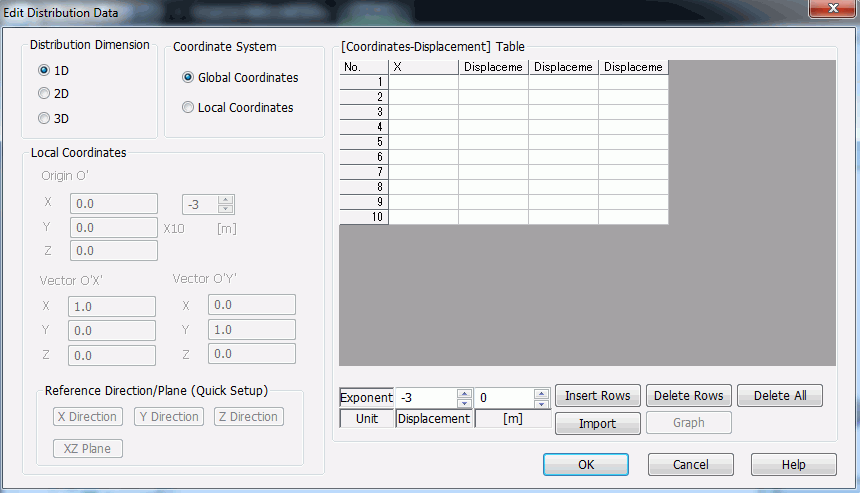
On respective boundary condition/body attribute tab, select "Use distribution data" and press the "Distribution Data" button.
You may import the data too for the distribution data settings.
The values on unlisted coordinates will be interpolated automatically.
|
Setting Item |
Notes |
|
Distribution Dimension |
1D
Sets the linear distribution. Enter the global X coordinates or the local X' coordinates, and enter their values. Press the Graph button to view the entered distribution.
2D
Sets the planar distribution. Enter the global X and Y coordinates or the local X' and Y' coordinates, and enter their values.
3D
Sets the 3-dimensional distribution. Enter the global X, Y and Z coordinates or the local X', Y' and Z' coordinates, and enter their values.
|
|
Coordinate System |
Global Coordinates
The model's coordinate system is applied to the distribution data table.
Local Coordinates
Alternatively you may define the local coordinate system and apply it to the table.
For 1D distribution, set the local origin O' and define the direction vector O'X'. For 2D/3D distribution, set the local origin O' and define the direction vectors O'X' and O'Y'.
See Examples 2 and 4.
|
|
Local Coordinates |
Origin O'
Sets the local coordinate origin.
Vector O'X'
Sets the direction vector for the first local coordinate O'X'.
Vector O'Y'
Sets the direction vector for the second local coordinate O'Y'.
Reference Direction/Plane (Quick Setup)
This is a simplified way to set the direction vectors. For 1D, click one of the direction buttons. The selected direction will set Vector O'X'. For 2D, click one of the plane buttons. The selected plane will set Vectors O'X' and O'Y'. .
|
|
[Coordinates-Value] Table |
Sets the coordinates and each value.
Enter X coordinate for 1D, X/Y coordinates for 2D, and X/Y/Z coordinates for 3D. For vector values, enter the values for 3 directions.
Press the Import button to read the csv data file.
Press the Graph button to view the entered linear distribution. This button is functional for 1D distribution only.
|
How to view the entered distribution
Click Run Mesher on the submenu of [Run Mesher/Solver] and see the meshing result.
Select "Distributed xxx" at [Field] to view the entered distribution.
You may click "Run Mesher/Solver instead. In that case, Select "Mesh Information" at [Mode] and then select "Distributed xxx" at [Field]
Examples
|
# |
Setting Item |
Resulting Distribution |
||||||
|
1 |
Analysis Space: 2D [Coordinates-Value] Table
|
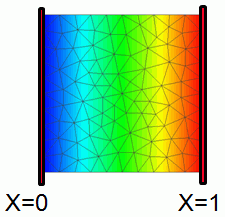
The values for the points between X=0 and X=1 are interpolated. |
||||||
|
2 |
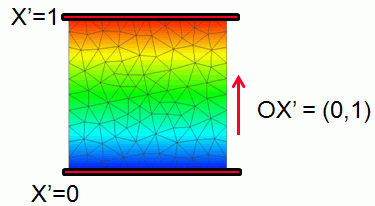
Analysis Space: 2D Vector O'X' = (0, 1) (Press the Z Direction button)
[Coordinates-Value] Table
|
|
||||||
|
3 |
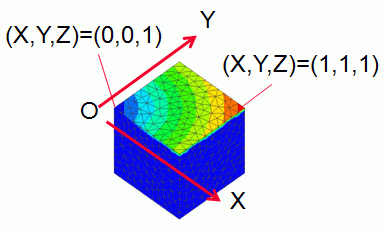
Analysis Space: 3D
[Coordinates-Value] Table
The csv data with global 0.25mm-lattice coordinates and each value. The value is proportional to the distance from the origin. |
|
||||||
|
4 |
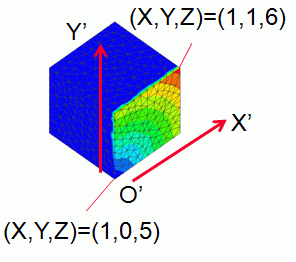
Analysis Space: 3D Distribution Dimension: 2D Origin O' = (0, 0, 5 x 10^-3 ) Vector O'X' = (0, 1, 0), Vector O'Y' (0, 0, 1)
[Coordinates-Value] Table The csv data with local 0.25mm-lattice coordinates and each value. The value is proportional to the distance from the origin. |
|
||||||
|
5 |
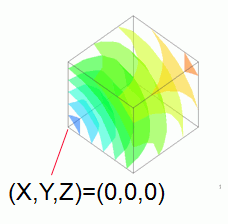
Analysis Space: 3D
Distribution Dimension: 2D
[Coordinates-Value] Table The csv data with global 0.25mm-lattice coordinates and each value. The value is proportional to the distance from the origin. |
|


Examples of wrong settings
|
Number |
Setting Item |
Resulting Distribution |
|||||||||||||||
|
6 |
Analysis Space: 2D [Coordinates-Value] Table
|
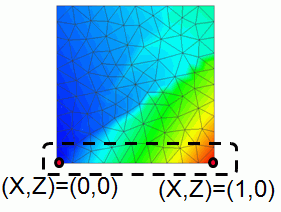
The interpolation is possible only on Z=0. |
|||||||||||||||
|
7 |
Analysis Space: 2D [Coordinates-Value] Table
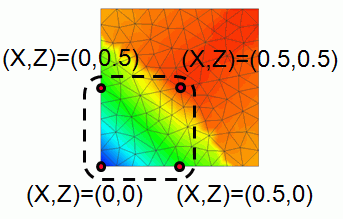
|
The interpolation is possible within the area of (X, Z) = (0, 0) to (0.5, 0.5). |