|
Home / How to Set Analysis Condition / List of Analysis Condition Tabs / Transient Analysis Tab
Transient Analysis Tab
Analysis conditions for the transient analysis are set on this tab.
It is in the [Analysis Condition Setting] dialog box. See also [How to Set Analysis Condition].
|
Setting Item |
Notes |
|||||||||||||||||||
|
Timestep |
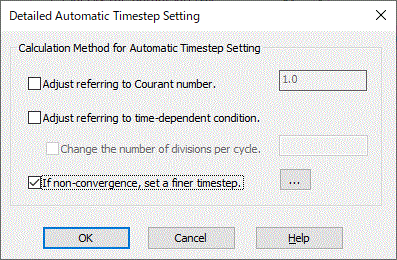
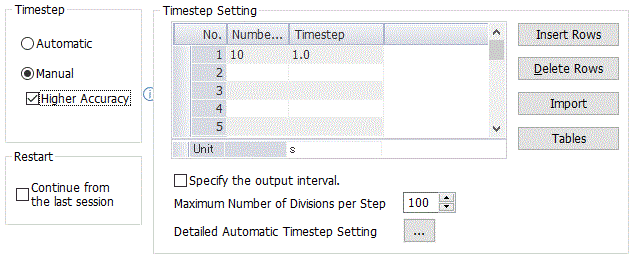
[Number of Calculation Steps] to be an integer equal to or greater than 1. [Output interval] to be an integer equal to or greater than 1. [Timestep] to be a real number greater than 0.
Click the Table button. The Time Table window will appear. You can see the weight function set on Mechanical tab, Thermal tab or Electric tab of boundary condition, or Heat Quantity tab of body attribute.
|
|||||||||||||||||||
|
Restart |
Select Continue from the last session to restart the calculation from the last calculated step.
Not available for the magnetic and acoustic analyses, and the transient analysis using resonant mode in the piezoelectric analysis. |
|||||||||||||||||||
|
Initial Temperature |
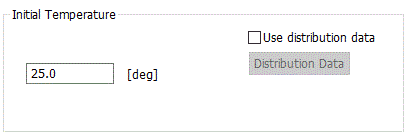
Sets the initial temperature of the whole model in the thermal transient analysis. The temperature of the model changes with time.
If Use distribution data is opted,
Click the Distribution Data button to open the dialog box.
|
|||||||||||||||||||
|
Initial Velocity |
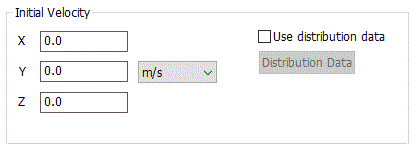
Available for the stress-transient analysis. The initial velocity can be set on each body attribute individually too. If "Use distribution data" is selected, Click the Distribution Data button to open the dialog box. (Note) The stress transient analysis is available in an optional package. |
|||||||||||||||||||
|
Coefficients of Rayleigh Damping |
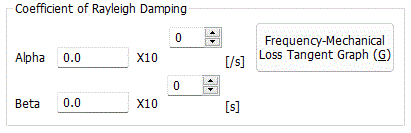
Available for the stress-transient analysis. They can be set on each body attribute individually too. If Rayleigh damping is considered to be the damping effect on the frequency component of vibration,
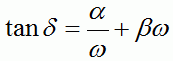
Click Frequency-Mechanical loss tangent Graph to see the frequency response of mechanical loss tangent, where α is damping of low frequency vibration and β is damping of high frequency vibration. By setting β, you can remove noise of high-frequency vibration. The detail of the coefficient of Rayleigh damping is explained at [Stress Transient Analysis] and [Mechanical Damping] in the Technical Notes. (Note) The stress-transient analysis is available in an optional package. |
|||||||||||||||||||
|
Solution Method |
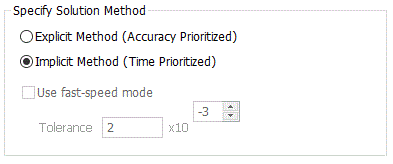
Time-directional solution method is selected for the acoustic analysis. Explicit method and implicit method are available. The explicit method is an accuracy-oriented solution, and the implicit method is a speed-oriented solution.
High-speed mode is selectable in the explicit method. In the high-speed mode, the domain where the field does not propagate is automatically removed from the analysis domain to allow the higher calculation speed. The threshold value to judge the propagation of the field can be set by the tolerance. The threshold value is the largest flux (acoustic intensity) with tolerance. |