


|
Home / User Interface / Property Window
Property Window
The property window appears when bodies or topologies are selected on the modeling window.
Properties can be edited on it.
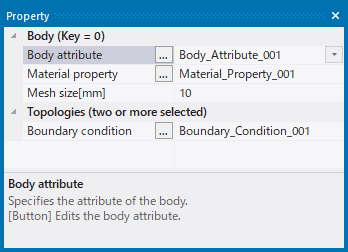
Properties of Body
 |
Body |
Body |
[When a body is selected] The body key is indicated. [When multiple bodies are selected] (two or more selected) is indicated.
|
|
|
Body attribute |
Edits the body attribute name.
[When a body is selected] The body attribute name of the selected body is indicated. [When multiple bodies are selected] If the selected bodies have the same body attribute, their name is indicated. Otherwise, it is blank.
|
|||
|
Material property |
Edits the material property name.
[When a body is selected] The material property name of the selected body is indicated. [When multiple bodies are selected] If the selected bodies have the same material property, their name is indicated. Otherwise, it is blank.
|
|||
|
Mesh size |
Specifies the mesh size of the body. The unit of the analysis space is indicated at the title. |
|||
|
Topology |
Topology |
Shows the topology information of the selected body. The topologies are shown according to the body type.
If a solid body is selected, for example, the information of the face topologies is shown. The information of other topologies (vertex and edge) is not shown.
[When the body has just one displayable topology] Its topology type and ID are shown. [When the body has two or more displayable topologies] (two or more selected) is shown.
|
||
|
Body type |
Displayable topology |
|||
|
Solid body |
Face topology |
|||
|
Sheet body |
Face topology |
|||
|
Wire body |
Edge topology |
|||
|
Vertex body |
Vertex topology |
|||
|
||||
|
Notes |
Bottom part of property window |
The selected property item is explained here. |
||
 If this button is pressed, the
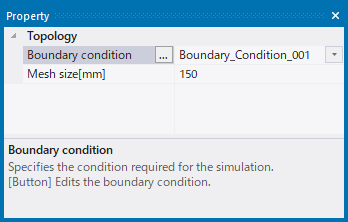
Properties of Topology
 |
Topology |
Topology |
The topology information of the selected topology is indicated.
[When a topology is selected] Its topology type and ID are indicated. [When multiple topologies are selected] (two or more selected) is indicated.
|
|
Boundary condition |
The boundary condition name can be edited.
[When multiple boundary conditions are set on a topology] All the boundary condition names are shown.
they need to have the same number of boundary conditions having the same names. Otherwise, nothing is shown.
For that, go through the [Boundary Condition] dialog box as explained on [How to Set the Boundary Condition].
[When a topology is selected] The boundary condition names are shown. [When multiple topologies are selected] The boundary condition name is shown if the selected topologies have the same boundary condition. Otherwise, nothing is shown.
|
||
|
Mesh size |
Specifies the mesh size of topology. The unit of analysis space is indicted in the header. |
||
|
Notes |
Bottom part of property window |
The selected property item is explained here. |
|