Home / Parametric Analysis / How to Proceed with the Parametric Analysis
How to Proceed with the Parametric Analysis
The procedure is explained below.
See [Parametric Analysis] for the overview.
-
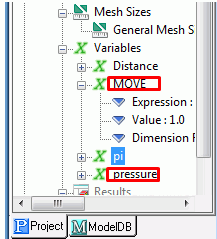
Define the variables.
Variables are defined on the Project Tree.
See How to use the variables on [Variables].
|
|
-
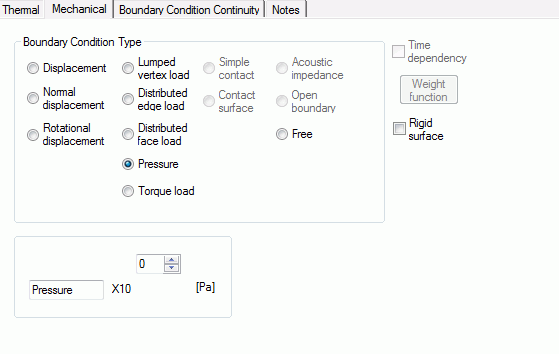
Apply the defined variables in the model or on the conditions.
Enter the variables names in each condition setting dialog box or in the dimensions.
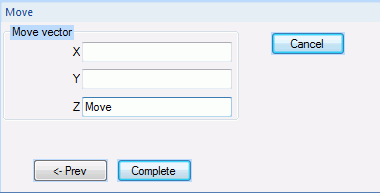
To change the dimensions of completed model from the fixed values to variables, use the history tree.
Type the values name instead of value in the history tree.
See [How to Edit History on History Tree] for the detail.
|
|
-
Activate the parametric analysis dialog
Once the modeling is done, go to  on the [Model] tab on the [Model] tab
and click ▼ at the bottom of [Run Mesher/Solver]  . Then click [Execute Parametric Analysis] . Then click [Execute Parametric Analysis]  . .
|
|
-
Set up the sweep conditions for the variables
Set how each variable to be swept.
Enter the sweep conditions on the [Sweep Setting] tab. Multiple conditions can be set up.
Confirm the conditions on the [Sweep Table] tab.
See [Sweep Setting] and [Sweep Table] for more information.
|

|
-
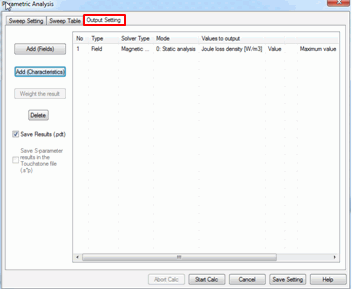
Set up the results to output
Set up the results to output on the [Output Setting] tab.
Multiple number of results can be set up.
See [Output Setting] for the detail.
|
|
-
Execute the calculation
Click the Start Calculation button.
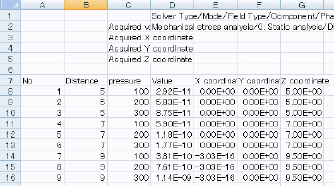
When the calculation is completed, the results will be output in a csv file as shown in the right.
-
Be aware that the calculation will continue even if there are errors for calculation or acquiring the results during the calculation.
|
|
-
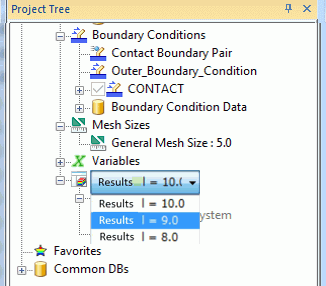
If [Save Results] is selected in the [Output Setting], the results can be displayed on the results window.
Double-click results on the project tree to open the results.
The results of each condition can be selected from the drop down list on the project tree.
|
|


