|
Home / How to Set Body Attribute, Material Property and Boundary Condition / Weight Function Setting
Weight Function Setting
"Time" setting is involved in the transient analysis and the multi-step analysis/multi-step thermal load analysis of the mechanical stress analysis.
Time dependency can be set for such parameters as load and temperature on Mechanical tab, Thermal tab and Electric tab of boundary condition, and Heat Quantity tab of body attribute.
It also can be set for power of incident wave on Electromagnetic-thermal analysis tab.
Select [Time dependency] on each tab and fill in the [Time-Weight] table or [Step-Weight] table.
Weight Function Setting
Click the [Table] button on the Transient Analysis tab, Step/ Thermal Load tab, or Step/Thermal Load tab (Thermal-Stress coupled). The Time/Step Table window will appear. Go to the Weight Function tab.
You can check the setting.
The table will also appear when pressing the [ON/OFF List] button on the Mechanical tab
You can change the number of digits of the Time-Weight table with the [Numeric Format] button.
By pressing [Graph] button, weight function graph will appear.
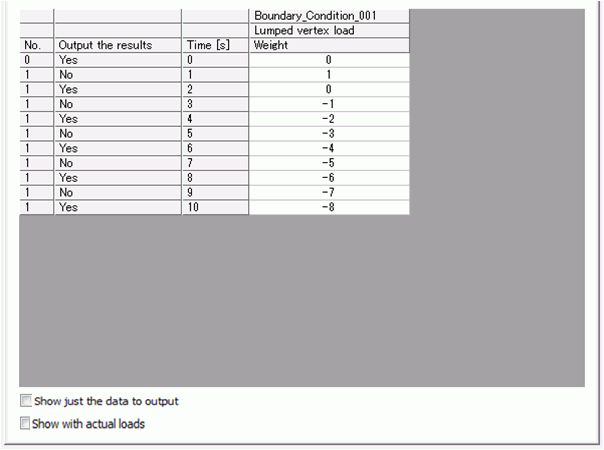

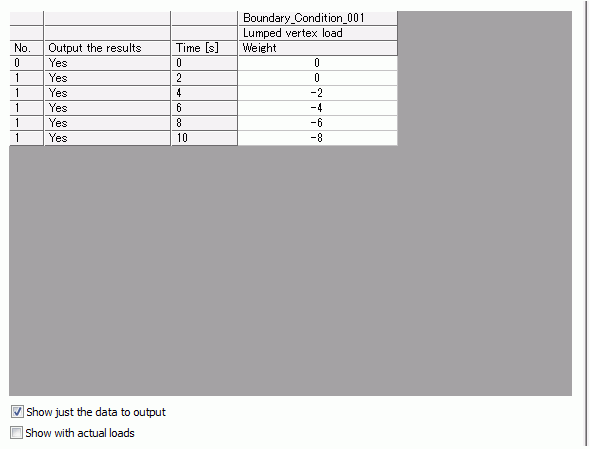
Select [Show just the data to output] if you prefer. The table will look like below.
In the transient analysis, the output data is set by "Output interval" of the Transient Analysis tab.
In the stress-static analysis, go to the Step/Thermal Load tab, Step/Thermal Load tab (Thermal-Sress coupled).
Select [Save the results of substeps].
The actual loading in the analysis is the weight x the load set in the boundary condition. The loads are temperature for the heat and voltage for the current.
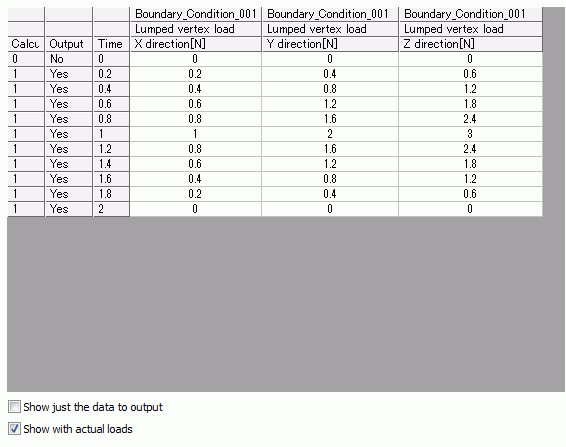
Select [Show with the actual loads] to see the actual loading.
The load vector is set in the Mechanical tab.
The example below shows the actual loading for the lumped vertex load of 1N in X, 2N in Y and 3N in Z with the weight set as in the table.
X, Y, and Z reach 1N, 2N, and 3N respectively in 1 second.