|
Home / Executing Simulation / Calculation Finished Dialog
Calculation Finished Dialog
This dialog box appears when the calculation has finished normally.
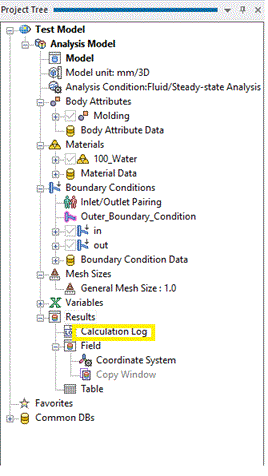
With the result displayed, this dialog box can be seen by double-clicking [Calculation Log] on the project tree.
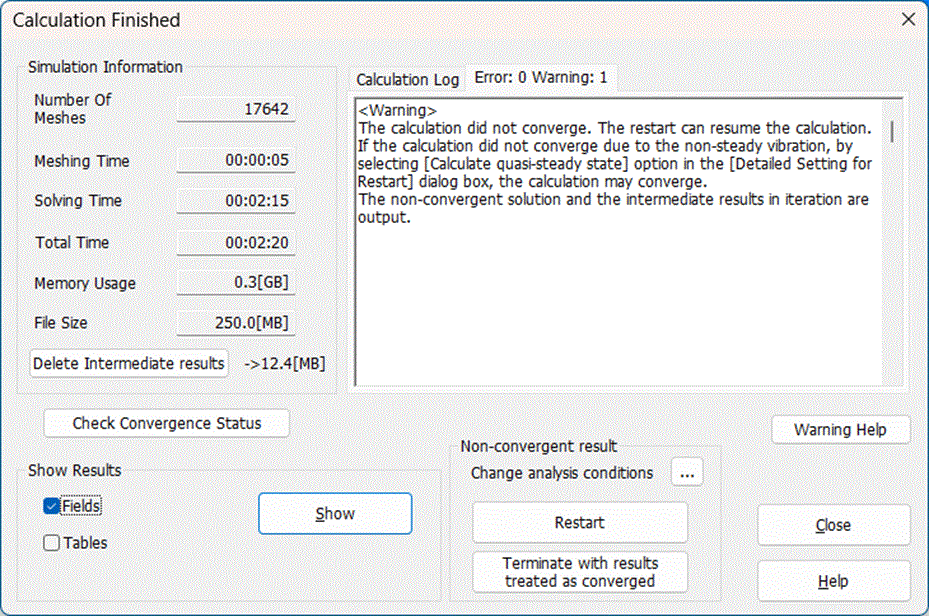
|
Item |
Sub-item |
Note |
|
Calculation Information |
Number of Meshes |
Displays the number of meshes used for calculations. |
|
Meshing Time |
Displays the time required for meshing. |
|
|
Solving Time |
Displays the time required for calculating. |
|
|
Total Time |
Displays the time required for meshing. |
|
|
Memory Usage |
Displays the memory used for calculations. |
|
|
File Size |
Displays the file size of the result file (file extension: pdt) |
|
|
[Delete intermediate results] button |
In fluid analysis or stress analysis, intermediate results are saved for analyzing the cause in case of non-convergence/divergence. When an intermediate result exists, the size of the result file can be too large for calculation. Clicking this button can delete the intermediate result and reduce the file size.
Note that the final results related to non-convergence or divergence will remain even if the intermediate results are deleted. |
|
|
Completion Message |
Calculation Log |
Displays the calculation log. |
|
Error/Warning |
If errors or warnings occur, displays messages. |
|
|
[Help for Warning] button |
If errors or warnings occur, opens the related help. |
|
|
[Check Convergence Status] button |
Shows convergence status and intermediate results. Refer to[Viewing Convergence and Intermediate Results]. |
|
|
[Adaptive Meshing Convergence Check] button |
Shows the convergence status of adaptive meshing. Refer to [Convergence of Adaptive Meshing]. |
|
|
Show results |
Field |
If selected, displays the field when the [Show] button is clicked. |
|
Table |
If selected, displays the table when the [Show] button is clicked. |
|
|
S/Y Parameters |
If selected, displays the S/Y parameters graph when the [Show] button is clicked |
|
|
[Show] button |
Displays the analysis results according to check box statuses. |
|
|
Non-convergent Result (Fluid Steady-state) |
[Change analysis condition] button |
Before restarting, analysis conditions can be changed. (Example: Convergence judgment, Number of iterations, Relaxing factors in fluid analysis, Suspension step in stress analysis) |
|
[Restart] button |
Automatically turn on the restart flag in the analysis conditions, and performs the restart analysis.
For transient analysis, selects [Continue from the last session] in the [Transient Analysis] tab. For fluid/fluid-thermal analysis, selects [Use the last analysis results] in the [Fluid] tab or [Fluid-Thermal Analysis] tab. For multiple steps/multi-step thermal load analysis in stress solver, selects [Step/Thermal Load] tab > Options for Restart/Suspend > [Continue from the last session].
If [Calculation Finished] dialog is opened from [Calculation Log] on the project tree, this button is not displayable. To restart an analysis, manually turn on the restart flag in the analysis conditions, then perform the analysis following the normal procedure. Refer to [Executing Simulation].
|
|
|
[Terminate with results treated as converged] button |
Displayed when the calculations fail to converge in the steady-state analysis by the fluid solver.
Clicking the button treats the calculation as converged, deleting all intermediate results saved in case of non-convergence. Although the result label indicates [non-convergence], the result can be checked as a converged result.
|
|