We create two boxes for dielectric materials and a box for air domain.
-
On the [Model] tab, go to 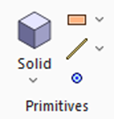 , click [Solid], and select [ [Specify Length]] , click [Solid], and select [ [Specify Length]]  at the submenu. at the submenu.
|
|
|
-
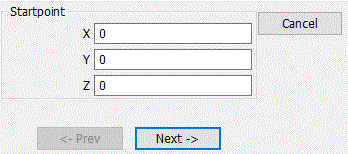
Designate the startpoint., enter Startpoint (X: 0, Y: 0, Z: 0) and click  . .
-
Tips on the parameter input dialog box
If the input value is nil, you don't need to enter 0 in the entry field. The blank is acceptable.
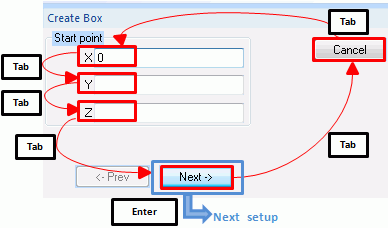
Press the <Tab> key to hop around the items in the dialog box.
Press the <Enter> key on to proceed to the next setting.
|
|
|
-
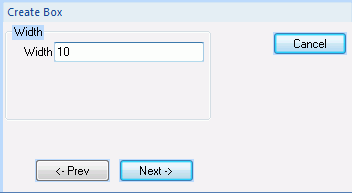
Set the width.
Enter Width: 10 and click .
|
|
|
-
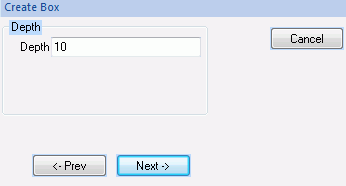
Set the depth.
Enter Depth: 10 and click .
|
|
-
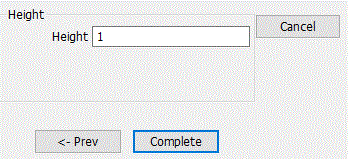
Set the height.
Enter Height: 1 and click  . .
|
|
|
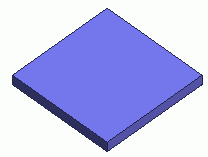
A box for the dielectric material has been created.
|
|
-
Create another box.
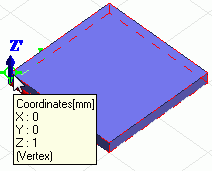
This time, we try the mouse pointer method on the .
Rest the mouse pointer on Startpoint (X: 0, Y: 0, Z: 1) in the modeling window and click it.
|
|
-
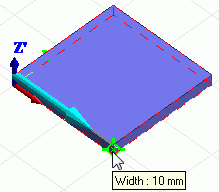
Set the width.
Move the pointer to Width: 10 and click it.
|
|
-
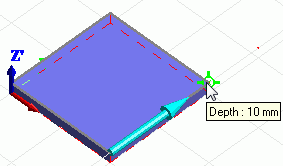
Set the depth.
Move the pointer to Depth: 10 and click it.
|
|
-
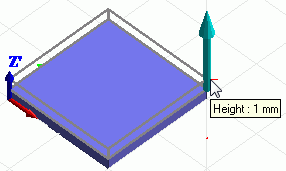
Set the height.
Move the pointer to Height: 1 and click it.
|
|
|
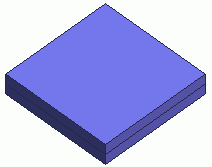
Two boxes for the dielectric material have been created. |
|
-
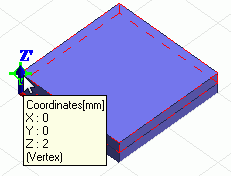
Let's create a box for the air domain, next.
Rest the mouse pointer on Startpoint (X: 0, Y: 0, Z: 2) on the modeling window and click it.
|
|
-
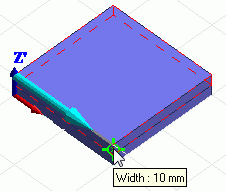
Set the width.
Move the pointer to Width: 10 and click it.
|
|
-
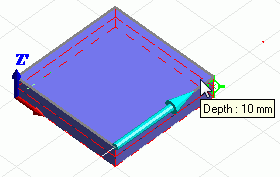
Set the depth.
Move the pointer to Depth: 10 and click it.
|
|
-
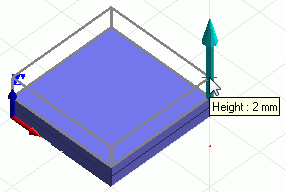
Set the height.
Move the pointer to Height: 2 and click it .
|
|
-
Click  in the parameter input dialog box and exit. in the parameter input dialog box and exit.
-
It is also possible to exit with the <Esc> key.
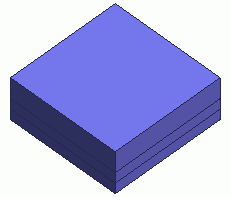
We now have 3 boxes.
|
|
-
You can undo or redo the operation. The operations can be changed as follows;
On the [Model] tab, go to
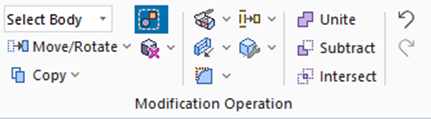
and click [Undo] to undo the modeling or attribute operation. to undo the modeling or attribute operation.
and click [Redo]  to redo the modeling or attribute operation. to redo the modeling or attribute operation.
|
|



 .
. Prev Next