Home / Tutorial / Stress Analysis (Galileo) / 09.Set the Boundary Conditions
09.Set the Boundary Conditions
Set the boundary conditions.
The boundary condition is required to be set on a part of the body (topology).
It varies depending on the analysis.
The boundary conditions are distinguished by name. It is not allowed to assign the same name to the different boundary conditions
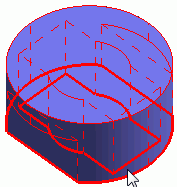
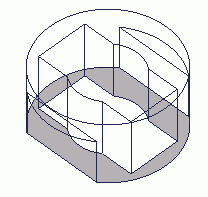
In this session, the case bottom is fixed (Fix) and the case top is pressurized from inside (Pressure).
Procedure
-
On the [Model] tab, go to
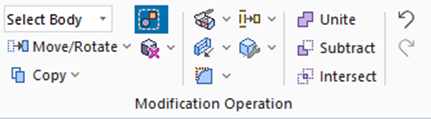 , ,
and select [Select Face] on the drop-down list at  . .
-
How to Switch the Object to Select
-
Concept of Body and Topology
|
|
-
Highlight the bottom face of the case and click to select.
|
|
-
On the [Attribute] context tab
 , ,
click [Boundary Condition]  . .
|
|
-
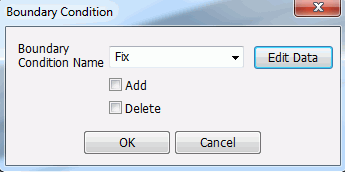
In the [Boundary Condition] dialog box,
enter Boundary Condition Name: Fix
and click  . .
-
Any name is acceptable.
|
|
-
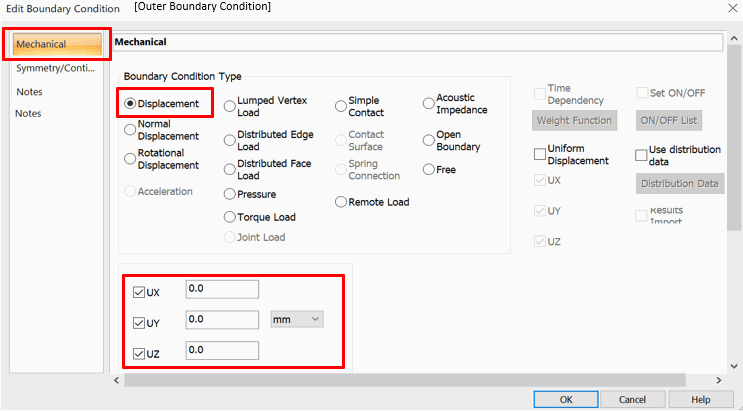
Fix the displacement in all X/Y/Z directions in the [Edit Boundary Condition] dialog box.
Select Boundary Condition Type: Displacement
Select UX, UY, UZ, and confirm that
UX:0, UY:0, UZ:0[mm] are entered
and click  . .
Then click to exit the [Boundary Condition] dialog box.
-
To fix the displacement, set the Boundary Condition Type: Displacement,
and enter 0 in the direction of no displacement.
|
|
-
Then, highlight the inner face of the case top and click to select.
|
|
-
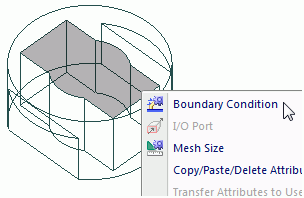
Try the right-click menu this time.
While selecting the inner face of the case top, right-click the mouse.
On the right click menu, select [Boundary Condition].
|
|
-
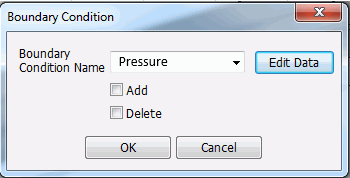
In the [Boundary Condition] dialog box,
enter Boundary Condition Name: Pressure
and click .
-
Any name is acceptable.
|
|
-
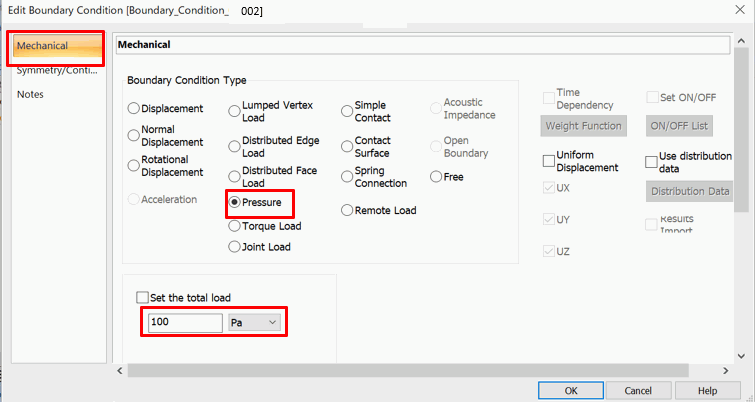
In the [Edit Boundary Condition] dialog box, set up the condition to pressurize the inner face of the case top as follows:
Boundary Condition Type: Pressure 100 [Pa]
and click .
Then click to exit the [Boundary Condition] dialog box.
|
|



 Prev Next