Home / Tutorial / Stress Analysis (Galileo) / 06.Complete the Case
06.Complete the Case
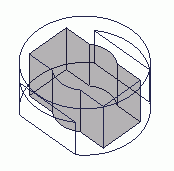
The inner frame is subtracted from the outer frame.
Procedure
-
On the [Model] tab, go to
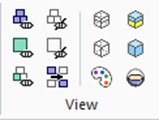
and click [Show All]  . .
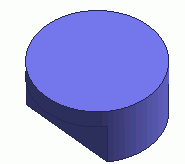
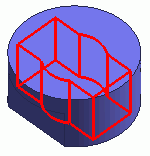
The outer case frame, which was hidden in the previous session, will show up.
|
|
-
On the [Model] tab, go to
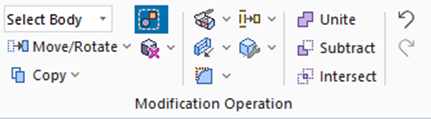
and click [Subtract (Boolean)]  . .
Alternatively, while the bodies are being selected, right-click the mouse and click [Boolean] - [Subtract].
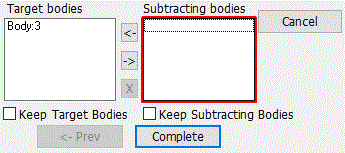
The [Subtract (Boolean)] dialog box will appear.
|
|
-
Highlight the outer case frame and click to select.
|
|
-
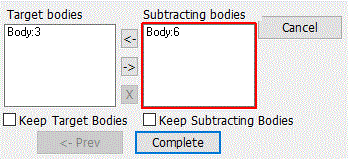
In the [Subtract (Boolean)] dialog box, click and activate the list box for [Subtracting Bodies] .
|
|
-
Then, select the inner case frame.
Rest the mouse pointer on the inner case frame, and press the <Space> key.
The inner case frame will be highlighted.
Click the mouse.
|
|
-
Click  in the [Subtract (Boolean)] dialog box to exit. in the [Subtract (Boolean)] dialog box to exit.
|
|
-
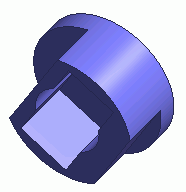
 Go to the [Viewpoint Operation] tool panel Go to the [Viewpoint Operation] tool panel
and click  , and move the mouse left or right, or up or down while pressing the left-click button. , and move the mouse left or right, or up or down while pressing the left-click button.
You can have a better view of the model shape.
-
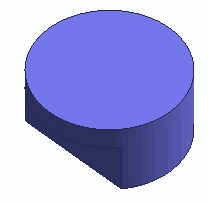
On the command group above, click [Isometric View]  . .
Then, we go back to the original view.
|
|
|
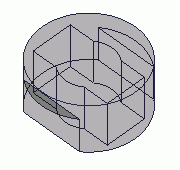
The case is completed.
|
|


 Prev Next