Home / Tutorial / Magnetic Analysis (Gauss, Static Analysis) / 06.Set the Body Attributes and the Material Properties
06.Set the Body Attributes and the Material Properties
We assign names to the body attributes and the material properties. Various parameters associated with them will be set up here, too.
The body attribute is required to be set on each body. Various specific data, such as the thickness in the 2D analysis, the width of the wire element, the coordinates for anisotropic material, can be set on the body attribute.
Body attribute is distinguished by its name. Therefore it is not allowed to assign the same name to the different body attributes.
Material property constitutes the body. The material data might vary depending on the simulation you try.
Material property is distinguished by its name. Therefore it is not allowed to assign the same name to the different material data.
Procedure
-
Assign a name to the coil
Highlight the body of the coil and click to select.
|
|
-
On the [Attribute] context tab
 , ,
click [Body Attribute/Material Property]  . .
|
|
-
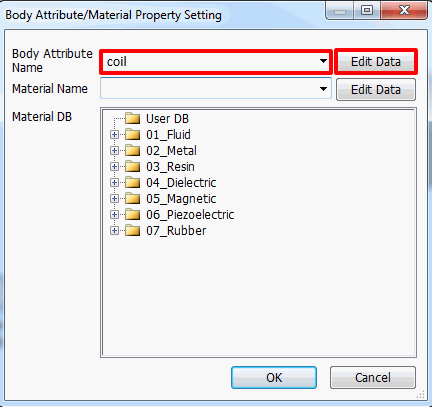
In the [Body Attribute/Material Property Setting] dialog box,
enter Body Attribute Name: coil and click  . .
-
Any name is acceptable.
|
|
-
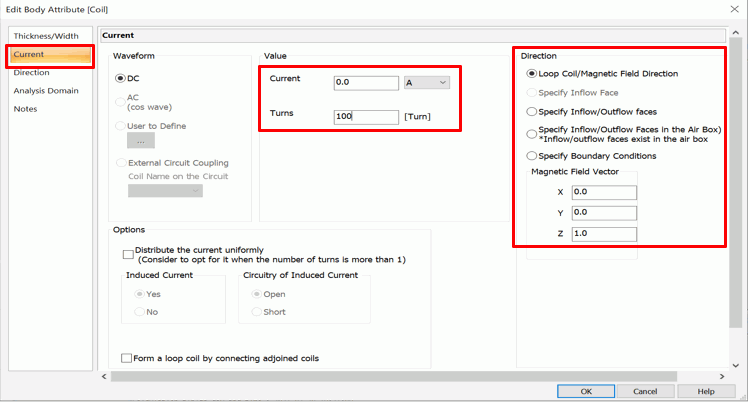
In the [Edit Body Attribute [coil] dialog box, go to the [Current] tab. Enter the following and then click  . .
Current: 1[A]
Turns: 100
Direction: Loop Coil/Magnetic Field Direction
Magnetic Direction Vector: X: 0, Y: 0, Z :1
-
When the turns are set, the current will be processed as "(current value) x (turns)" for the analysis.
The model with specified turns (bulk coil) will be effective for the coil with high number of turns (100 turns, 1000 turns).
-
If you want to take into account the effect of induced current such as current bias of each coil,
do not select turns in the harmonic analysis and create a coil shape of spiral as in Example 11
-
In the case of the coil which is not loop coil with faces, select the inflow/outflow face in the modeling window.
Refer to the "Current Tab" for more information.
|
|
-
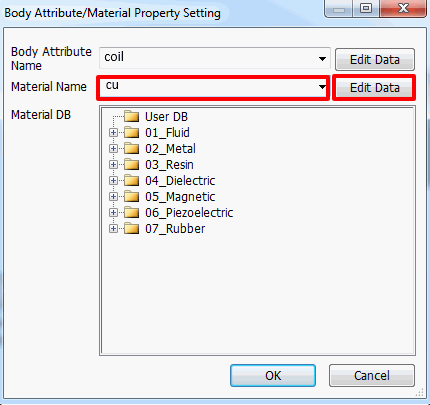
In the [Body Attribute/Material Property Setting] dialog box,
enter Material Name: cu and click  . .
-
Any name is acceptable.
|
|
-
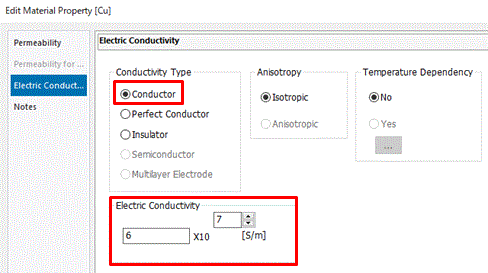
In the [Edit Material Property [cu]] dialog box, select [Electric Conductivity]tab and enter
Conductivity Type: Conductor
Conductivity: 6×10⁷
and click
Then click in the [Body Attribute/Material Property Setting] dialog box and exit.
-
Material DB (Database) is readily available in Femtet for standard materials such as iron, copper etc.
See [Material DB] on the Project Tree for the detail.
|
|
-
Assign a name to the core.
Highlight the core and click to select.
-
-
Space Key Method
Rest the mouse pointer on the overlapping area, and press the <Space> key.
Body selection will change. The left-click will fix the selection.
-
List Selection Method
Rest the mouse pointer on the overlapping area, and press the <Tab> key.
The body selection list will appear. Select the body of your interest and left-click to fix the selection.
For more information,
see How to Select Bodies and Topologies
where you will find [Clicking the Mouse] and [List Selection Method].
|
|
-
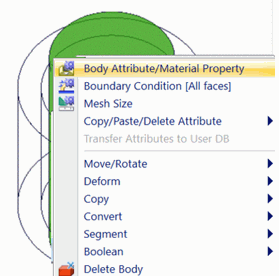
Try the right-click menu this time.
Select the core and right-click the mouse.
On the right-click menu, click [Body Attribute/Material Property].
|
|
-
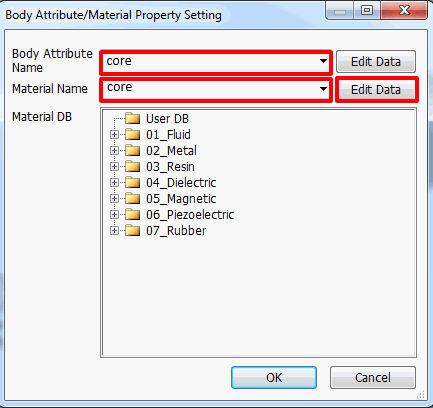
In the [Body Attribute/Material Property Setting] dialog box, enter
Body Attribute Name: core
Material Name: core and click .
-
In this example, no data editing is required for the body attribute, as the default values are acceptable.
|
|
-
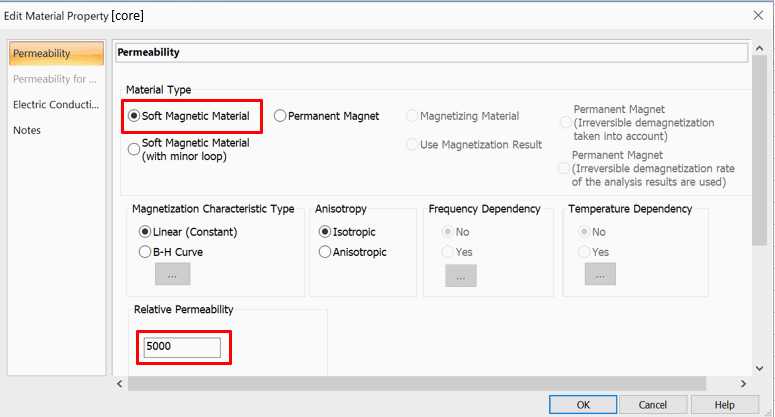
In the [Edit Material Property [core]] dialog box, select [Permeability]tab and enter as follows.
Material Type: Soft Magnetic Material
Relative Permeability: 5000
Click
Then click in the [Body Attribute/Material Property Setting] dialog box and exit.
-
When the Linear(Constant) is selected in the Magnetization Characteristic Type, magnetic saturation is not taken into account.
If magnetic saturation or B-H curve needs to be taken into account, switch the Magnetization Characteristic Type to B-H Curve and enter the B-H curve data.
In this case, however, calculation will take longer time as this is a nonlinear calculation.
-
If the magnetization characteristic is defined by B-H curve or M-H curve, calculation is nonlinear. Nonlinear calculation may not converge.
In such case, refer to [If the Nonlinear Calculation (B-H Curve) Does Not Converge]
|
|
|
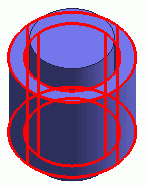
The body attributes and the material properties have been set. |
|



 Prev Next