Home / Tutorial / Magnetic Analysis (Gauss, Static Analysis) / 08.View the Results
08.View the Results
The calculation results are available in various formats.
Let's see the field vectors, and some graphs and charts.
Procedure
-
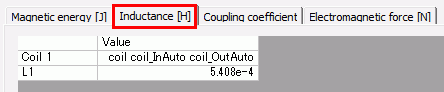
Check the calculated values.
Open the Inductance tab of the table and you can see the coil inductance.
|
|
-
Let's see the vectors of magnetic flux density.
On the [Results] tab, go to

. The initial setting of the field  is [Magnetic flux density]. is [Magnetic flux density].
Click [Element Vector]  . .
The vector diagram of magnetic flux density will show up.
|
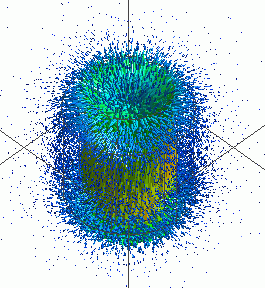
The Vectors of Magnetic Flux Density
|
|
-
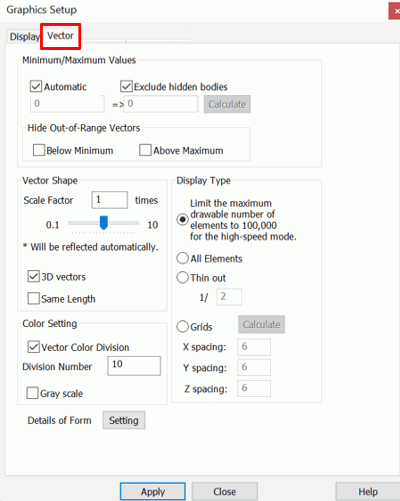
To modify the shape of vectors,
on the [Results] tab, go to

and click [Graphics Setup]  . .
In the [Graphics Setup] dialog box,
select the [Vector] tab,
and modify the magnitude and the shape of vectors.
The Vector tab is explained here
|
|
-
Let's see the vectors of electric current.
With [Element Vector] activated,
go to the [Results] tab
and select [Current density] on the drop-down list at Field .
The vector diagram of current will show up.
-
The vector diagrams visualizes the magnitudes and the directions of the magnetic flux density and the electric current.
|
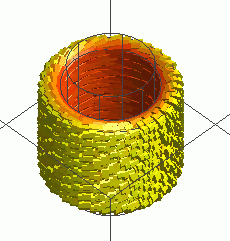
The Vectors of Electric Current |
-
The contour and vector values of a particular point can be obtained
by specifying the coordinates.
On the [Results] tab, go to
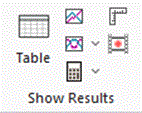 , ,
and click [Results at Specified Coordinates]  . .
|
|
|
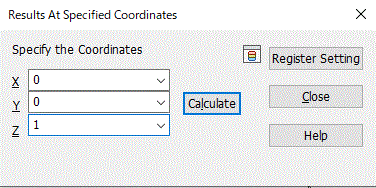
The [Results at Specified Coordinates] dialog box will show up.
Enter the coordinates of your interest and click the [Calculate] button.
Results at specified coordinates are explained here
|
|
|
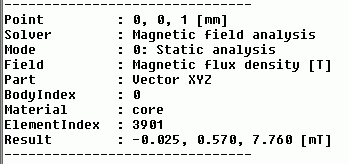
The contour and vector values for the currently chosen field will be shown on Output Window. |
|


 at
at  Prev Next