Home / Tutorial / Electromagnetic Analysis (3D Harmonic Analysis) (Hertz) / 07.Set the Body Attributes and the Material Properties
07.Set the Body Attributes and the Material Properties
We assign names to the body attributes and the material properties. Various parameters associated with them will be set up here, too.
The body attribute is required to be set on each body. Various specific data, such as the thickness in the 2D analysis, the width of the wire element, the coordinates for anisotropic material, can be set on the body attribute.
Body attribute is distinguished by its name. Therefore it is not allowed to assign the same name to the different body attributes.
Material property constitutes the body. The material data might vary depending on the simulation you try.
Material property is distinguished by its name. Therefore it is not allowed to assign the same name to the different material data.
Procedure
-
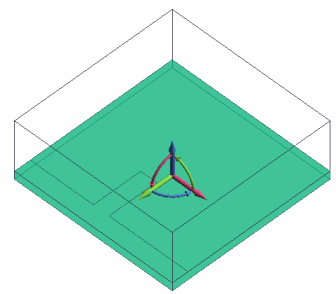
Assign a name to the substrate.
Highlight the substrate and click to select.
|
|
-
On the [Attribute] context tab
 , ,
click [Body Attribute/Material Property]  . .
|
|
-
In the [Body Attribute/Material Property Setting] dialog box
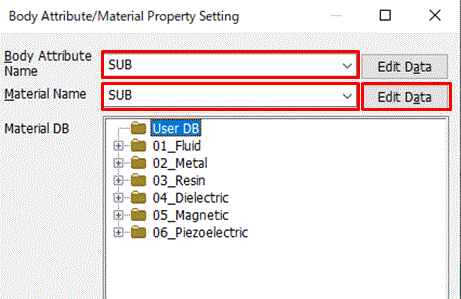
enter Body Attribute Name: SUB, and
Material Name: SUB and click  . .
-
Any name is acceptable.
-
In this example, no data editing is required for the body attribute, as the default values are acceptable.
|
|
-
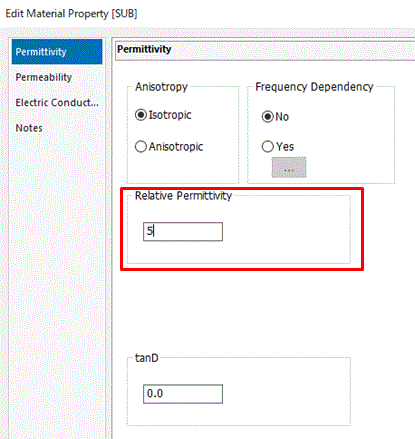
In the [Edit Material Property [SUB]] dialog box,
enter Relative Permittivity: 5
and click  . .
Then click in the [Body Attribute/Material Property Setting] dialog box and exit.
-
Material DB (Database) is readily available in Femtet for standard materials such as iron, copper etc.
See [Material DB] on the Project Tree for the detail.
|
|
-
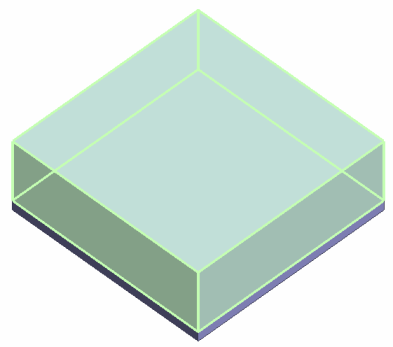
Assign a name to the air domain.
Highlight the air domain and click to select.
|
|
-
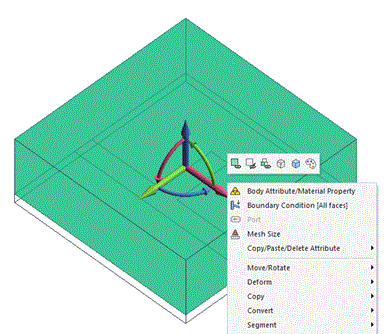
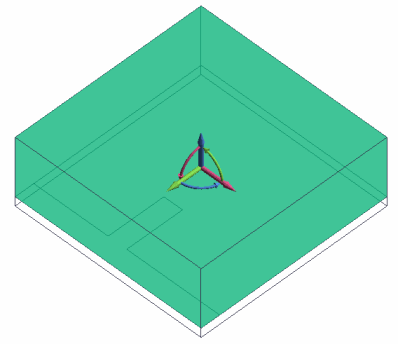
Try the [Right-Click] menu this time.
Select the air domain (box) and right-click the mouse.
On the [Right-Click] menu, click [Body Attribute/Material Property].
|
|
-
In the [Body Attribute/Material Property Setting] dialog box,
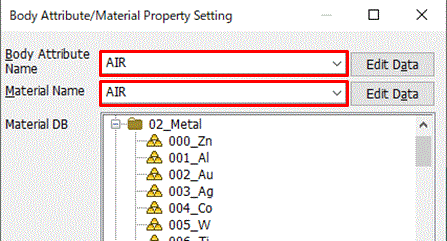
enter Body Attribute Name: AIR
Material Name: AIR and click .
The [Edit Material Property [000_Air]] dialog box will show up. Without setting, click to exit.
-
Any name is acceptable.
-
In this example, no data editing is required, as the default values are acceptable.
|
|
-
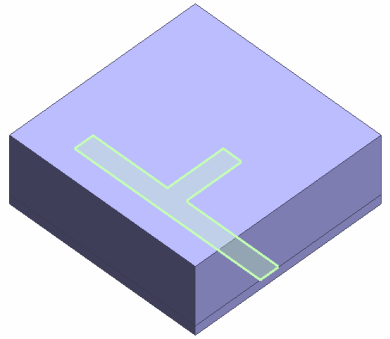
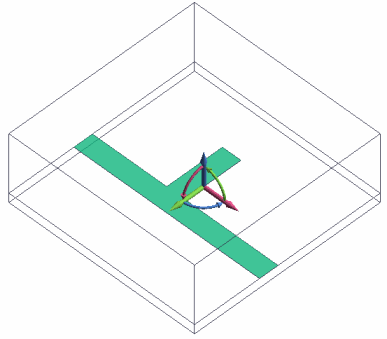
Assign a name to the stub electrode.
Highlight the electrode and click to select.
|
|
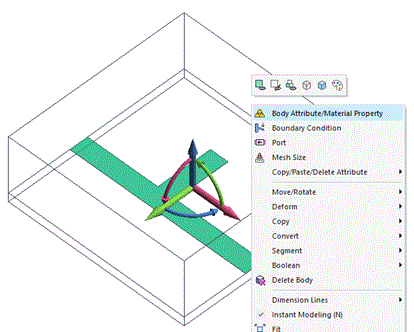
-
On the [Right-Click] menu, click [Body Attribute/Material Property]
|
|
-
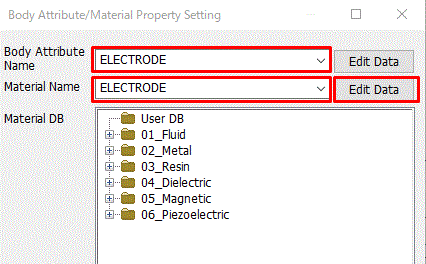
In the [Body Attribute/Material Property Setting] dialog box,
enter Body Attribute Name: ELECTRODE
Material Name: ELECTRODE and click .
-
Any name is acceptable.
-
In this example, no data editing is required for the body attribute, as the default values are acceptable.
You may give the thickness to the electrodes in the body attribute though the thickness setting does not affect the simulation.
(Related information: Analysis Condition, Electromagnetic Analysis tab, and "Take thickness of face/edge electrode into account")
|
|
-
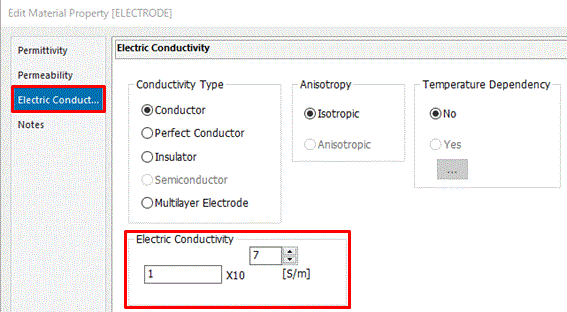
In the Edit Material Property [ELECTRODE] dialog box,
go to the [Conductivity]tab,
select Conductor,
enter Conductivity: 1x10⁷[S/m],
and click .
Then click in the [Body Attribute/Material Property Setting] dialog box and exit.
|
|
|
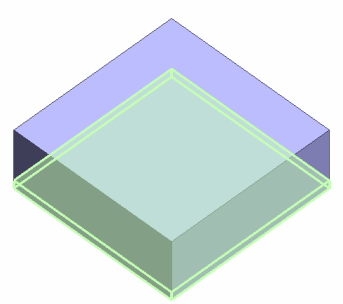
The body attributes and the material properties have been set.
|
|



 Prev Next