Home / Tutorial / Acoustic Analysis (Mach) / 05.Set the Boundary Conditions
05.Set the Boundary Conditions
Set the boundary conditions.
The boundary condition is required to be set on a part of the body (topology).
It varies depending on the analysis.
The boundary conditions are distinguished by name. It is not allowed to assign the same name to the different boundary conditions
Procedure
-
On the [Model] tab, go to
 , ,
and select [Select Face] on the drop-down list at  . .
-
How to Switch the Object to Select
-
Concept of Body and Topology
|
|
-
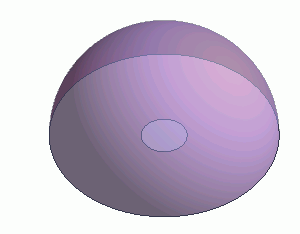
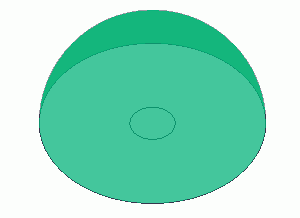
Let's set the Open Boundary on the air surface.
Highlight the surface and click to select.
|
|
-
On the [Attribute] context tab
 , ,
click [Boundary Condition]  . .
|
|
-
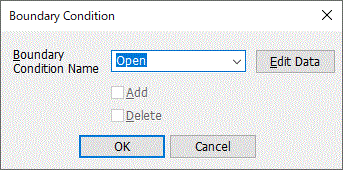
In the [Boundary Condition] dialog box,
enter Boundary Condition Name: Open
and click  . .
-
Any name is acceptable.
|
|
-
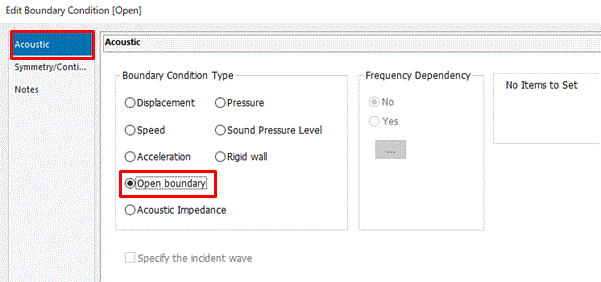
In the [Edit Boundary Condition] dialog box,
go to the [Acoustic] tab.
Select Open Boundary ,
and click  . .
Then click to exit the [Boundary Condition] dialog box.
|
|
-
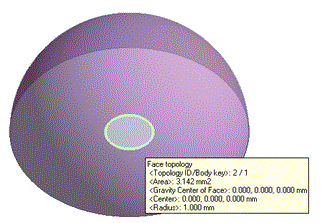
Let's set the boundary condition on the sound source: V
Highlight the face:V and click to select.
-
To select a particular body out of several overlapping bodies, try the following methods:
-
Space Key Method
Rest the mouse pointer on the overlapping area, and press the <Space> key.
Body selection will change. The left-click will fix the selection.
-
List Selection Method
Rest the mouse pointer on the overlapping area, and press the <Tab> key.
The body selection list will appear. Select the body of your interest and left-click to fix the selection.
For more information, see How to Select Bodies and Topologies where you will find "Clicking the Mouse" and "List Selection Method".
|
|
-
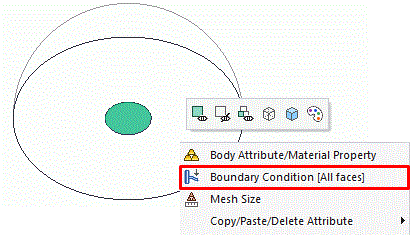
On the right-click menu, click [Boundary Condition].
|
|
-
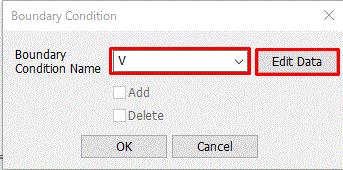
In the [Boundary Condition] dialog box,
enter Boundary Condition Name: V
and click .
-
Any name is acceptable.
|
|
-
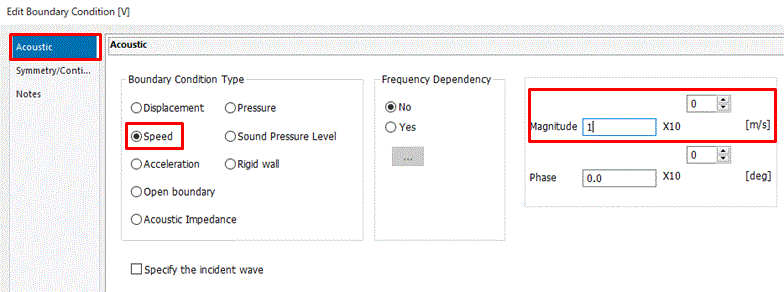
In the [Edit Boundary Condition [V]] dialog box,
go to the [Acoustic] tab,
select Speed at Boundary Condition Type,
enter 1[m/s]
and click .
Then click to exit the [Boundary Condition] dialog box.
|
|
|
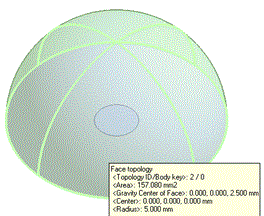
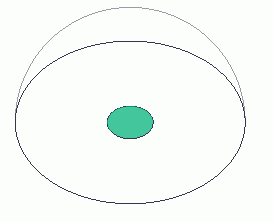
The boundary conditions have been set.
|
|



 Prev
Prev