Home / Tutorial / Acoustic Analysis (Mach) / 06.Run the Mesher and the Solver
06.Run the Mesher and the Solver
Run the solver.
Procedure
-
Set the mesh size.
On the [Model] tab, go to 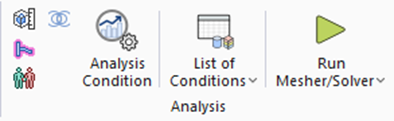 , ,
and click [Analysis Condition]  . .
The [Analysis Condition Setting] dialog box will show up.
|
|
-
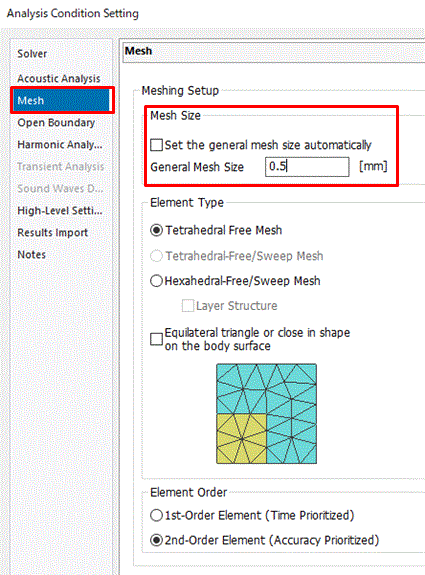
Click the [Mesh] tab.
set the [General mesh size] to 0.5
and click 
-
The calculation accuracy varies depending on the mesh size and other settings.
Details are described at [How to Optimize the Simulation Accuracy].
-
General Mesh Size Setting
In acoustic analysis, when 2nd-order elements are used, it is recommended to use the general mesh size that can divide one wavelength into 6 or more elements. If it is not possible, the number of divisions should be at least three. Calculate respective mesh sizes for minimum frequency and maximum frequency in this analysis.
52.7 [Hz]: Wavelength = 6.45 [m] Wavelength/6 = 1.08 [m] Wavelength/3 = 2.15 [m]
263.5 [Hz]: Wavelength = 1.29 [m] Wavelength/6 = 0.21 [m] Wavelength/3 = 0.43 [m]
Therefore, the desirable general mesh size is 0.21 or less. In the tutorial described above, however, the general mesh size is set to 0.5. In the analysis at 263.5 Hz, the setting is time prioritized and not accuracy prioritized. In the analysis at 52.7 Hz, the setting satisfies the condition that the general mesh size should be less than or equal to one-sixth the wavelength,
with no problem.
The unit of general mesh size is the model unit.
|
|
-
On the [Model] tab, go to
and click [Run Mesher/Solver]  . .
The calculation will start.
|
|
-
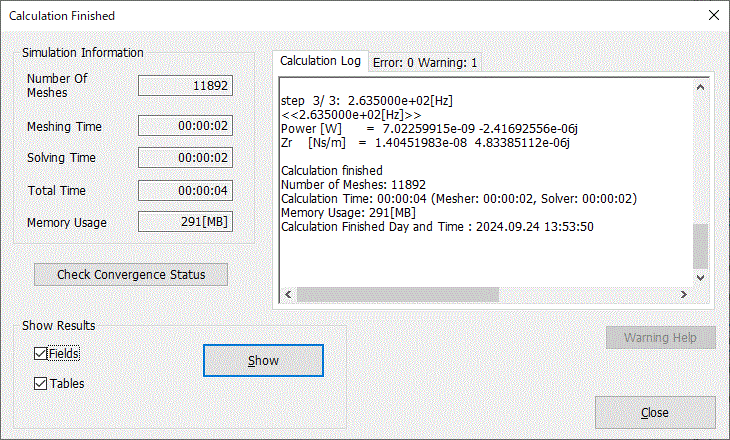
The [Calculation Finished] dialog box will show up when the calculation finishes.
Select both [Field] and [Table]
and click  . .
|
|
|
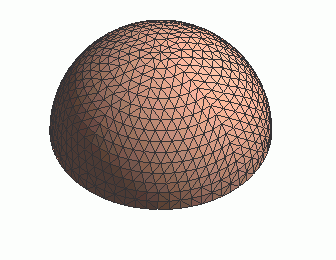
The screen will change to Results Window, and the meshing result will show up.
The table will also show up.
|
|


 Prev Next