A hemisphere is created.
-
On the [Model] tab, go to 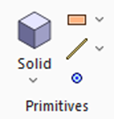 ,and click [] ,and click []  . .
|
|
|
-
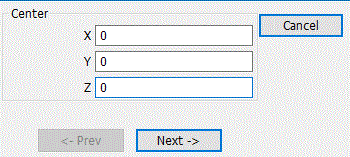
Designate the center., enter Center (X: 0, Y: 0, Z: 0) and click  . .
-
Tips on the parameter input dialog box
If the input value is nil, you don't need to enter 0 in the entry field. The blank is acceptable.
Press the <Tab> key to hop around the items in the dialog box.
Press the <Enter> key on to proceed to the next setting.
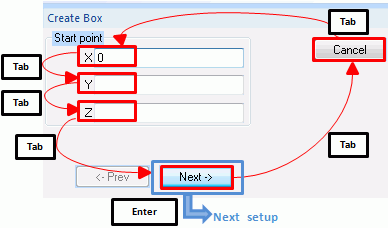
|
|
|
-
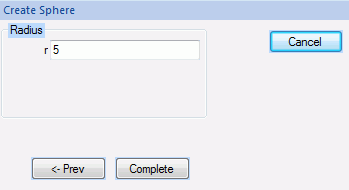
Set the radius
Enter Radius: 5 and click  . .
|
|
-
Click  in the parameter input dialog box and exit. in the parameter input dialog box and exit.
A sphere has been created.
-
To zoom in or out for easy viewing, go to the [Viewpoint Operation] tool panel

click [Zoom]  , then swing the mouse right or left while pressing the left-click button. , then swing the mouse right or left while pressing the left-click button.
The view size will change.
For the details, see [Viewpoint Operation].
|
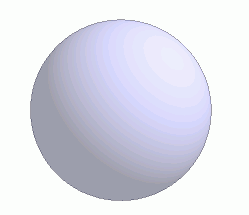
|
-
Cut the sphere.
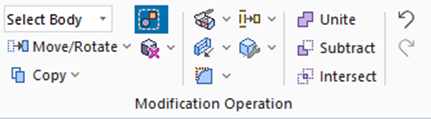
Click [Cut]  . .
|
|
-
Select the sphere created at 4 on the .
|
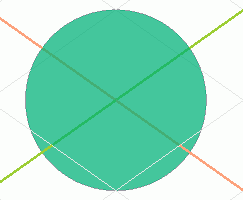
|
-
Click in the parameter input dialog box.
|
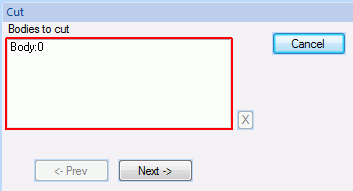
|
-
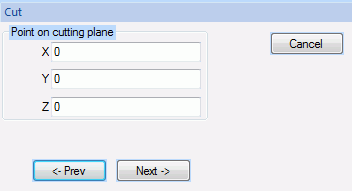
Enter Point on cutting plane (X: 0, Y: 0, Z: 0) and click .
|
|
-
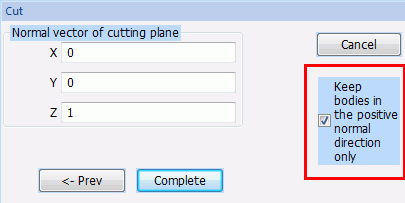
Enter Normal Vector of Cutting Plane (X: 0, Y: 0, Z: 1) and click .
-
|
|
-
Click in the parameter input dialog box and exit.
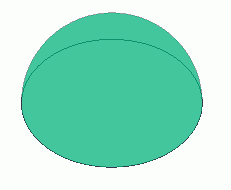
A hemisphere has been created. |
|
-
Draw a circle at the bottom center, next.
We select at Primitives as explained below
On the [Model] tab, go to and click ▼ at the side of [Sheet Body]  . .
Click [Circle]  on the submenu. on the submenu.
|
|
-
Designate the center.
In the parameter input dialog box, enter Center (X: 0, Y: 0, Z: 0) and click .
|
|
-
Set the radius.
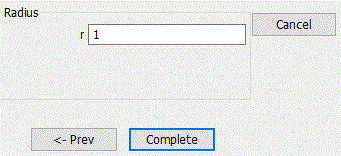
Enter Radius: 1 and click .
|
|
-
Click in the parameter input dialog box and exit.
|
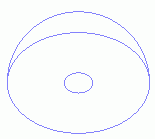
* Shown by wireframe |
|
The model has been completed. |
|
-
You can undo or redo the operation. The operations can be changed as follows;
In the
click [Undo]  to undo the modeling or attribute operation. to undo the modeling or attribute operation.
click [Redo]  to redo the modeling or attribute operation. to redo the modeling or attribute operation.
|
|


 Prev Next