Home / Tutorial / Fluid Analysis_2 (Bernoulli, Diffusion Analysis: Automatic Internal Fluid Creation) / 02. Create the Two Pipe Models
02. Create the two pipe models
Create two pipe models that form a T-shaped pipe: one oriented vertically and the other horizontally.
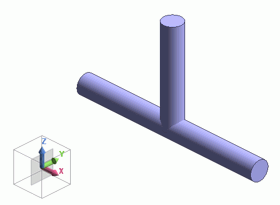
Procedure
-
To create a pipe oriented vertically,
on the [Model] tab, go to 
and click [Solid] - [Cylinder (Solid body)]  . .
|
|
|
-
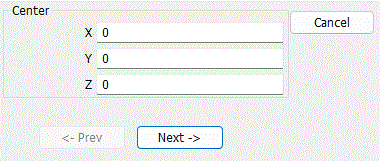
Designate the center., enter Startpoint (X: 0, Y: 0, Z: 0) and click  . .
-
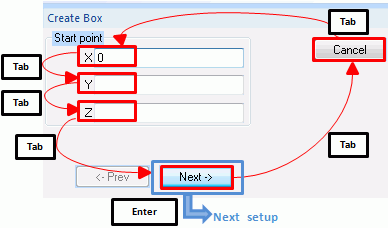
Tips on the parameter input dialog box
If the input value is nil, you don't need to enter 0 in the entry field. The blank is acceptable.
Press the <Tab> key to hop around the items in the dialog box.
Press the <Enter> key on to proceed to the next setting.
|
|
|
-
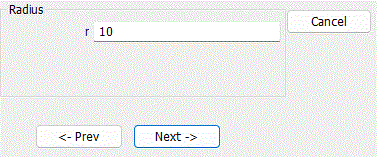
Set the radius
In the parameter input dialog box, enter Radius: 10 and click .
|
|
|
-
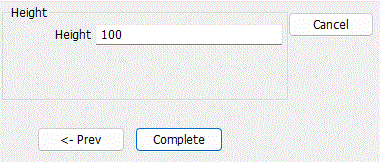
Set the height.
Enter Height: 100 and click  . .
|
|
-
Click  in the parameter dialog box and exit. in the parameter dialog box and exit.
-
It is also possible to exit with the <Esc> key.
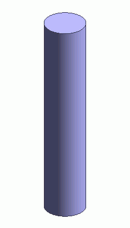
The pipe oriented vertically has been created.
-
To fit the model on the modeling window, go to the [Model] tab,
and click [Fit]  on on  . .
See [Viewpoint Operation] for the details.
|
|
-
To create a pipe oriented horizontally, switch drawing plane to YZ plane.
On the [Model] tab, go to  and click ▼ at the bottom of and click ▼ at the bottom of  . Click [YZ Plane] . Click [YZ Plane]  on the submenu. on the submenu.
|
|
-
Create a horizontal pipe, next.
On the [Model] tab, go to and click [Solid] - [Cylinder (Solid body)] .
|
|
-
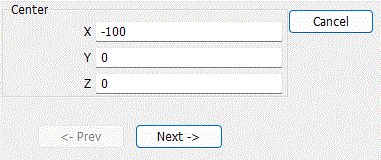
Designate the center.
In the parameter input dialog box, enter Startpoint (X:-100, Y:0, Z:0) and click .
|
|
-
Set the radius
In the parameter input dialog box, enter Radius: 10 and click .
|
|
-
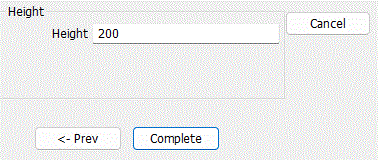
Set the height.
Enter Height: 200 and click .
|
|
- Click in the parameter dialog box and exit.
The pipe oriented horizontally has been created.
|
|
-
You can undo or redo the operation. The operations can be changed as follows;
In the 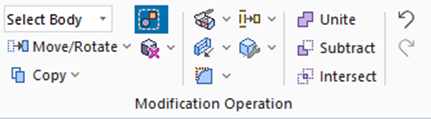
click [Undo]  to undo the modeling or attribute operation. to undo the modeling or attribute operation.
click [Redo]  to redo the modeling or attribute operation. to redo the modeling or attribute operation.
|
|


 Prev Next